How to add a new announcement?
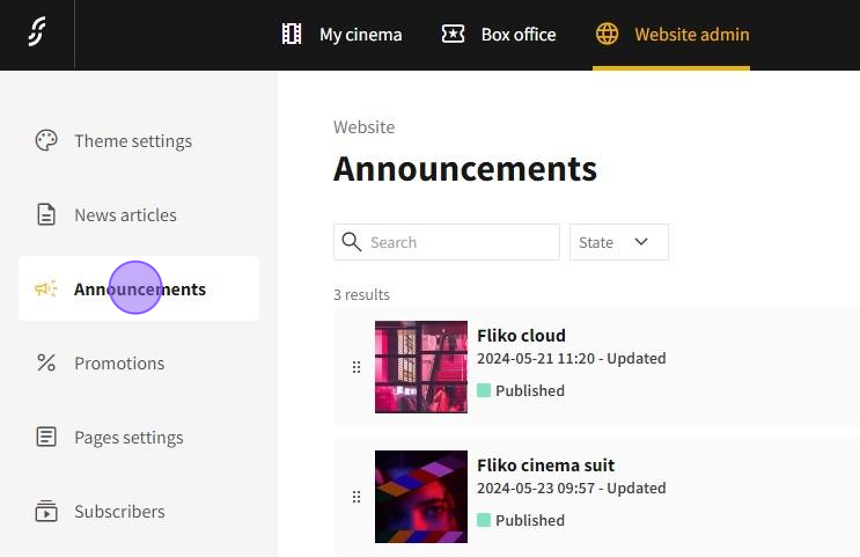
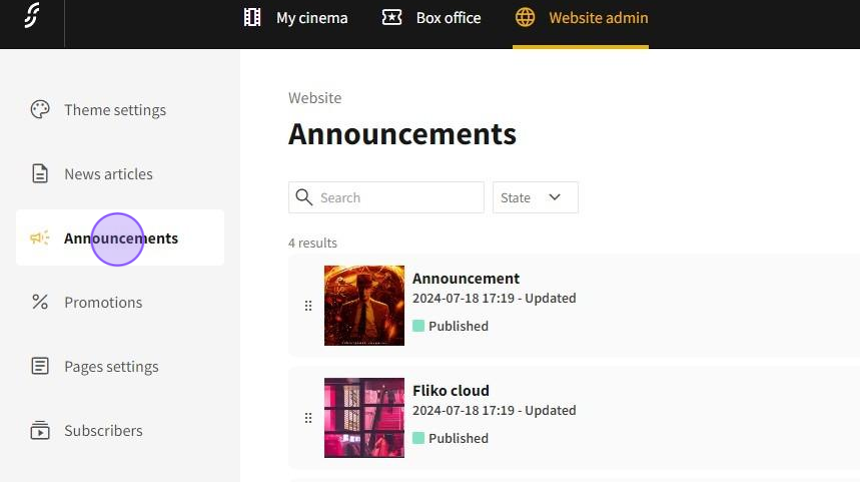
1.Go to Website admin → Announcements.
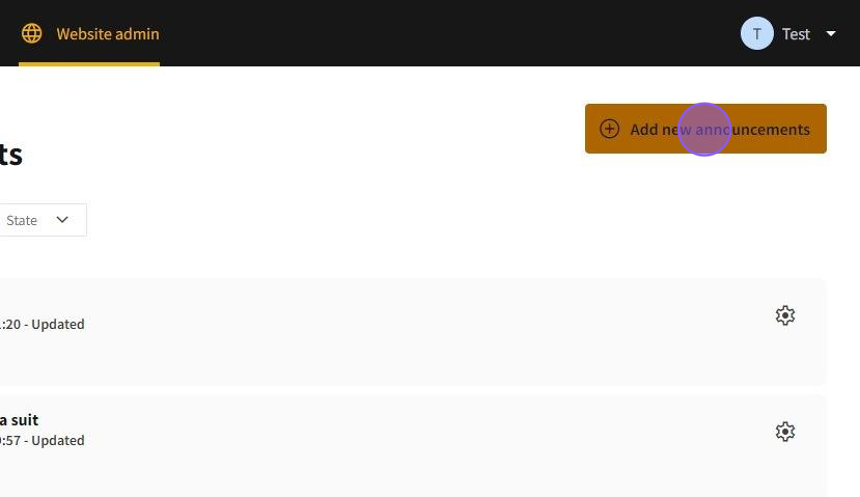
2.Click on Add new announcements button.
3.Type the title of an announcement.
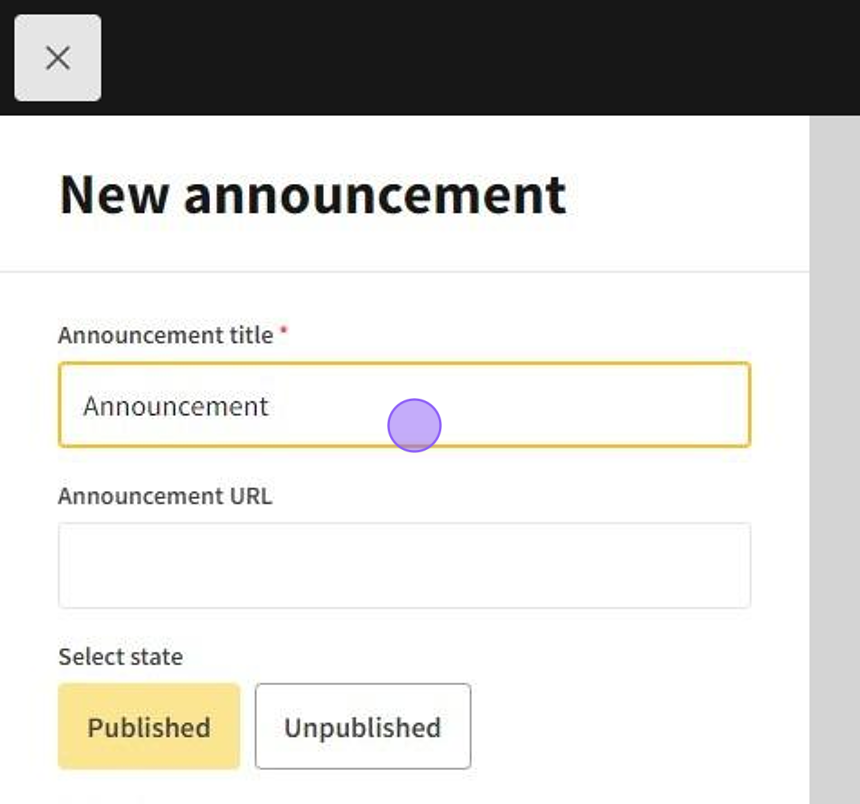
4.Type in the announcement's URL. This step is not necessary!
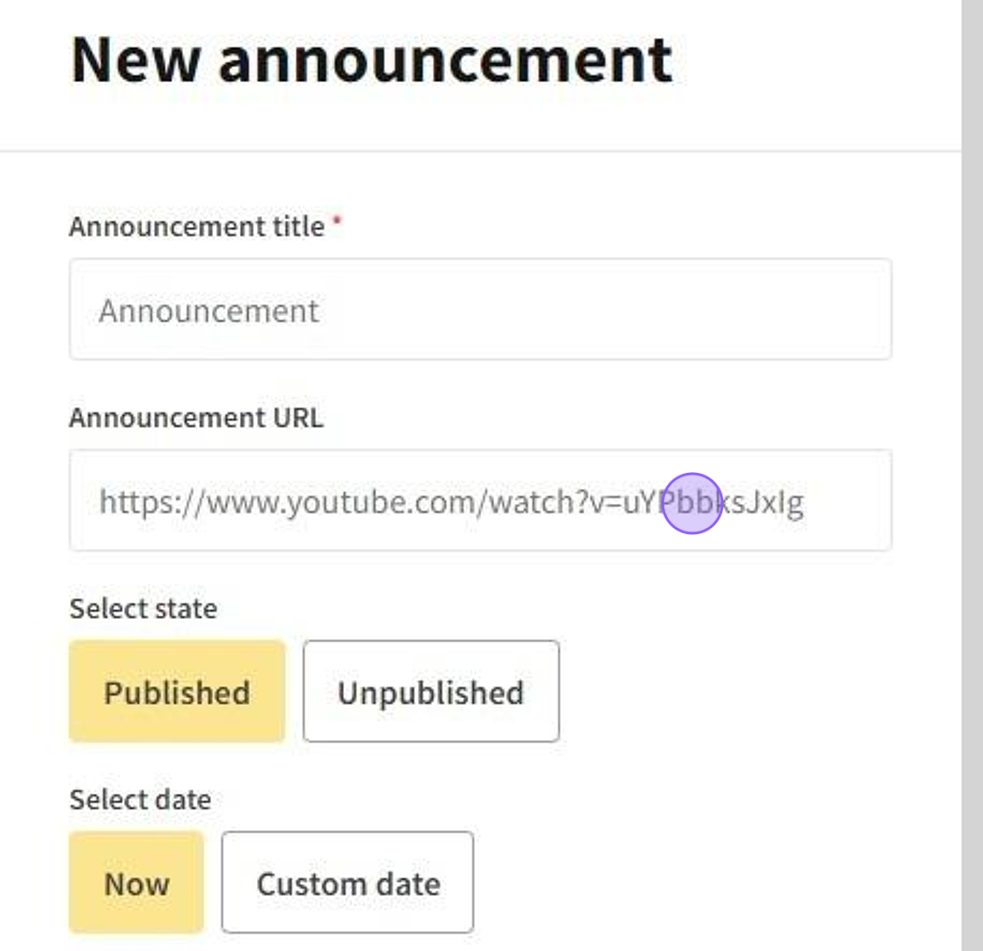
5.Choose Published or Unpublished option.
- Published - the announcement will be displayed in the cinema website.
- Unpublished - the announcement will be not displayed on the cinema website but only it will be saved on the dashboard.
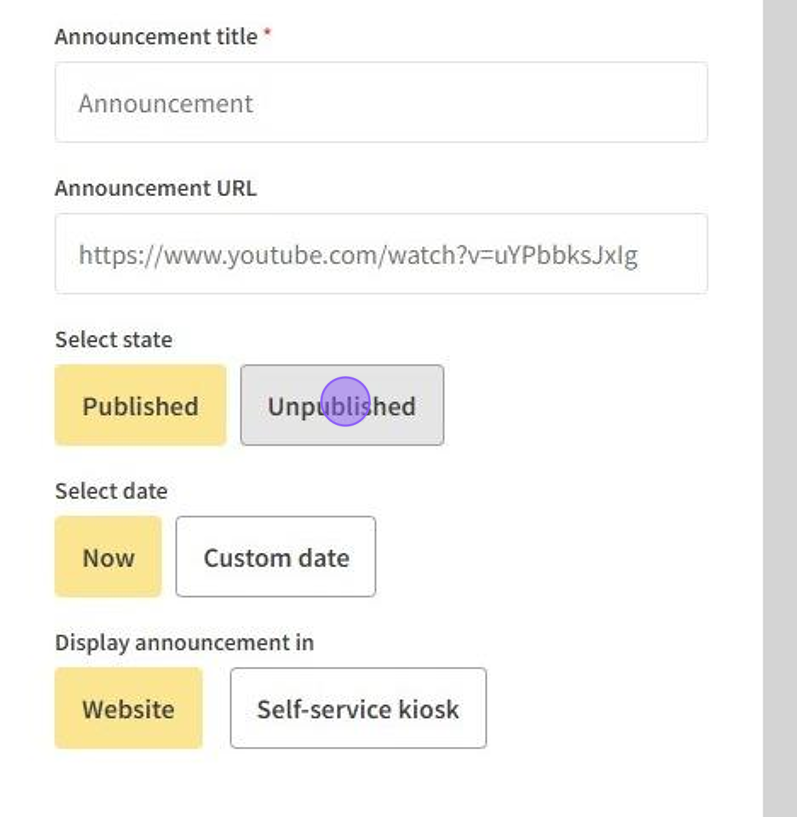
6.By choosing Published you need to pick if the announcement will be displayed Now or Custom date.
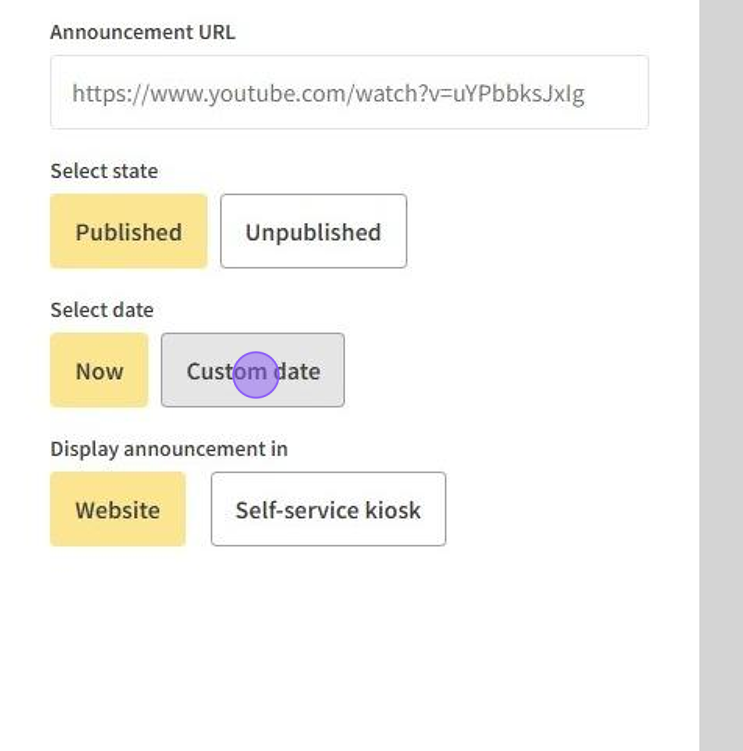
7.Custom date allows to pick Date and Time:
- Publish at date - select date and time when an announcement will be displayed on the cinema website.
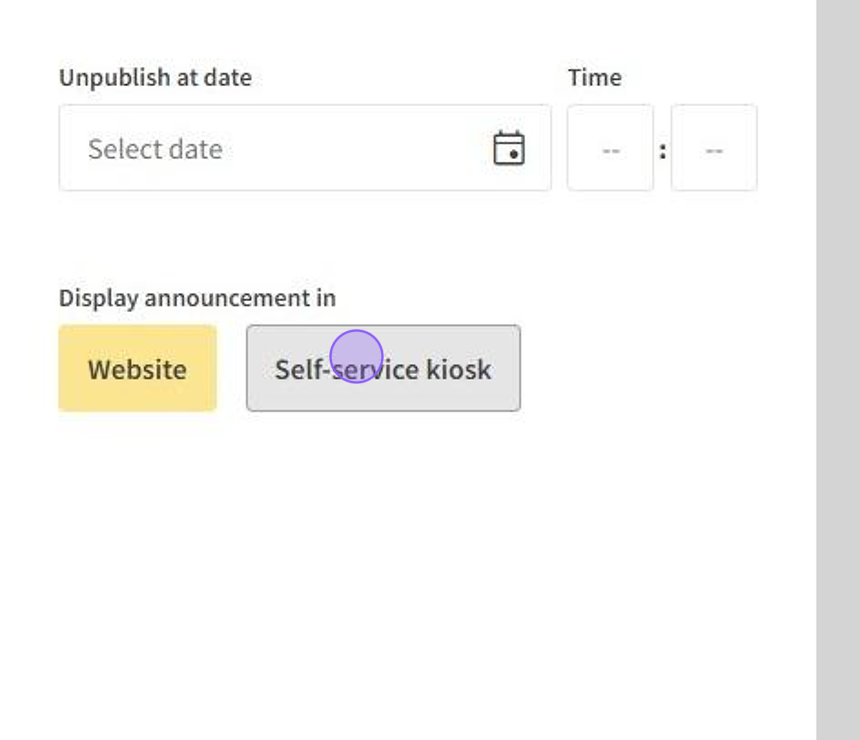
- Unpublish at date - select date and time when an announcement will be will be removed from cinema website.
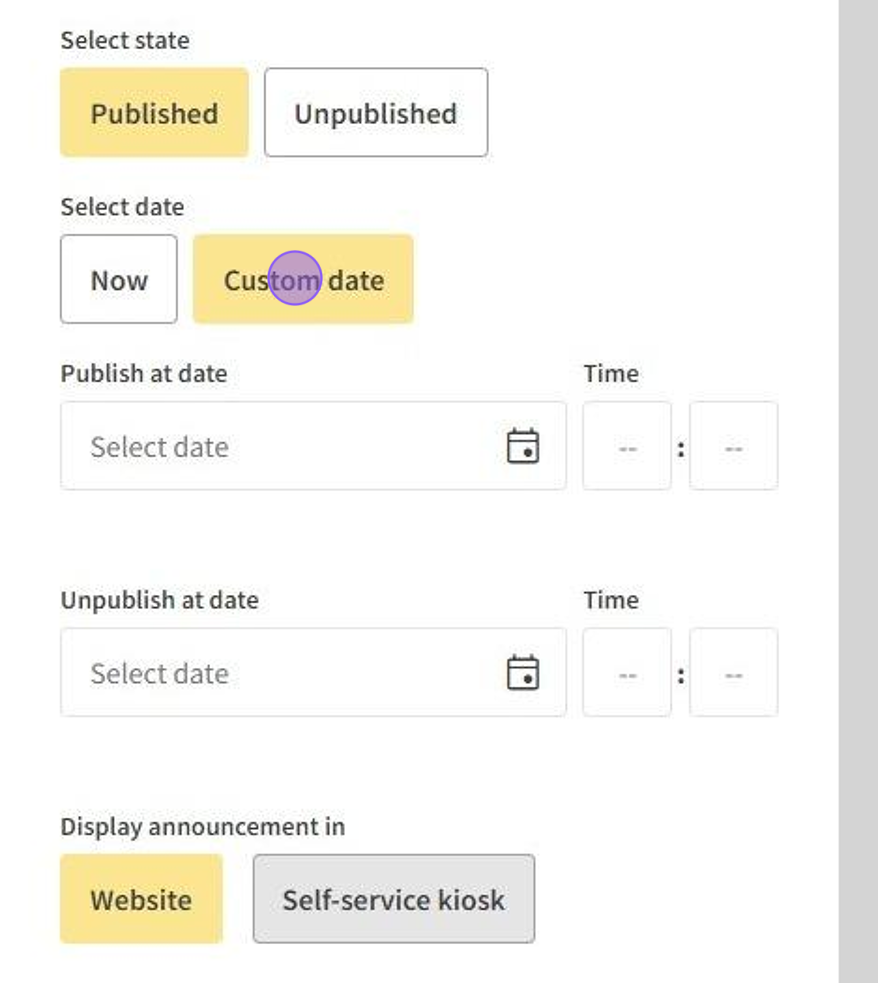
8.Choose where to display an announcement Website or Self-service-kiosk. You can choose to display an announcement on Website and Self-service-kiosk at the same time.
9.Choose an image for an announcement.
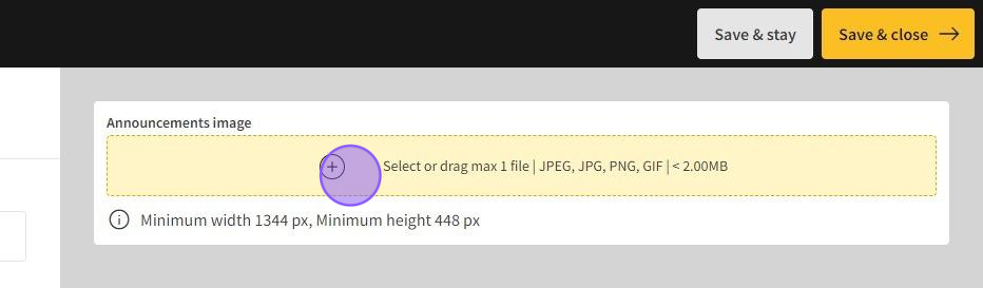
Upload only 1 image.
Minimum width - 1344 px, Minimum height - 448 px.
Supported format JPEG | JPG | PNG | GIF | <2.00MB.
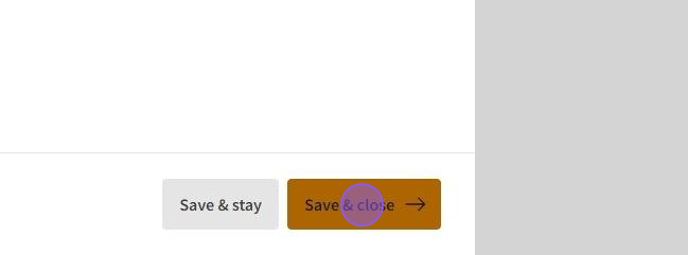
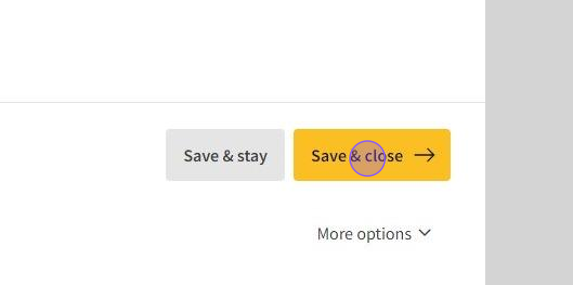
10.If you done click on Save & close button after this action you will leave the announcement page. By choosing Save & stay button the information will be saved and you will stay in the same page.
How to edit an announcement?
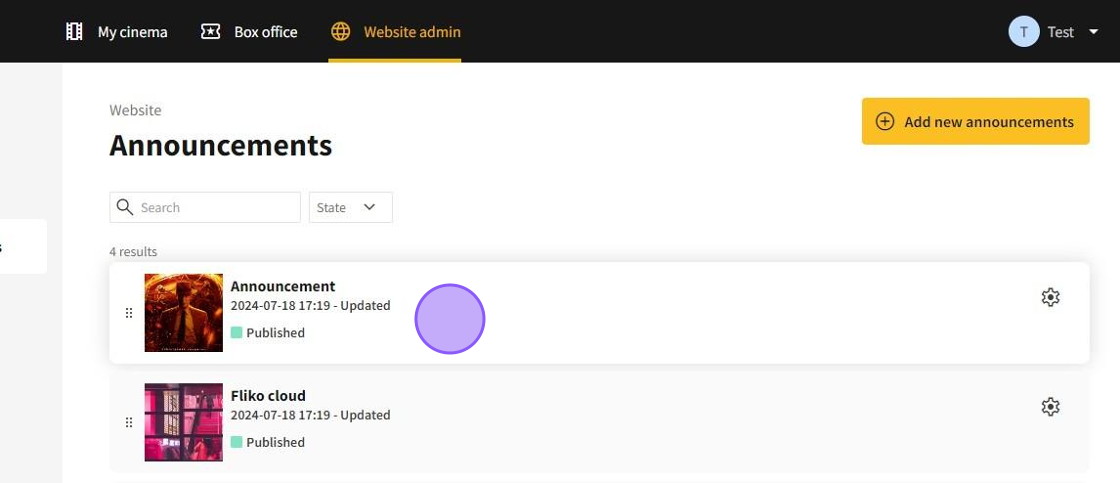
1.Go to Website admin → Announcements.
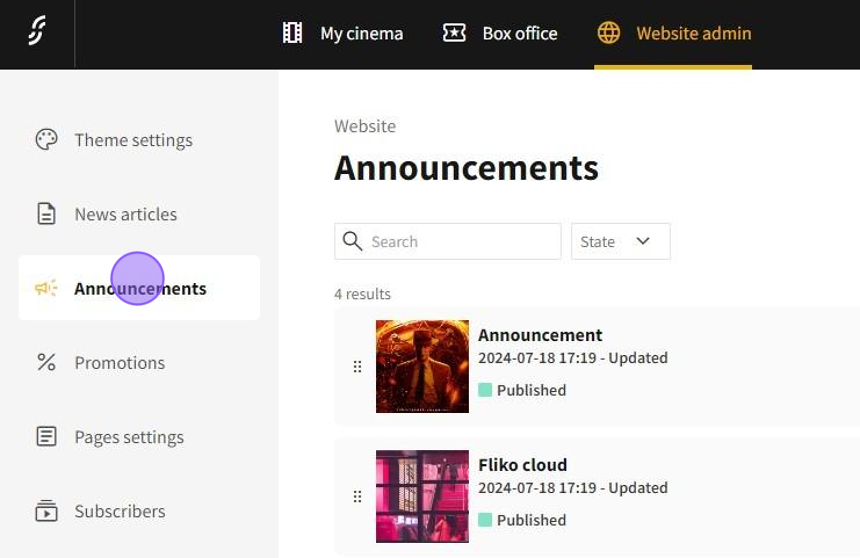
2.Click on the announcement you want to edit it will lead you to the announcement page where can update, add or edit the information.
3.If done editing click on Save & close.
How to delete an announcement?
1.Go to Website admin → Announcements.
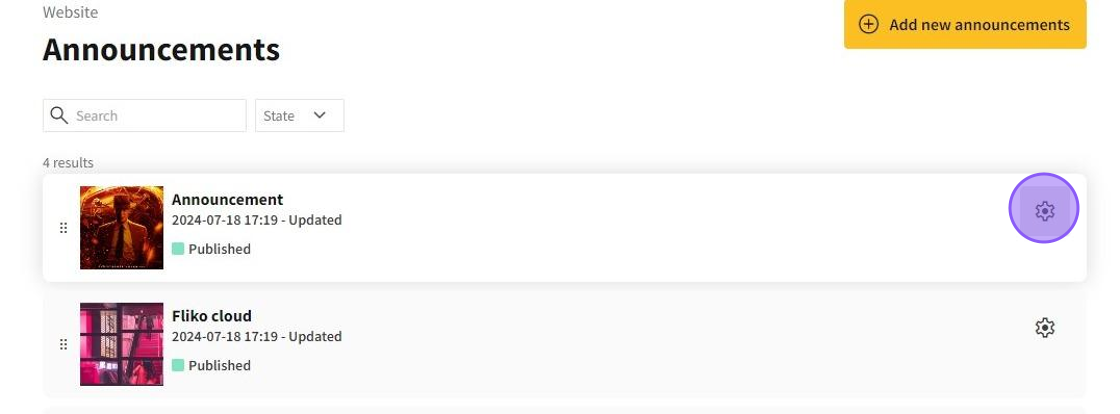
2.Choose which of the announcements you want to delete and click on gear icon.
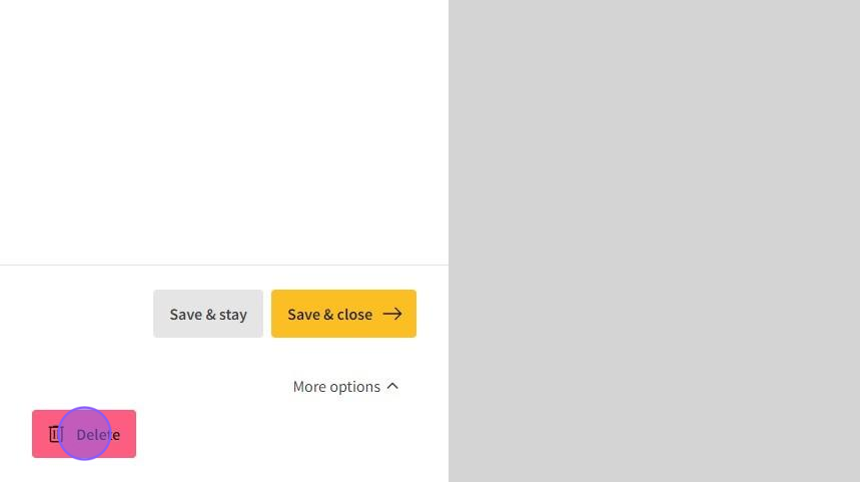
3.Click on More Options → Delete.
How to find which announcement is published or unpublished?
1.Go to Website admin → Announcements.
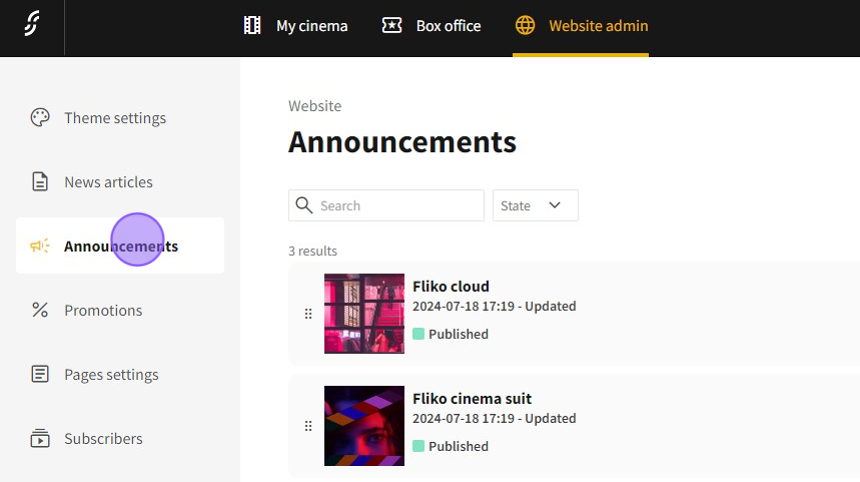
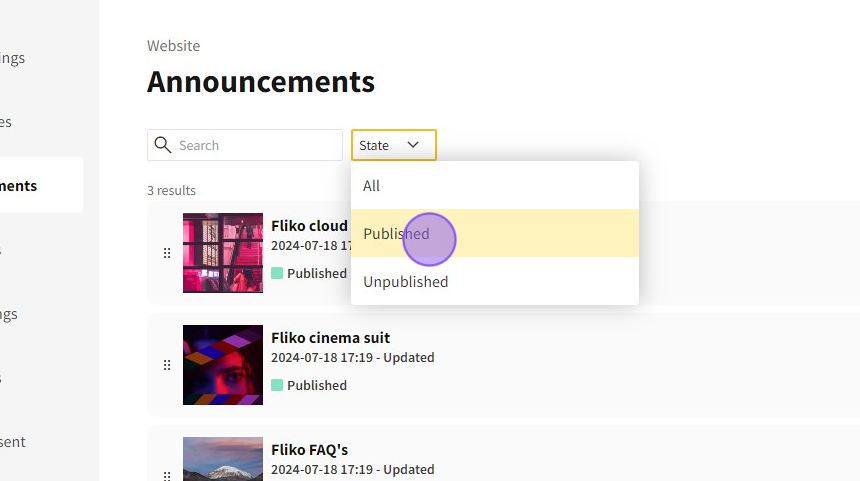
2.Expand State button and choose which one you want to see Published, Unpublished or All.