How to Create an Offer?
Please note that offers cannot currently be paid through the POS.
Payments can only be made via bank link at this time. By sending the offer email, the customer will receive a payment URL or the tickets if the order has already been paid.
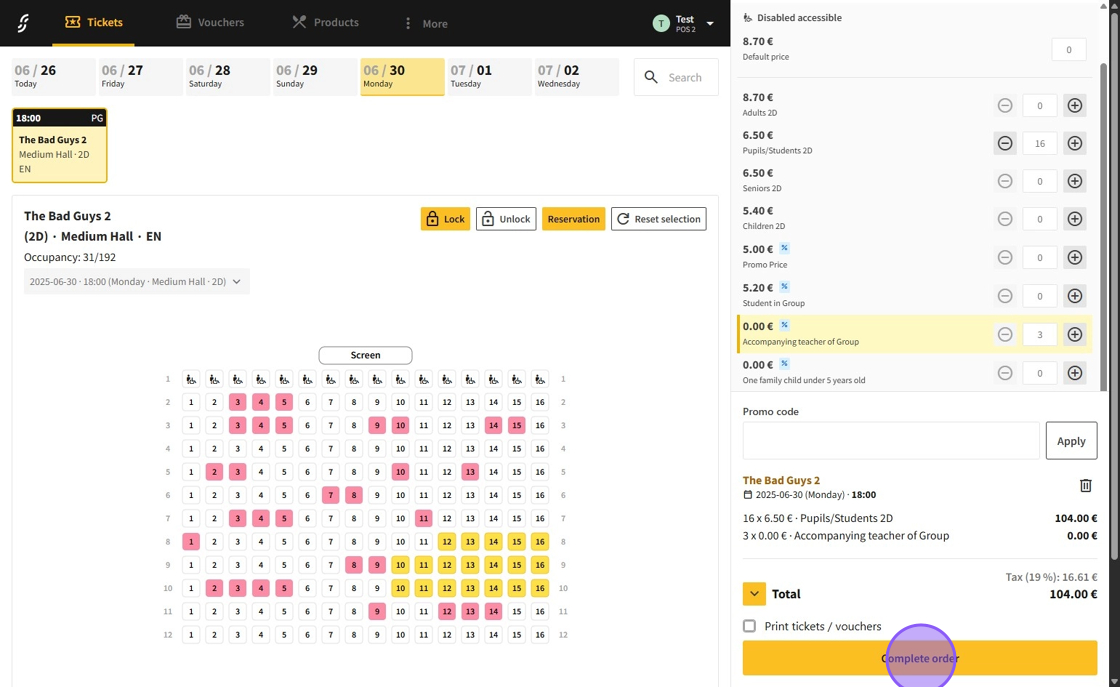
1.Initiate an order in the POS system as usual. After selecting all items, click on "Complete Order" to access the payment method options.
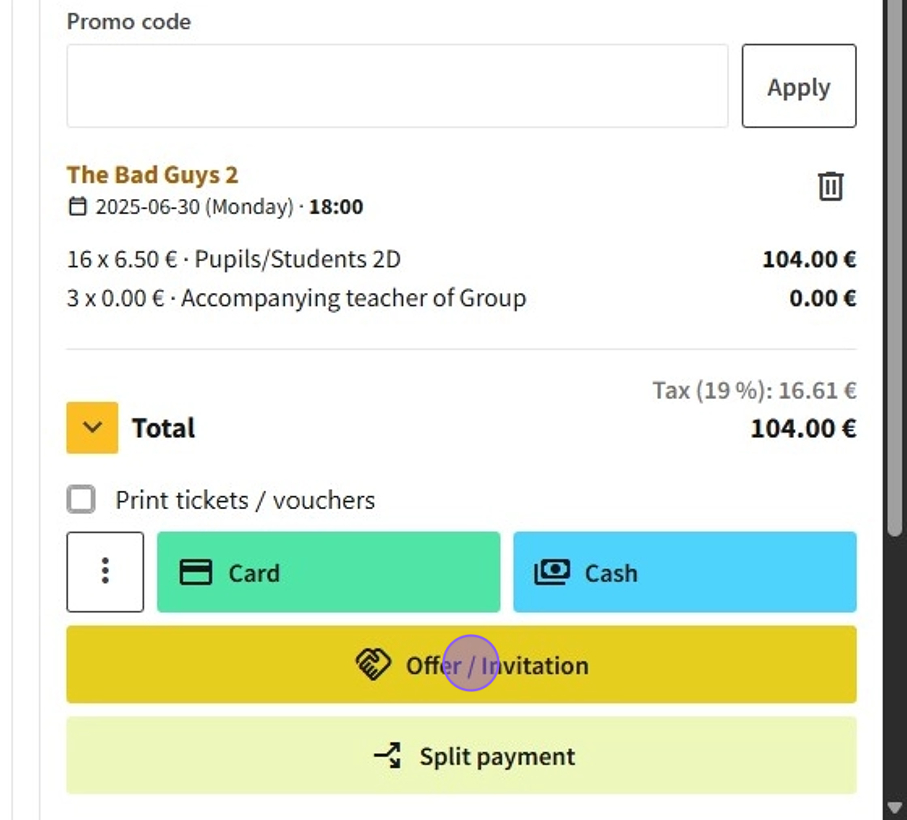
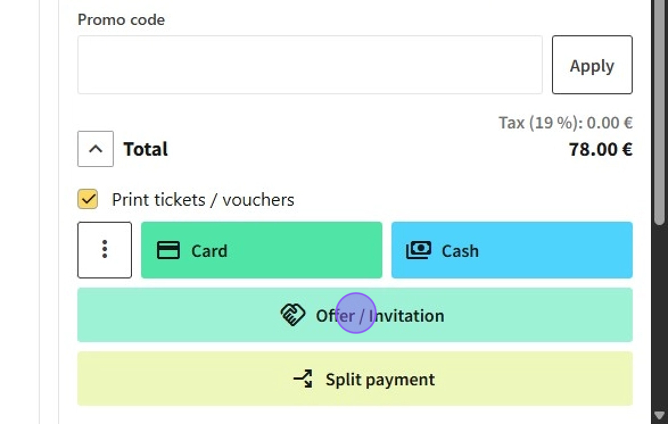
2.Select "Offer / Invitation" to begin the process of creating an Offer order.
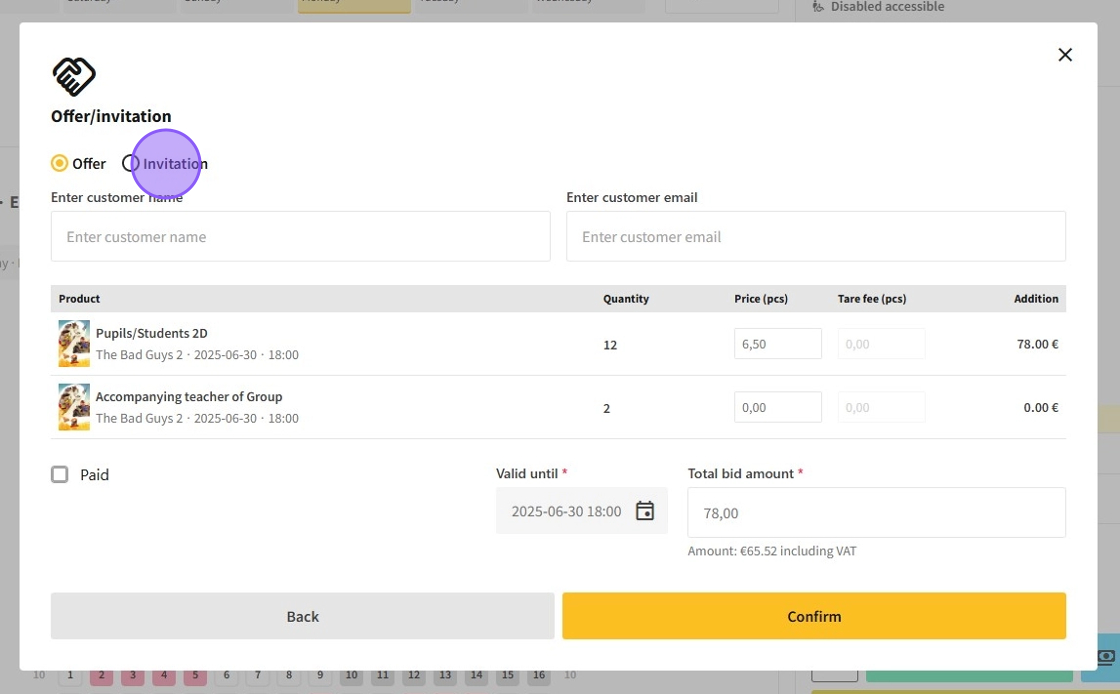
3.In the "Offer/Invitation" interface, review the order contents. Choose "Offer" to designate the order as an Offer.
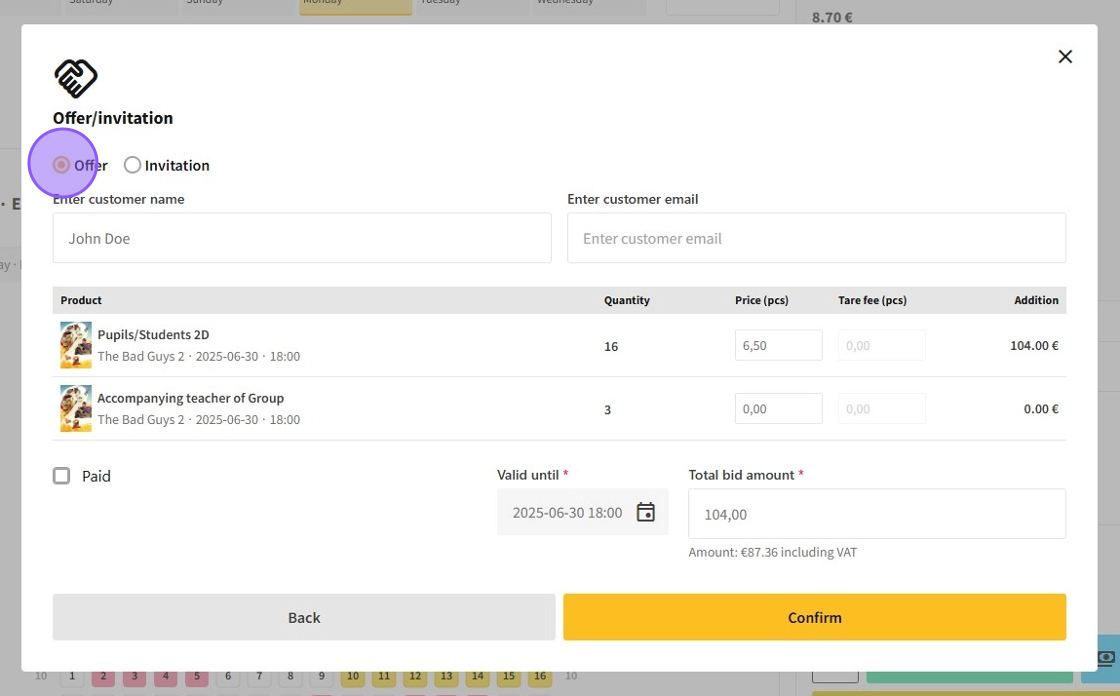
4.Optionally, input the customer’s name and email in the "Enter customer name" and "Enter customer email" fields.
Indicate whether the order is paid by selecting "Paid".
If unpaid, specify the order’s validity period in the "Valid until" field.

5.In the product list, you may set custom prices for each product in the "Price (Unit)" field and, if applicable, the container deposit fees in the "Container deposit fee (Unit)" field.
Additionally, you can modify the total price of the Offer and automatically adjust all product prices by changing the value in the "Total offer amount" field.
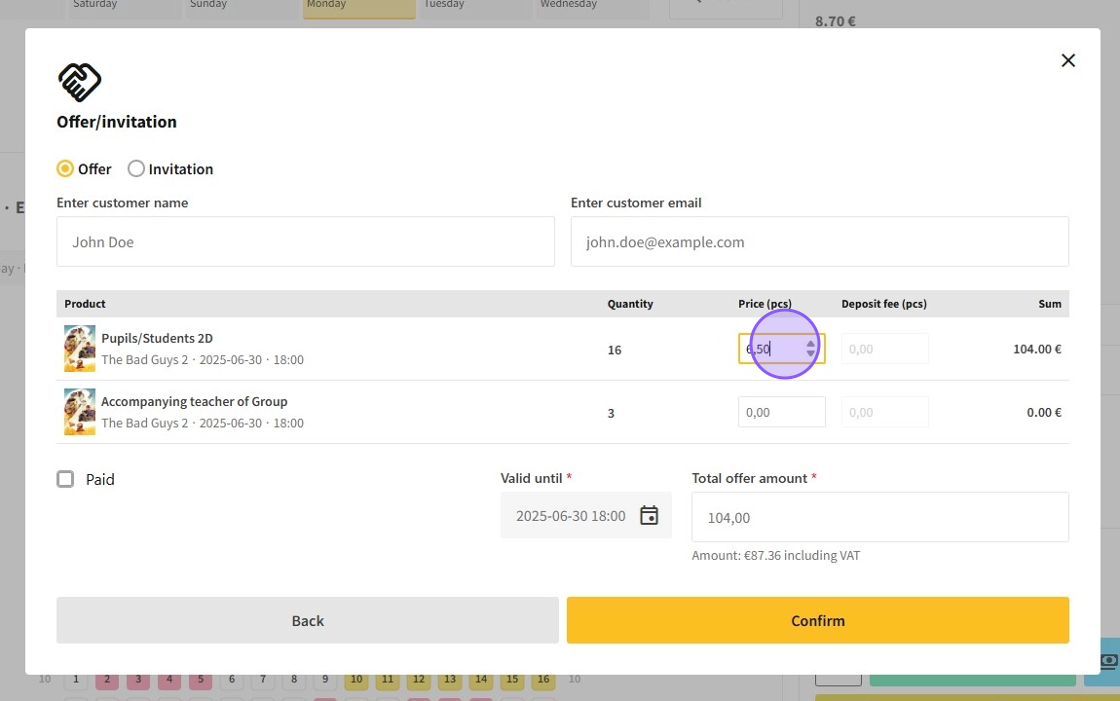
6.Click "Confirm" to finalize the Offer order.
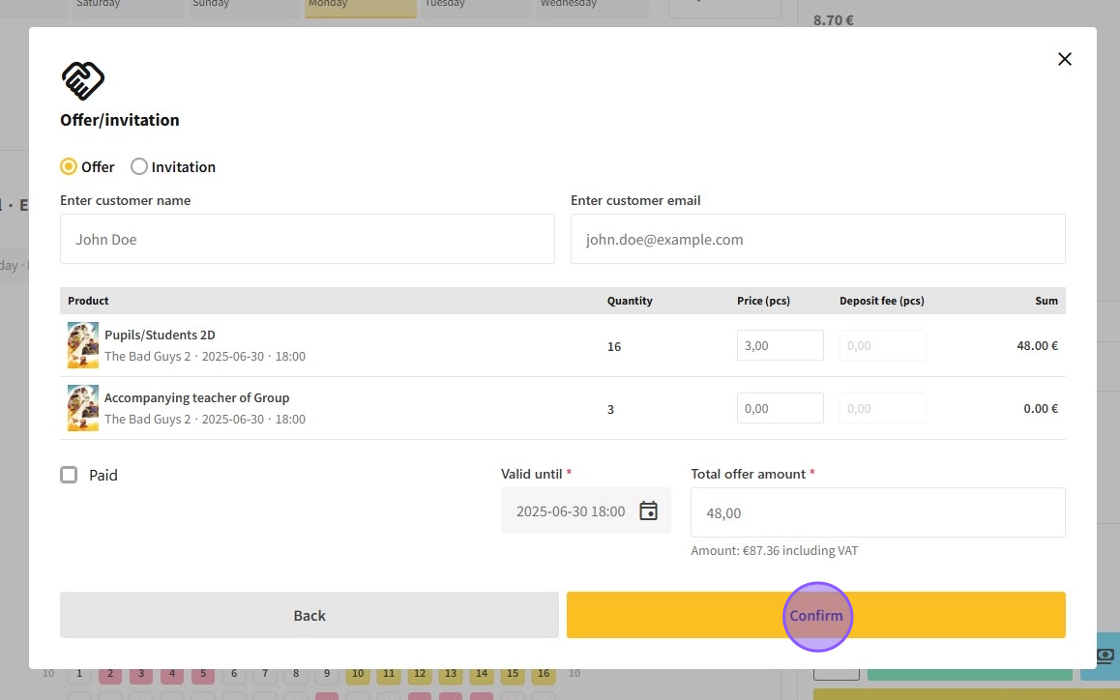
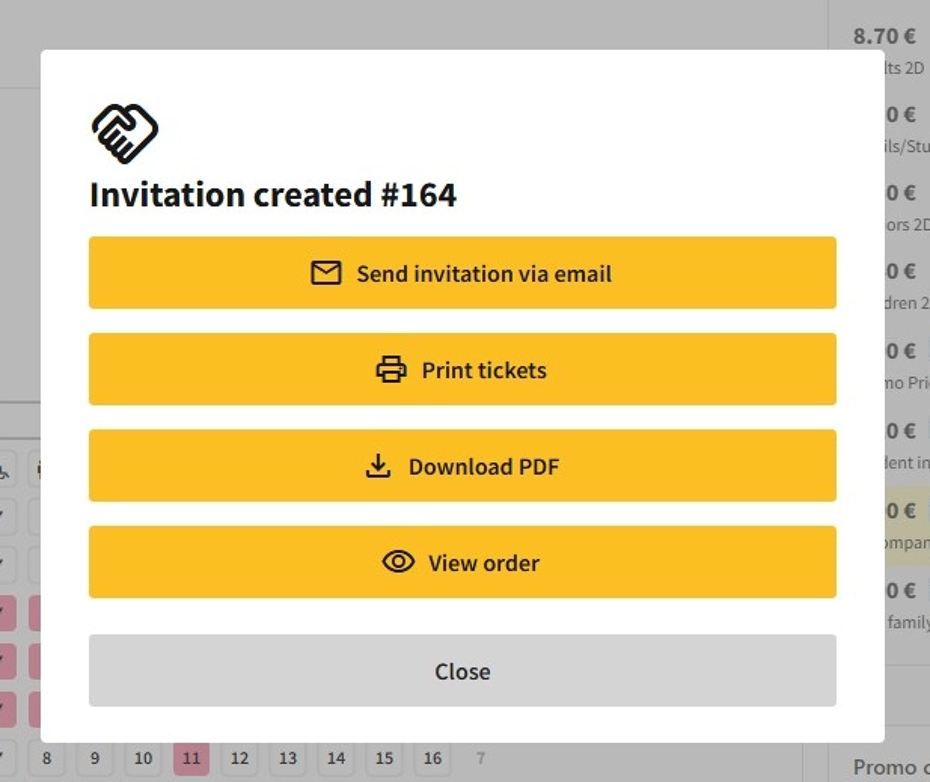
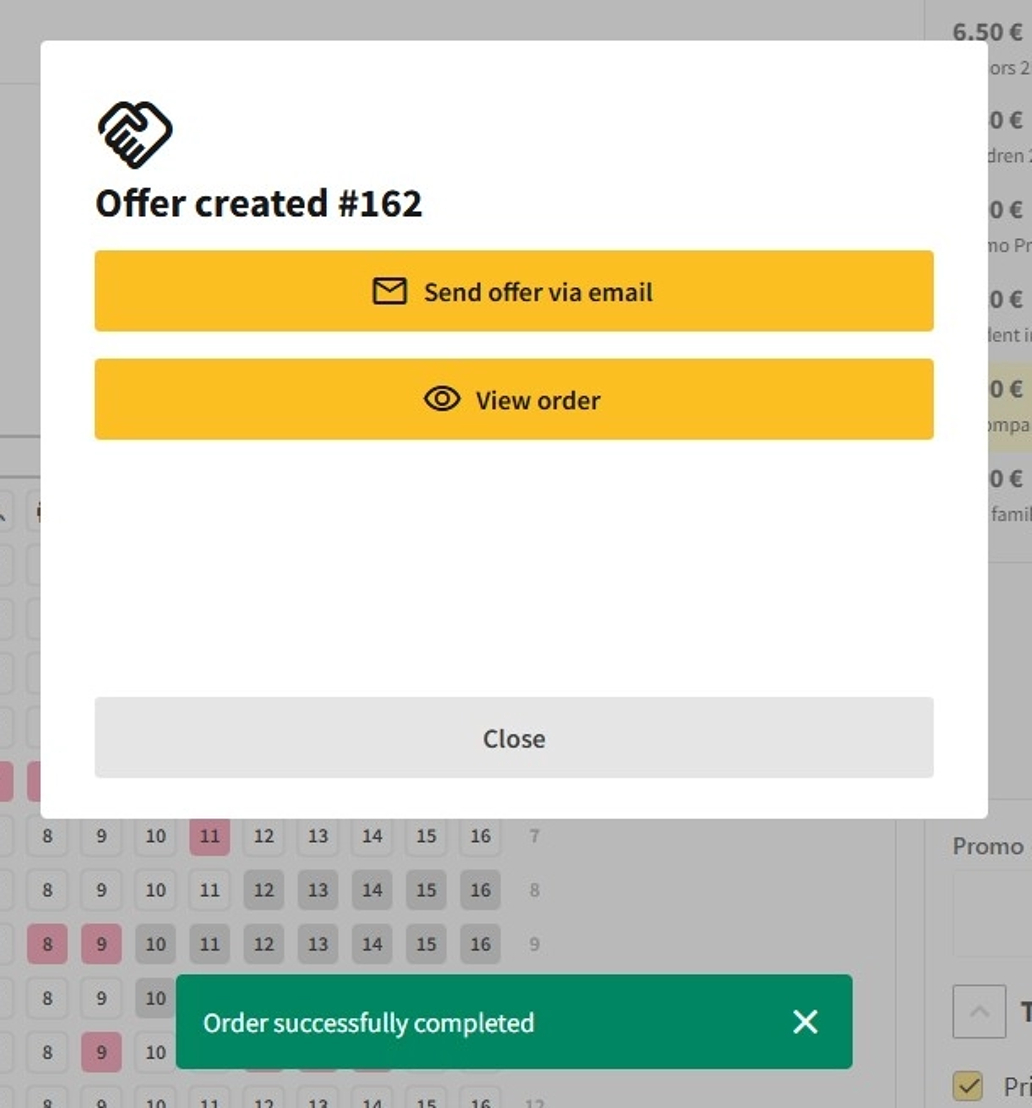
7.Once the Offer is created, you will have several options:
Send offer via email: Dispatch the Offer via email.
Print tickets: Print tickets and gift cards associated with the order (if the Offer was paid).
Download PDF: Download files for the order’s tickets and gift cards (if the Offer was paid).
View order: Access the order page for further details.
How to Create an Invitation?
1.Initiate an order in the POS system as usual. After selecting all items, click on "Complete order" to access the payment method options.
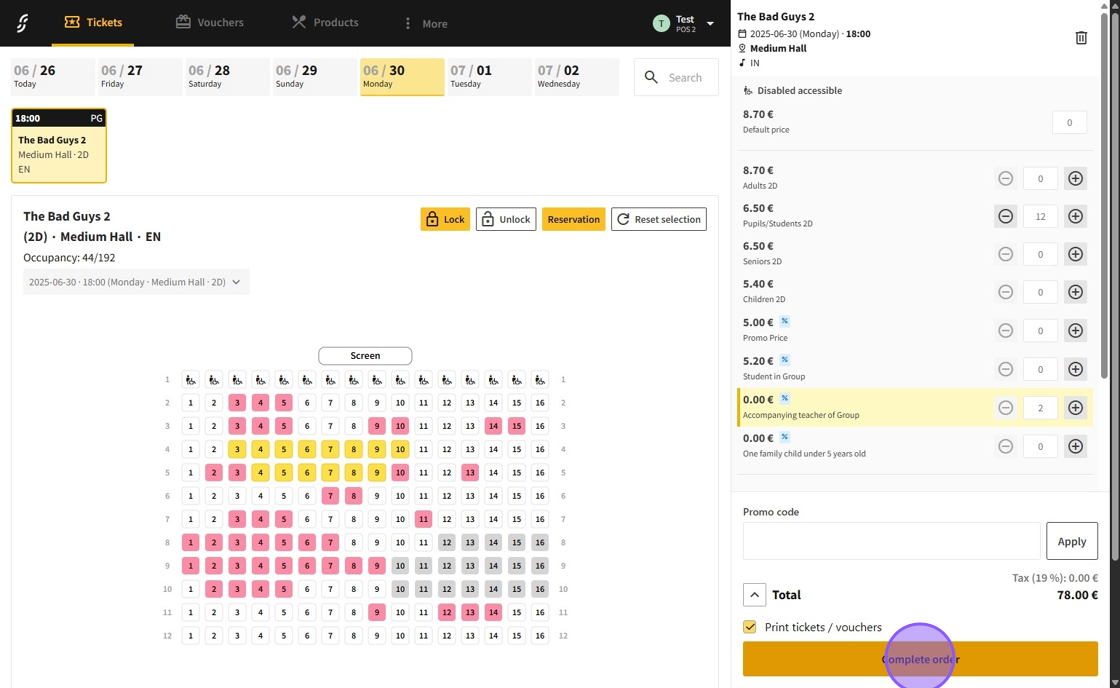
2.Select "Offer / Invitation" to commence the process of creating an Invitation order.
3.In the "Offer/Invitation" interface, review the order contents. Choose "Invitation" to designate the order as an Invitation.
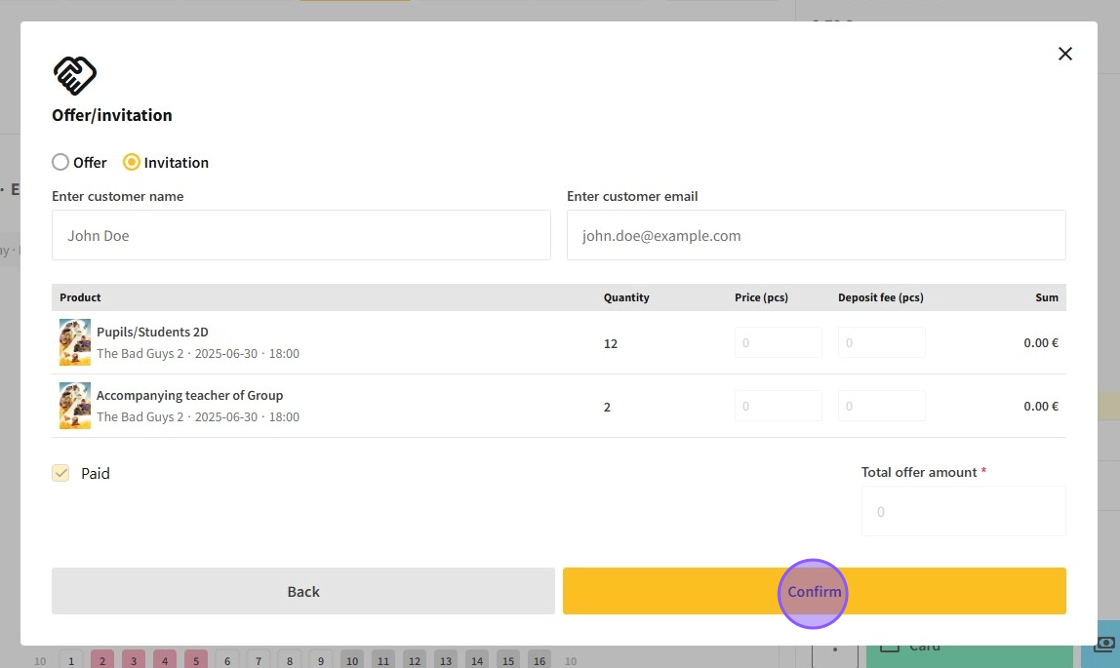
4.You may optionally add the customer’s name and email in the "Enter customer name" and "Enter customer email" fields.
Click "Confirm" to finalize the Invitation order.
5.Once the Invitation is created, you will have several options:
Send invitation via email: Dispatch the Invitation via email.
Print tickets: Print tickets and gift cards associated with the order.
Download PDF: Download files for the order’s tickets and gift cards.
View order: Access the order page for further details.