Adding price categories
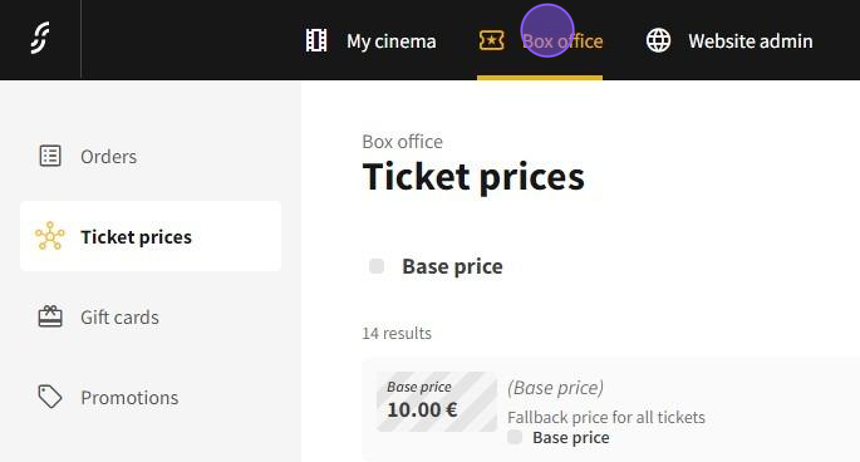
1.Click on Box office.
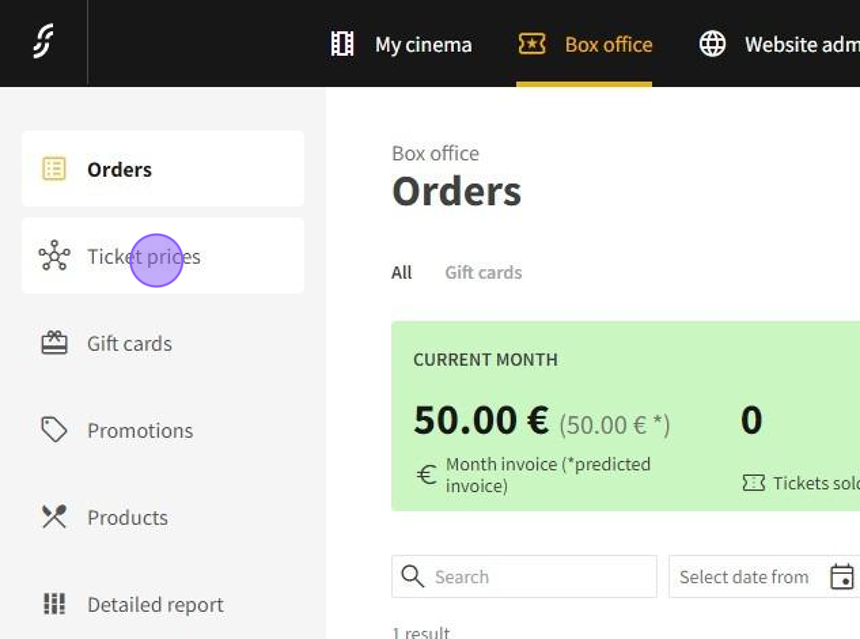
2.Click on Ticket prices.
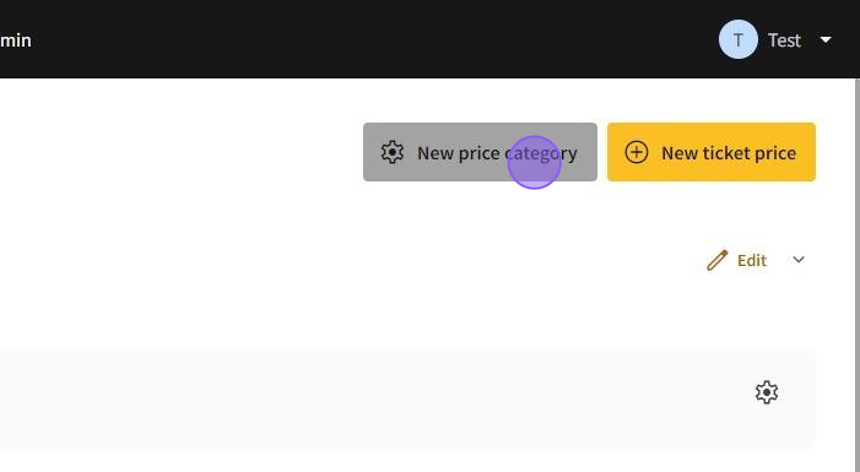
3.Click on New price category button.
4.Type the title of the price category.
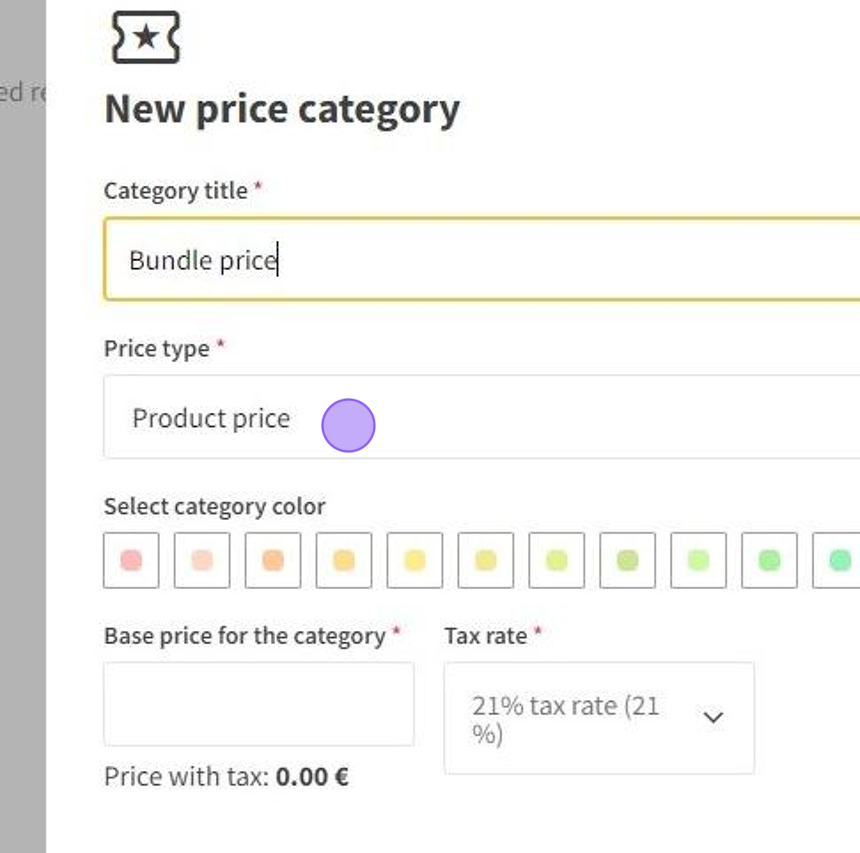
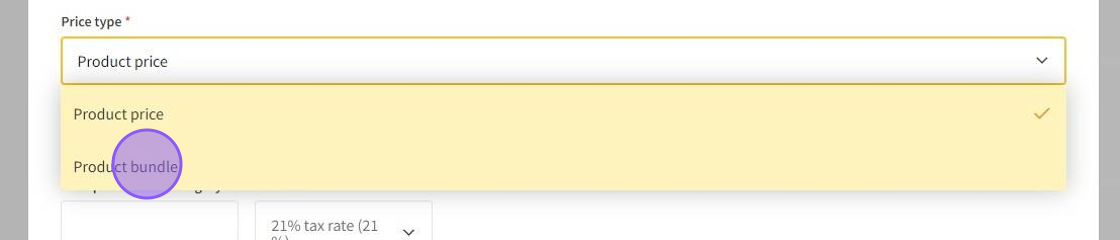
5.Select the price type.
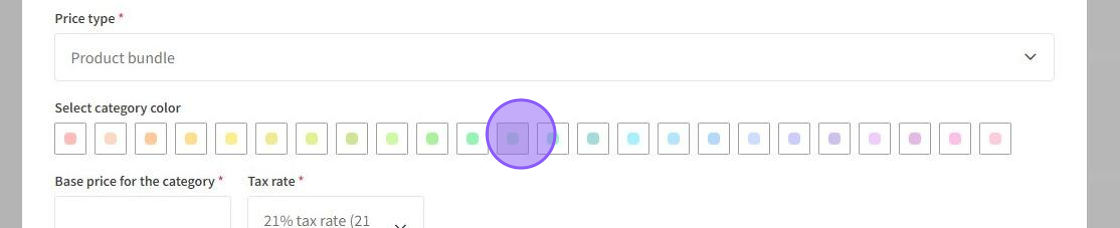
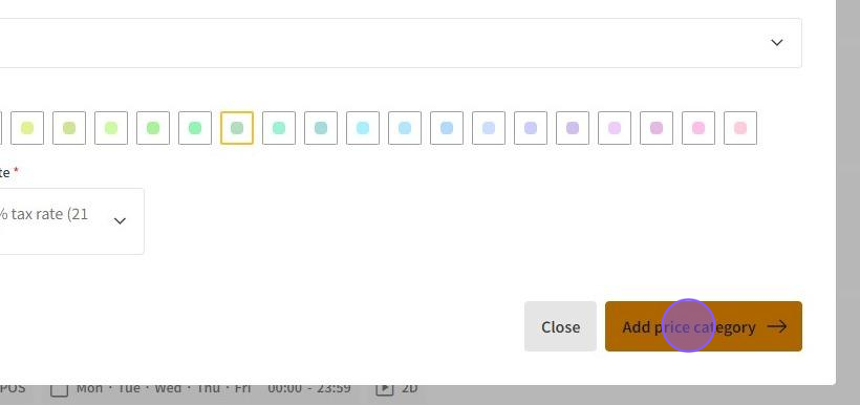
6.Select the category's color.
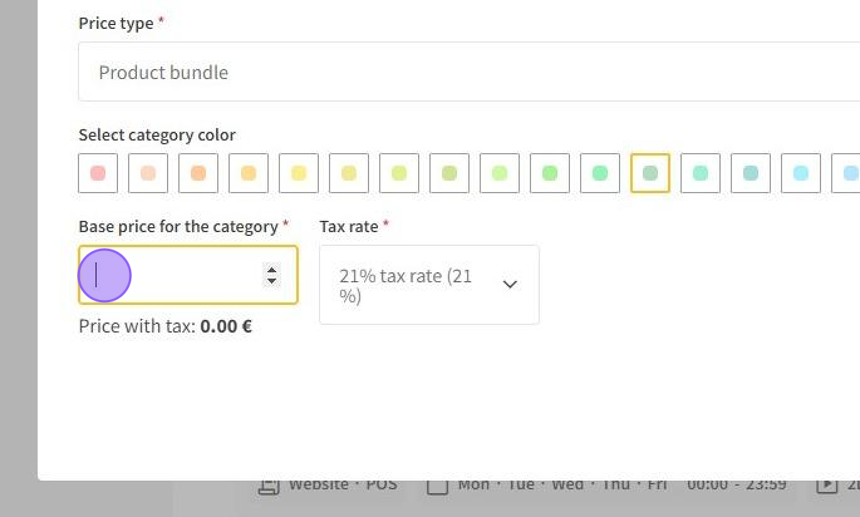
7.Type in the default price for the category and select the tax rate for it.
8.Click on Add price category to save the new price category.
Adding a ticket price
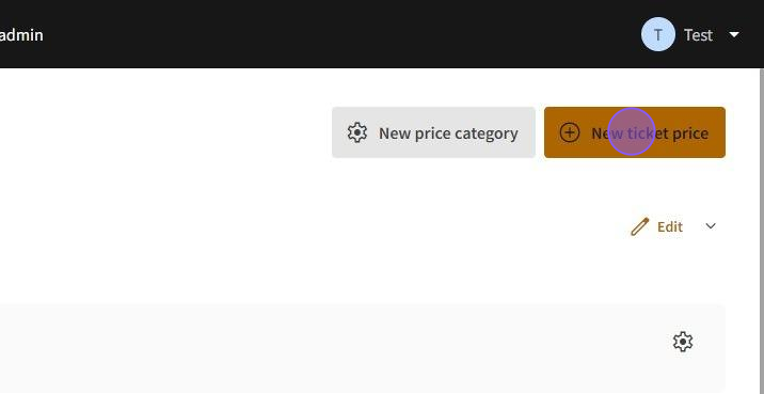
1.Click New ticket price to add a new ticket price.
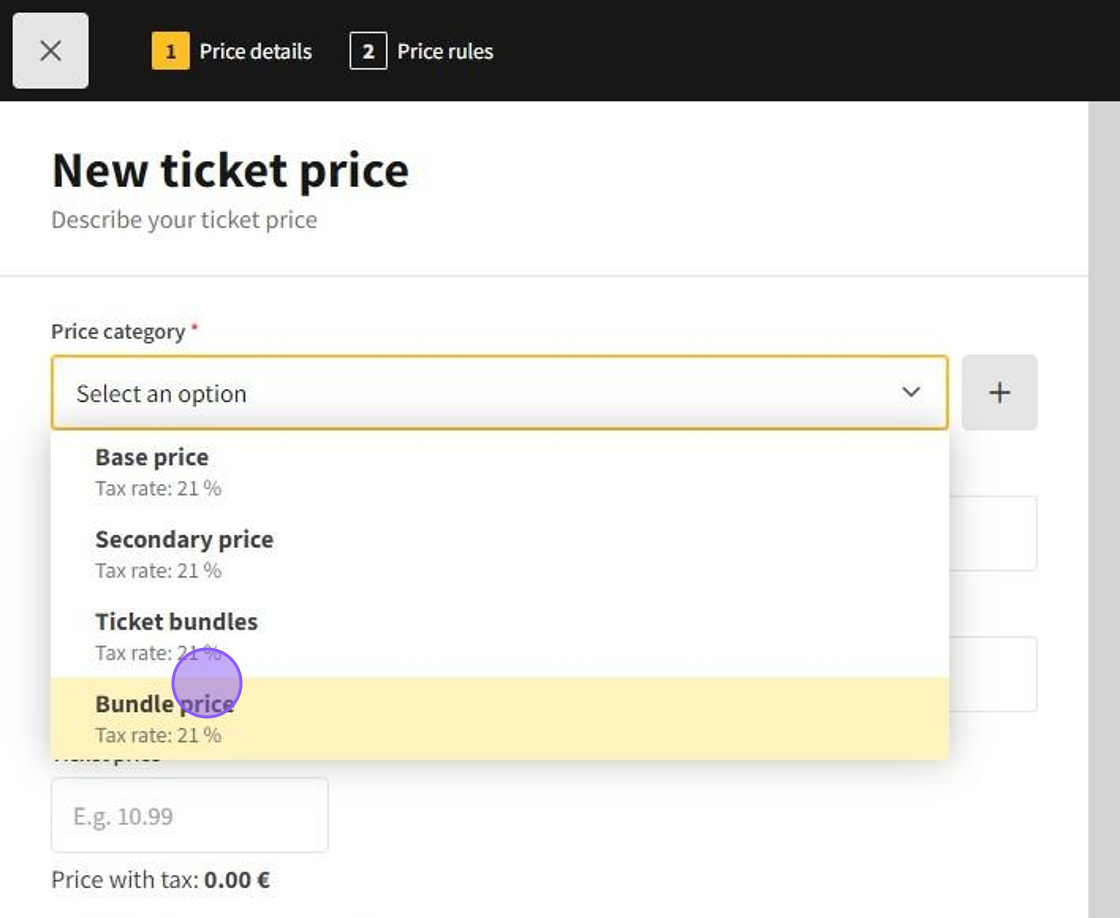
2.In Price category select the price category.
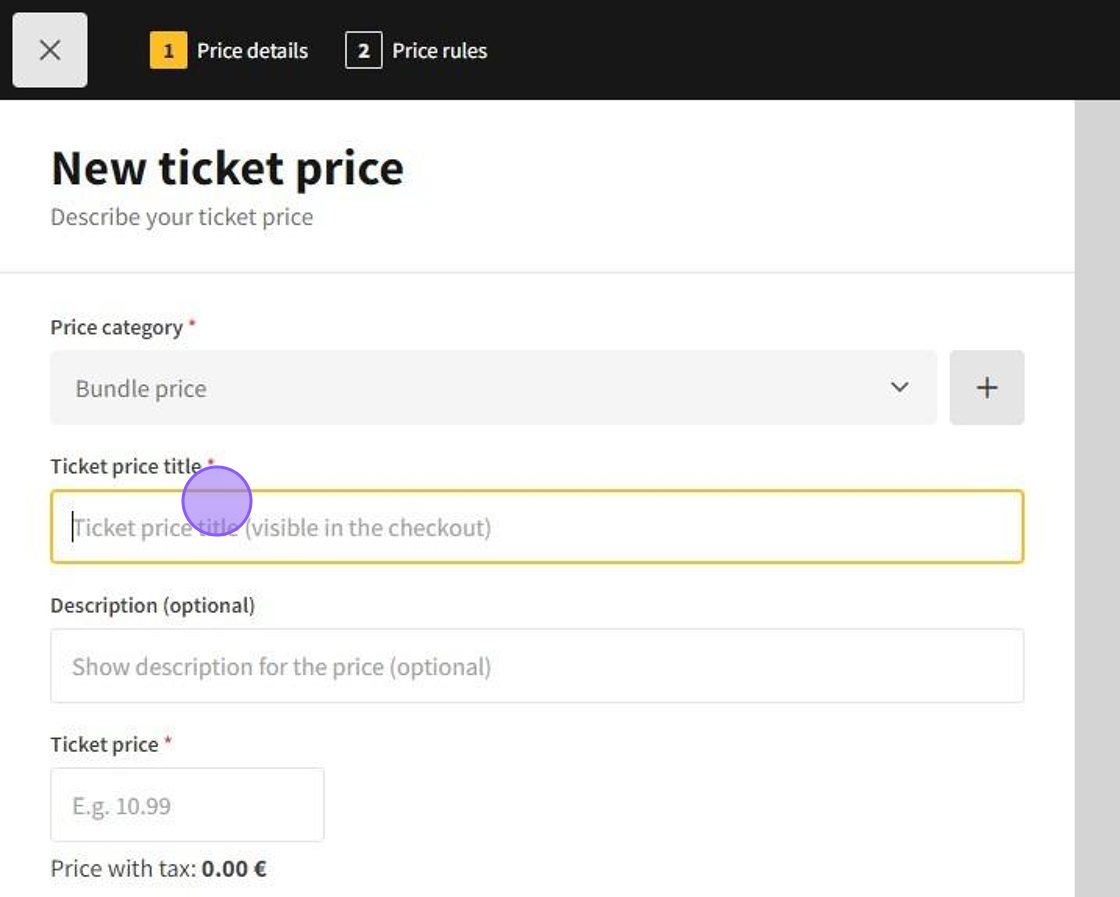
3.In Ticket price title write the ticket's price.
4.In Description write the ticket price's description.
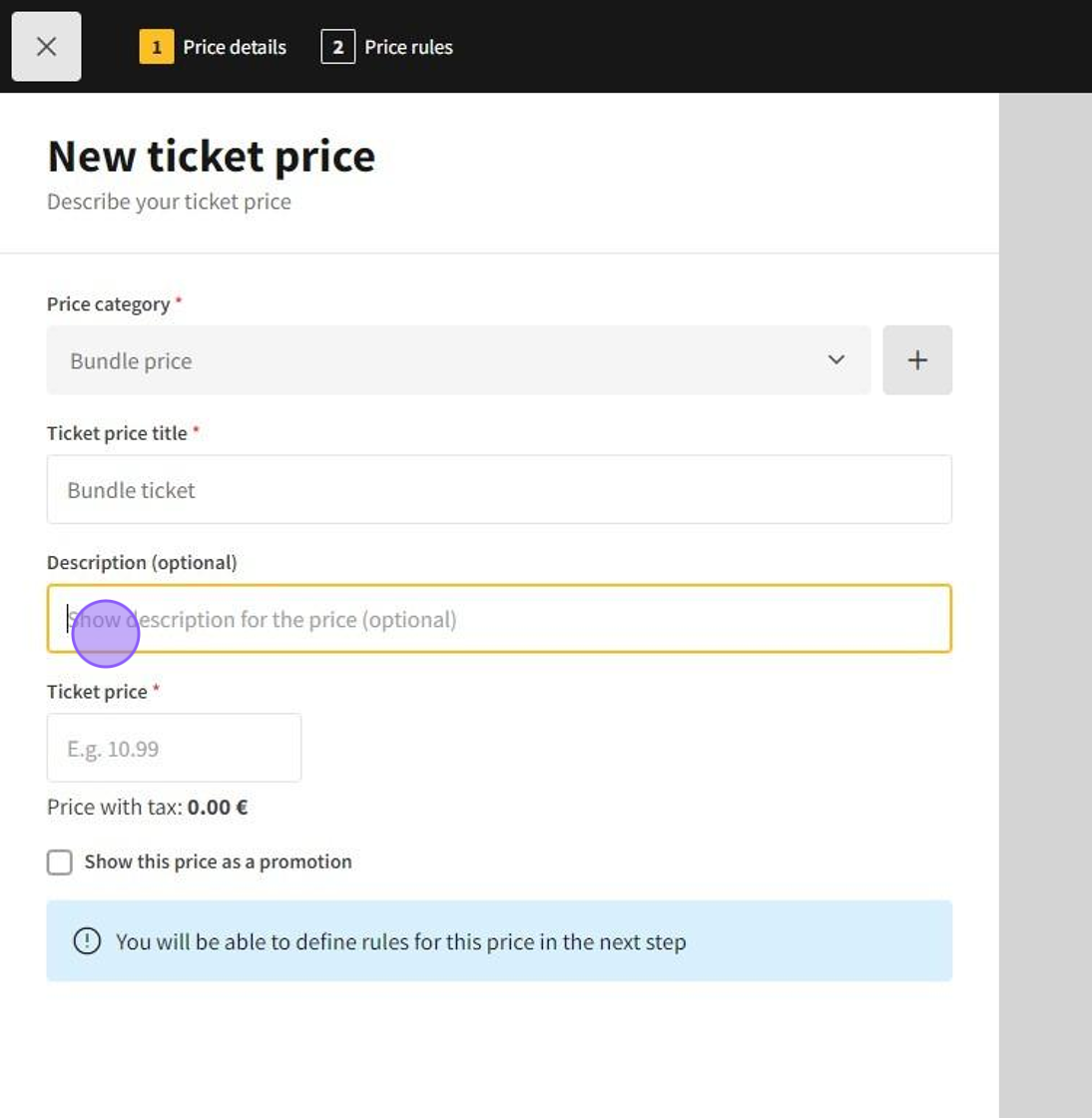
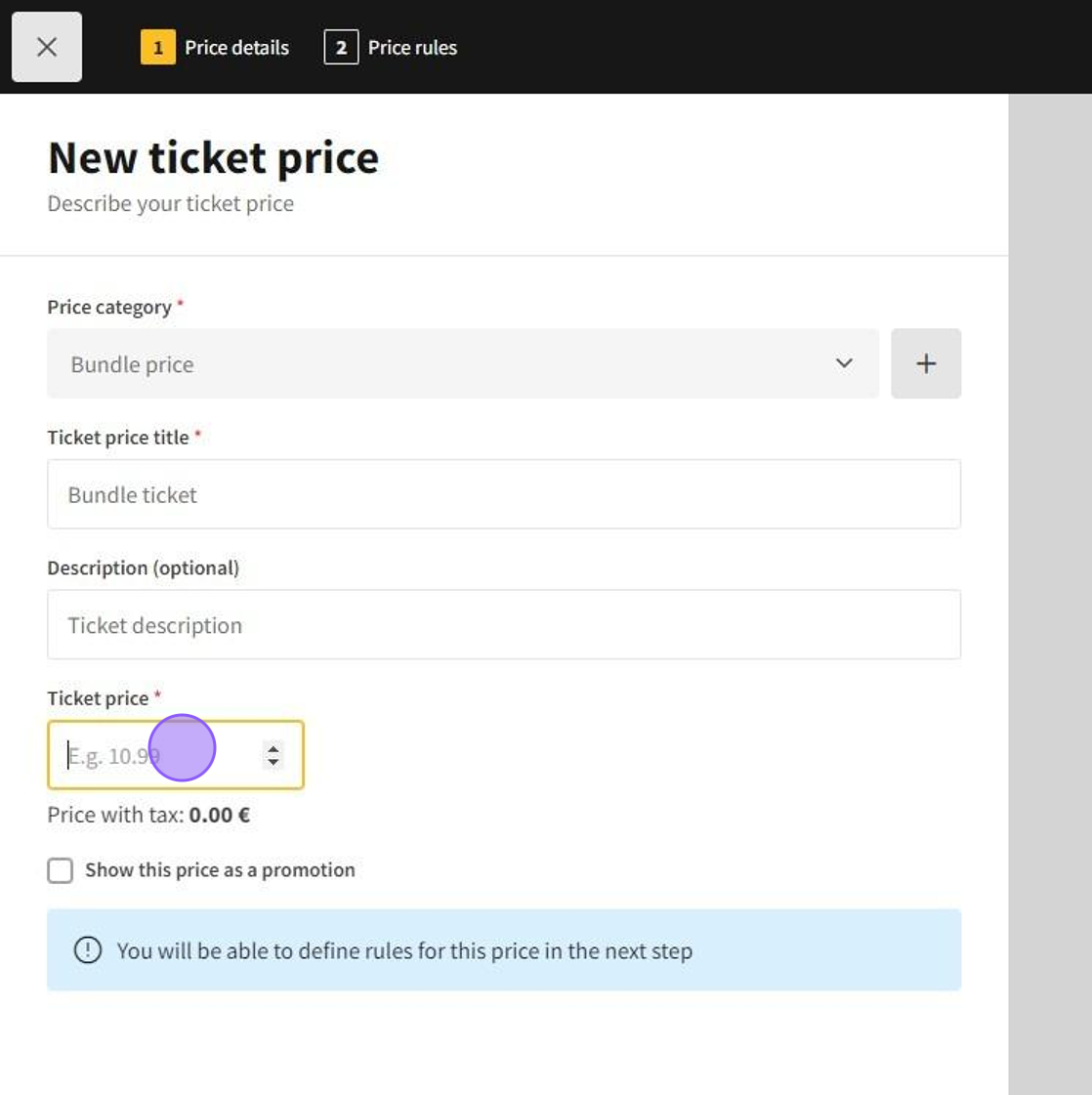
5.In Ticket price write the ticket's price.
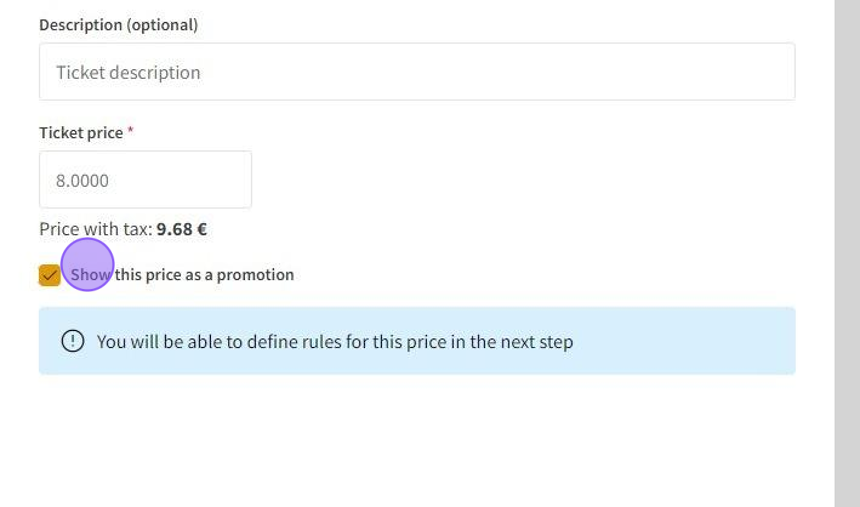
6.You can select on Show this price as a promotion to show this price as a promotion.
7.Click Add and set rules to save the ticket price details and to move to the price rules.
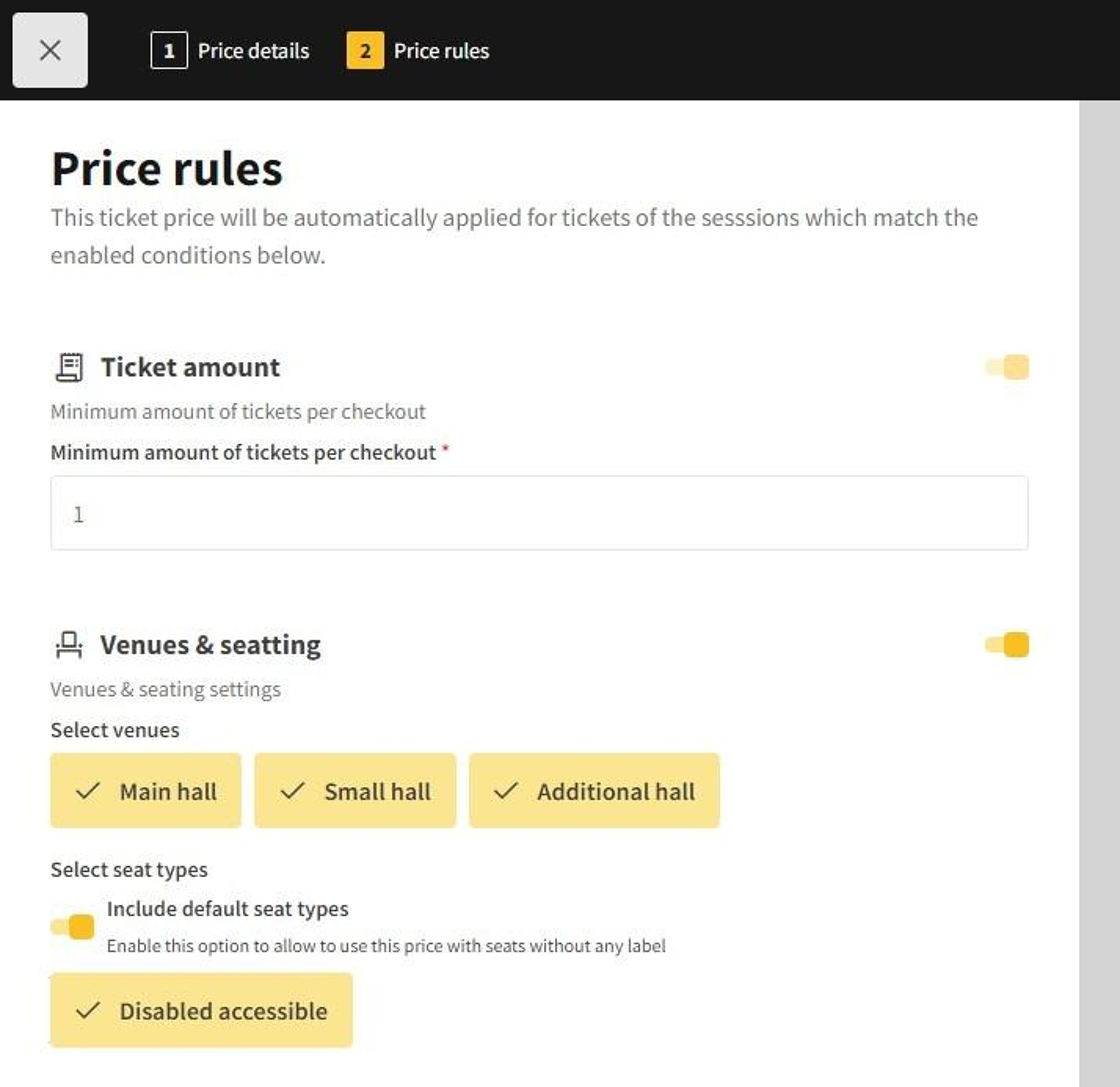
8.- Ticket amount: set an amount of minimum tickets which can apply this ticket
- Venue details: applies promotions only to sessions with selected venues, if none selected applies to all
- Seat type: select which types of seats can use this ticket price
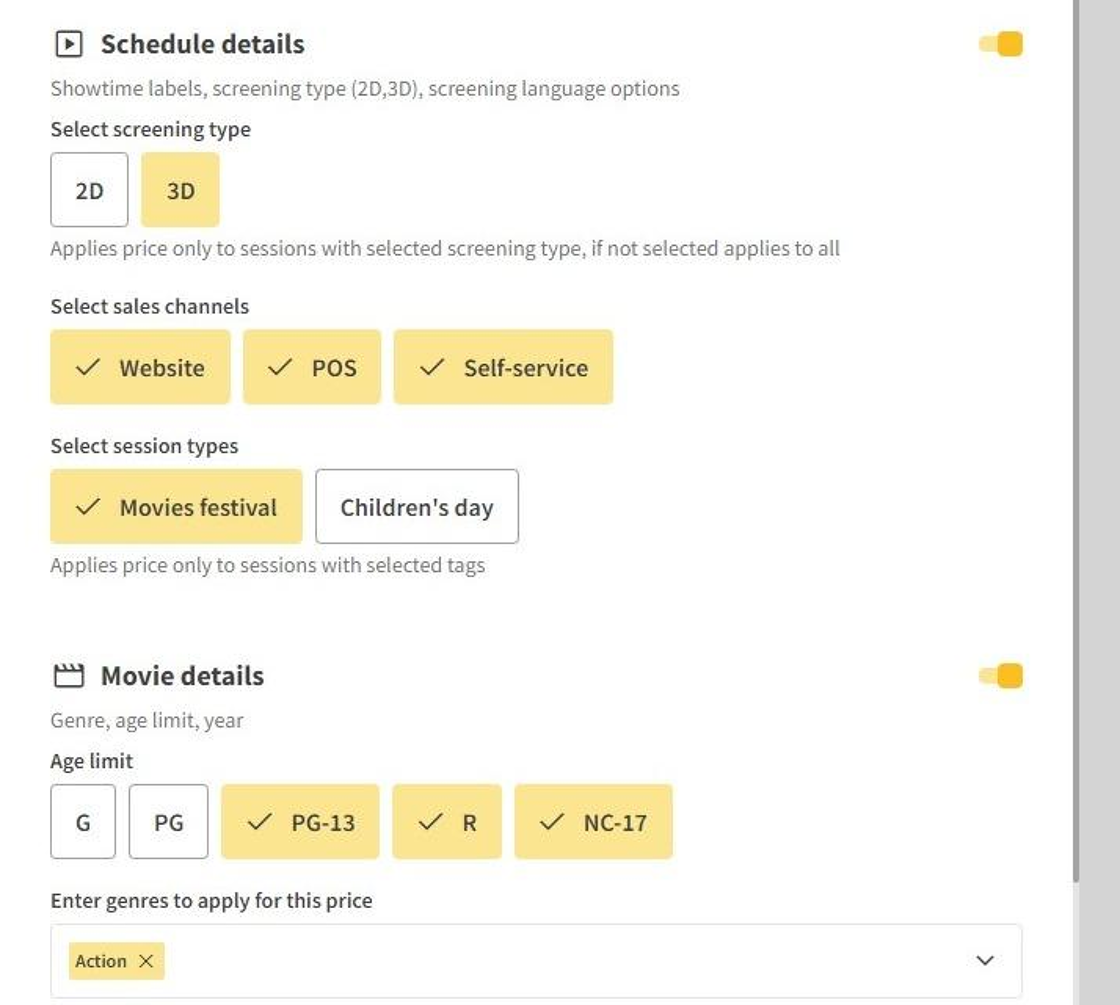
9.- Select screening type: applies tickets only to sessions with selected screening types
- Schedule details: allows to use tickets only in selected channels, if none selected applies to all
- Label details: applies tickets only to sessions with selected tags, if none selected applies to all
- Age details: applies tickets only to sessions age limit, if none selected applies to all
- Genres: applies tickets only to movie sessions with selected genres, if none selected applies to all
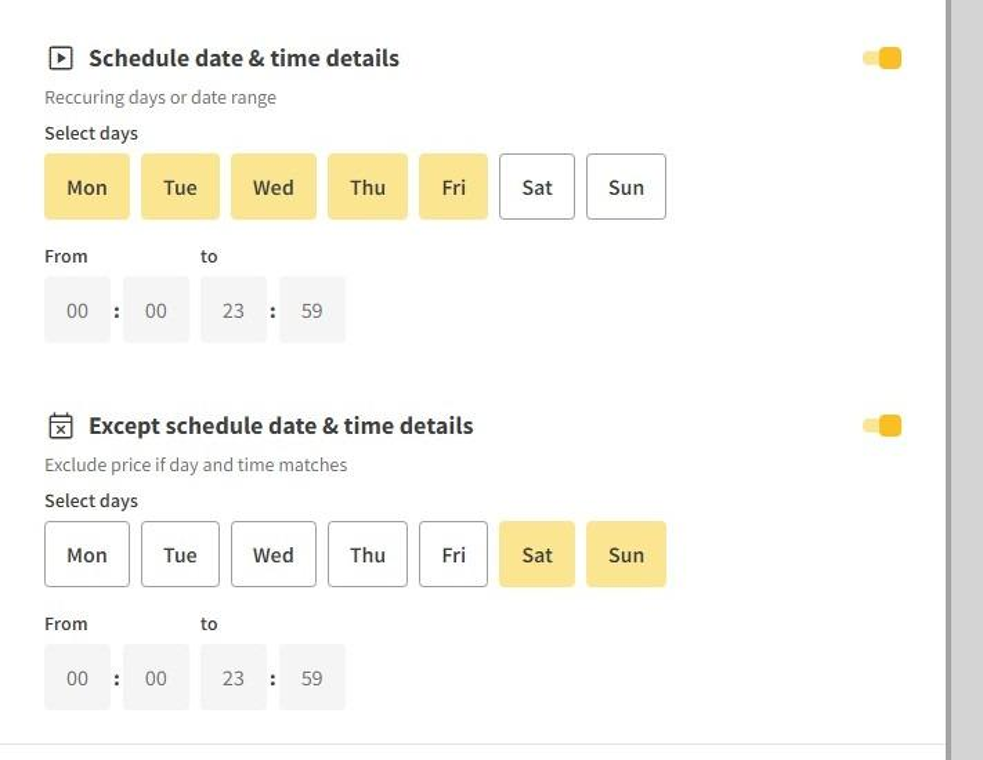
10.- Date & time details: allows tickets if day and time matches to session day and time
- Except data & time details: exclude tickets if day and time matches to session day and time
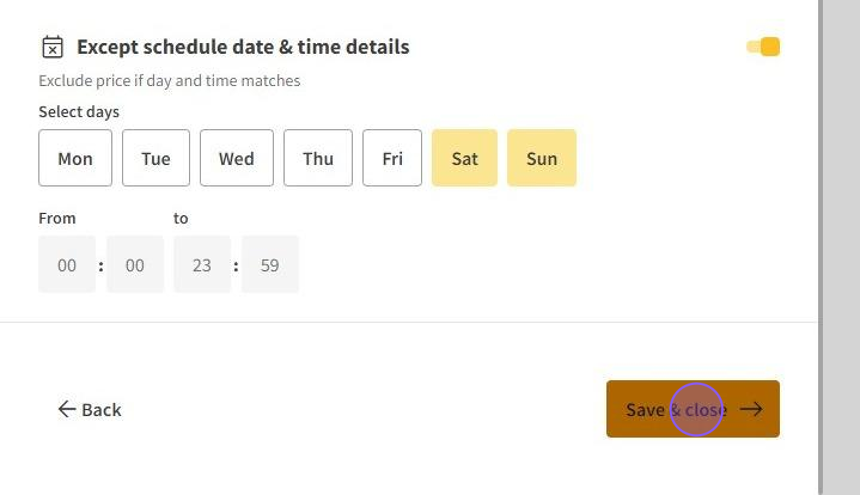
11.Click on Save & close to save the ticket price.
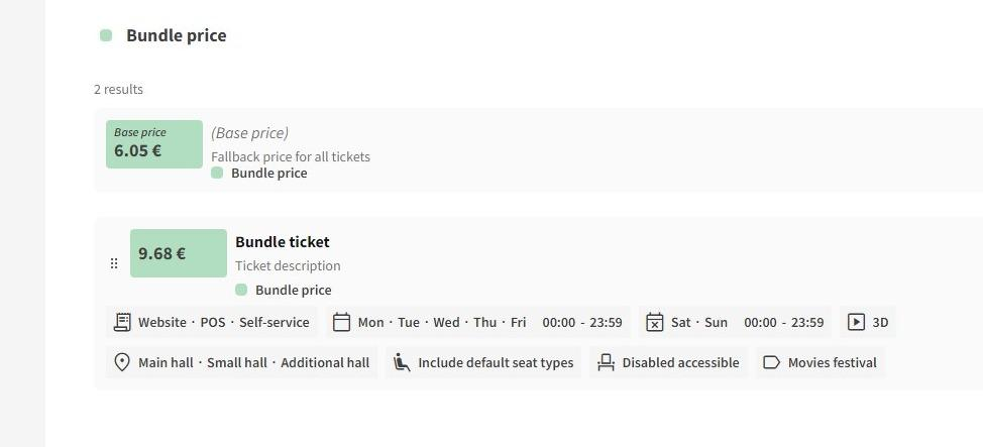
12.The new ticket price will be instantly visible.