


1.To create an event with pre-order options, go to My Cinema / My Theater → Schedules to access the scheduling page.
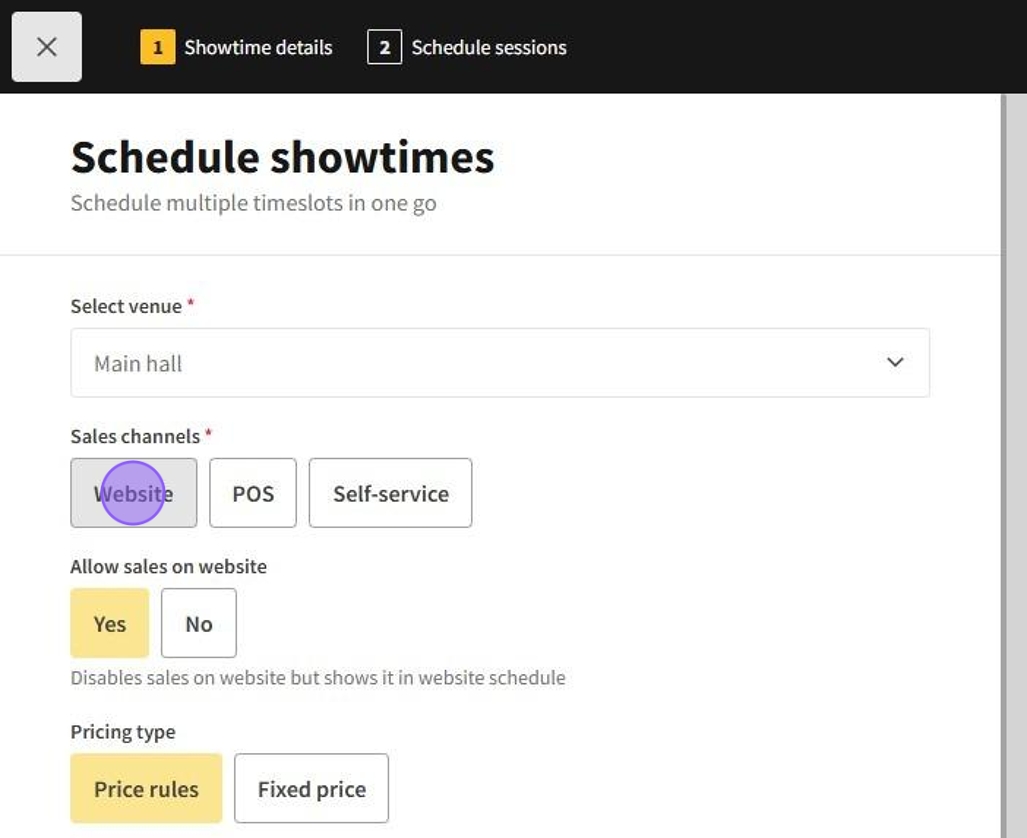
2.Add a new event on the Schedule page by clicking New Event and following the usual steps.
3.Ensure that the event is accessible through the Website sales channel to be pre-orderable by enabling it.
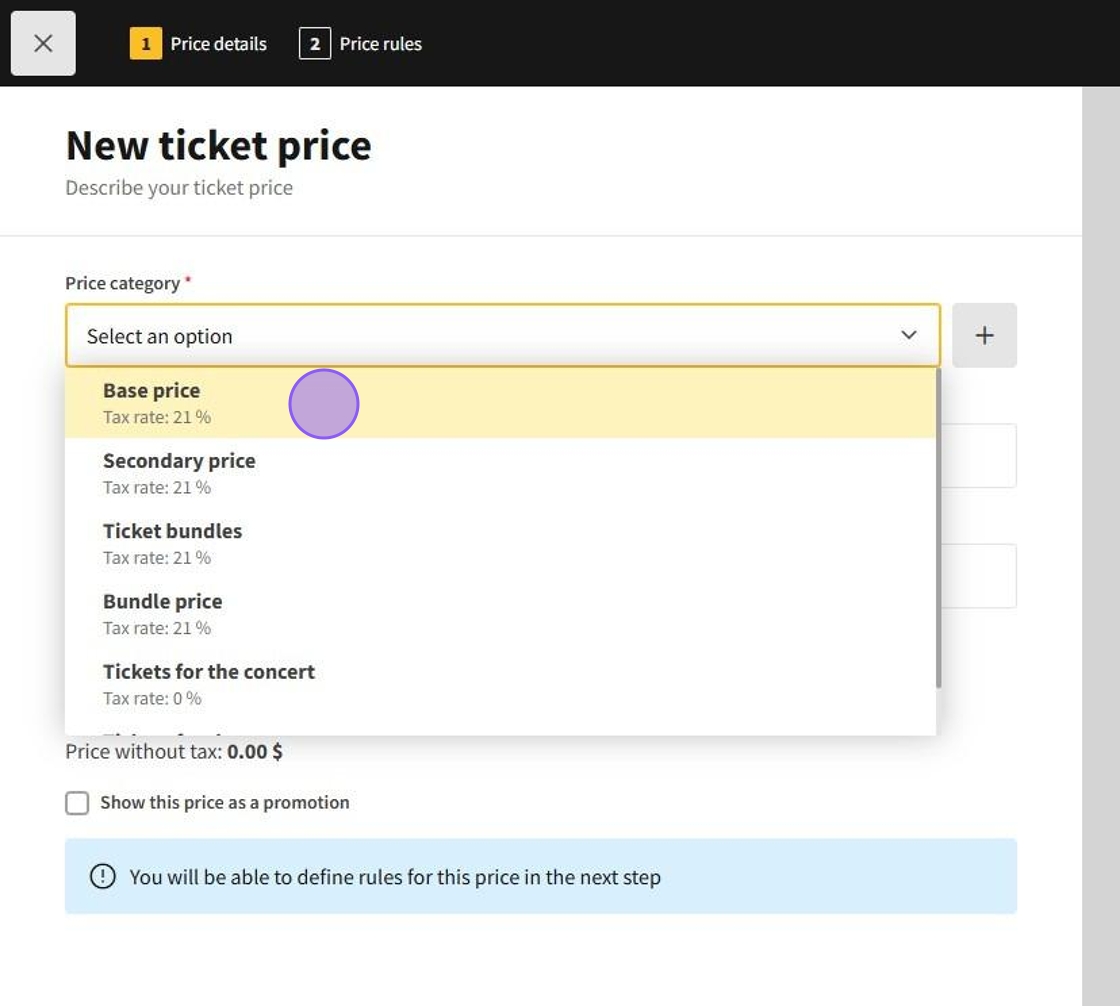

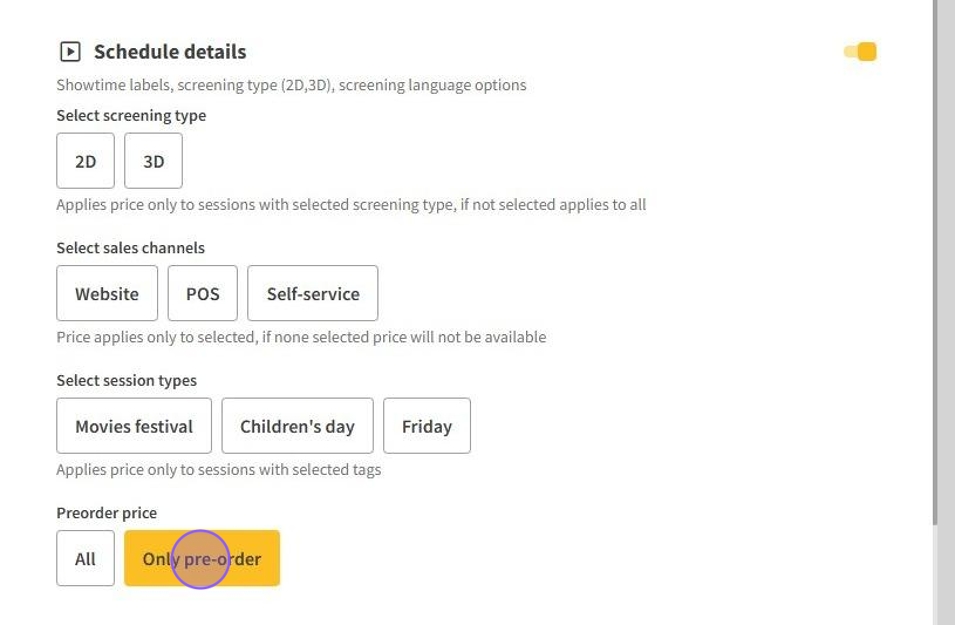
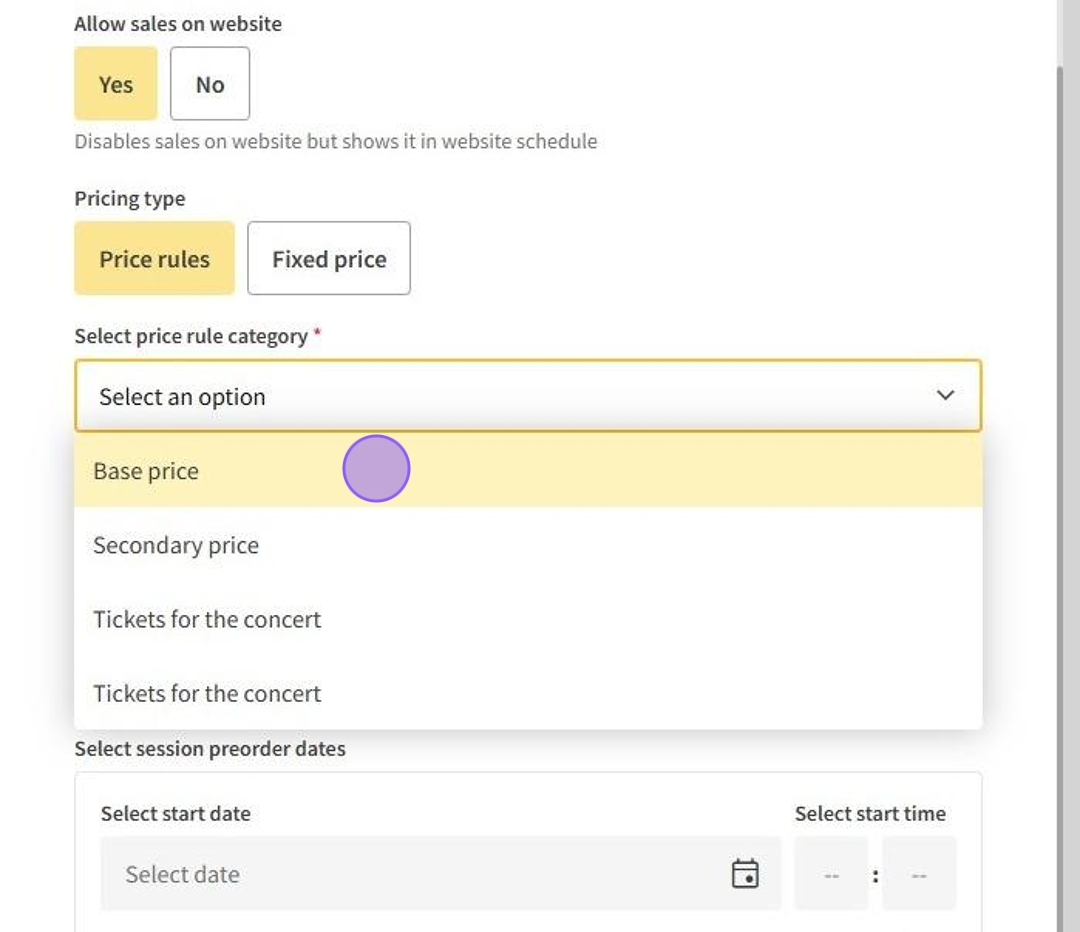
4.Select the price category where you added the pre-order prices.
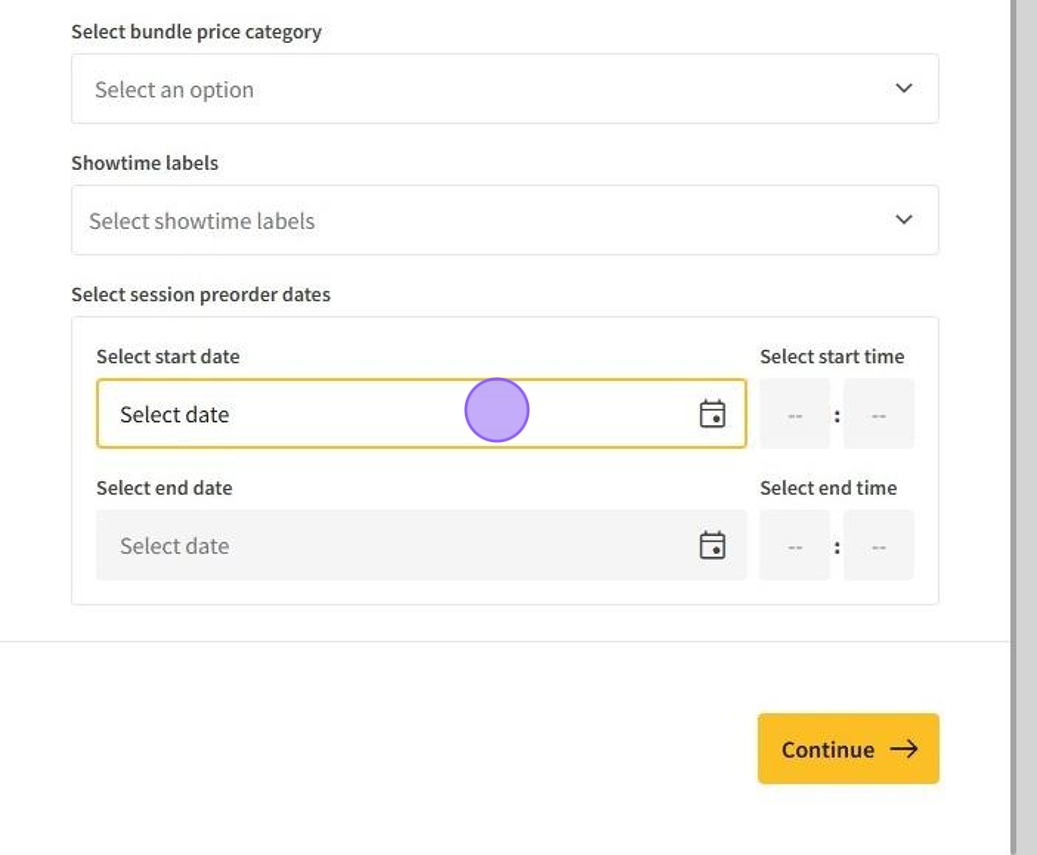
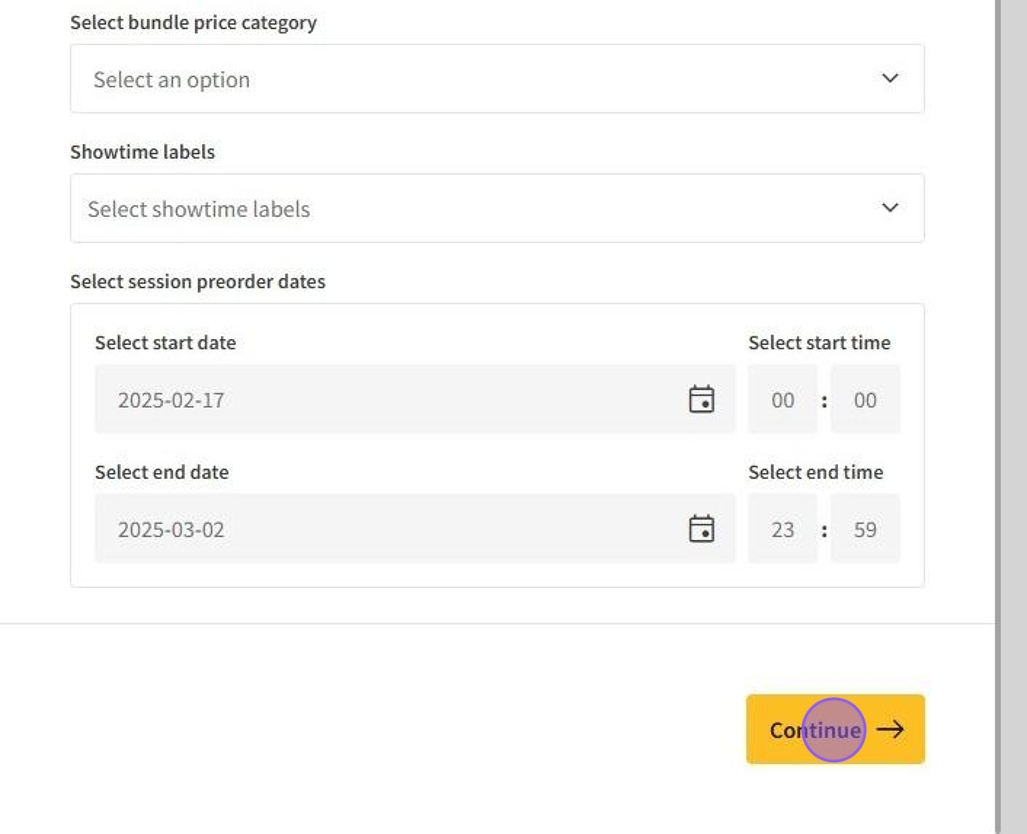
5.Set the pre-order dates for the events. Note that if the pre-order date is set further than the date the event appears in the scheduling days (default is 7 days), it will automatically set the pre-order end date right before it enters the scheduling display.
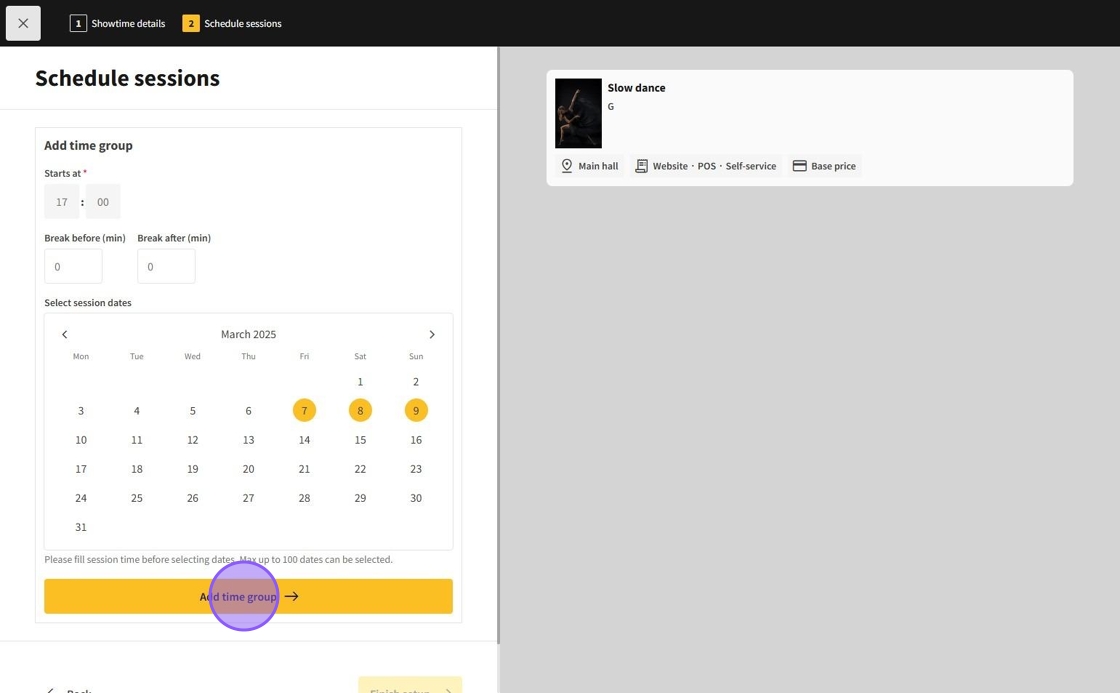
6.After inputting all the information, click on Continue to move to the scheduling page.
7.Create events that are further into the future than the schedule listing length so they can be pre-ordered. If their pre-order end date is after that time, it will revert to the date right before it enters the scheduling display list (default is 7 days).
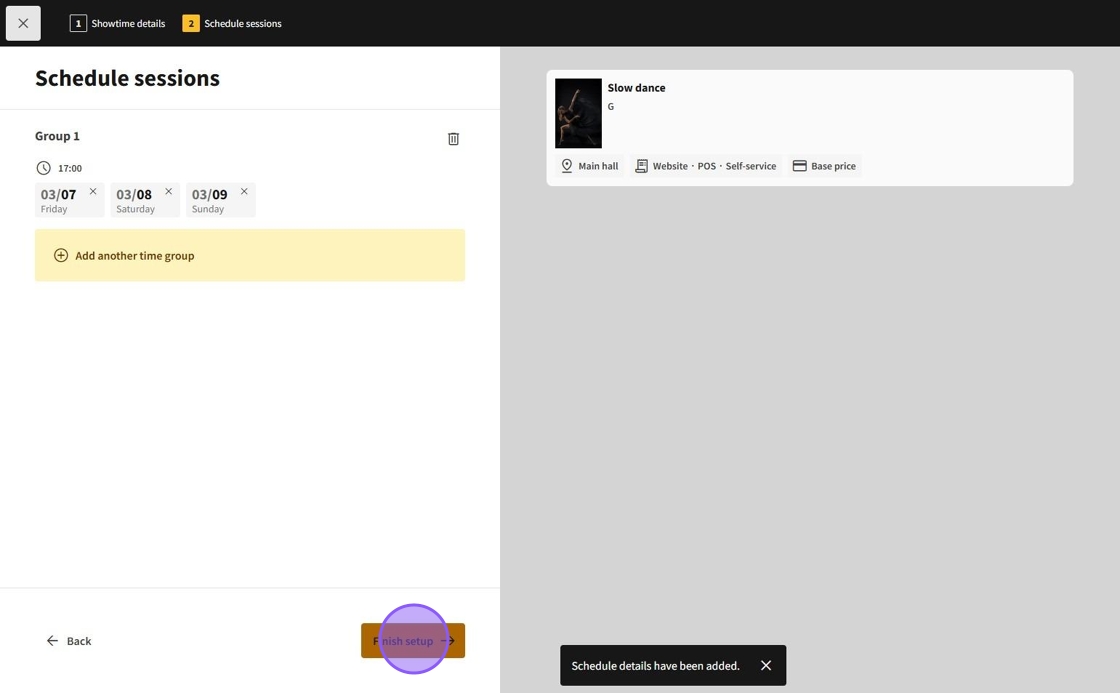
8.Finally, click on Finish setup to complete the scheduling of the events.
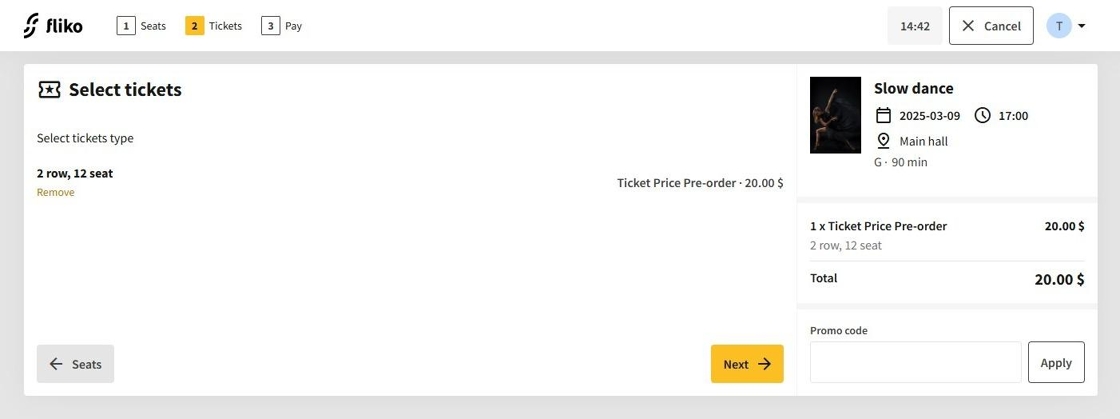
9.Now, tickets can be purchased at the pre-order prices!