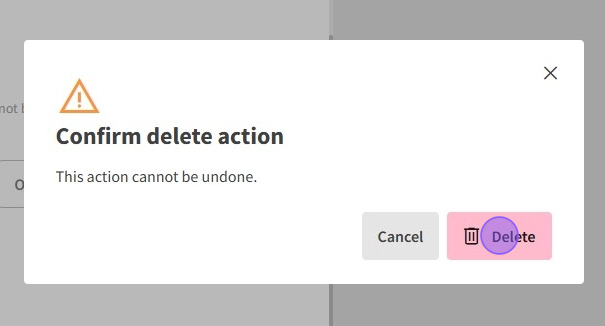
1.The Service Fees feature allows users to create, edit, and delete service fees through a user-friendly dashboard. Users can define fee details, including title, description, type, tax rate, and applicable sales channels. Fees can be enabled or disabled, or deleted entirely, facilitating effective management of service charges.
How to Create a Service Fee?


1.Navigate to the dashboard and select Box Office → Fees to access the Service Fees page.
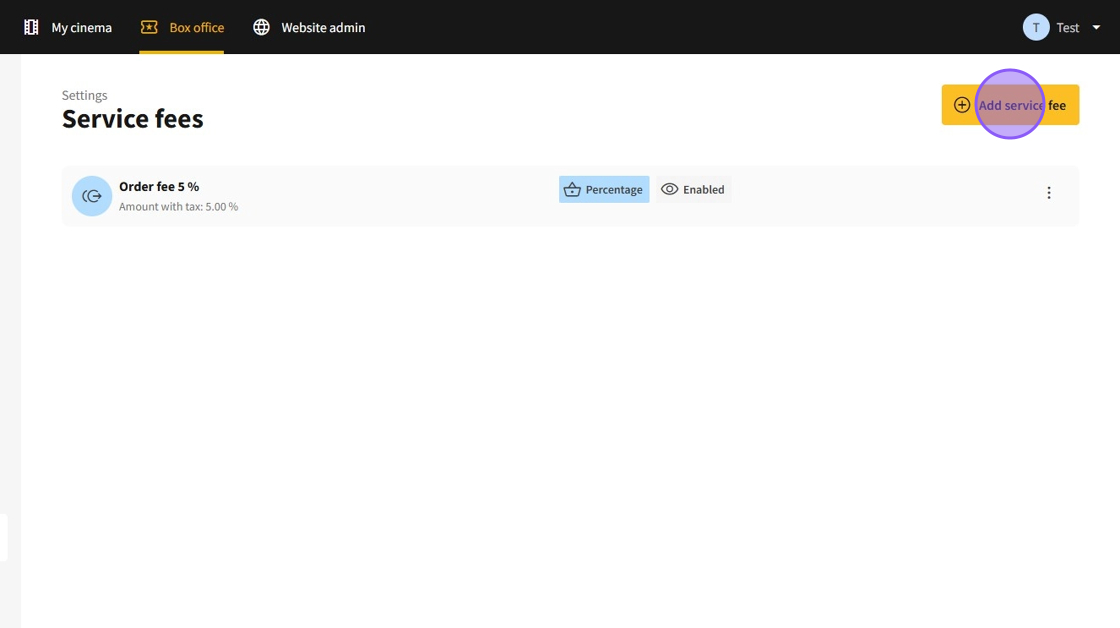
2.In the Service Fees menu, you’ll see a list of all created service fees. To add a new one, click the Add service fee button.
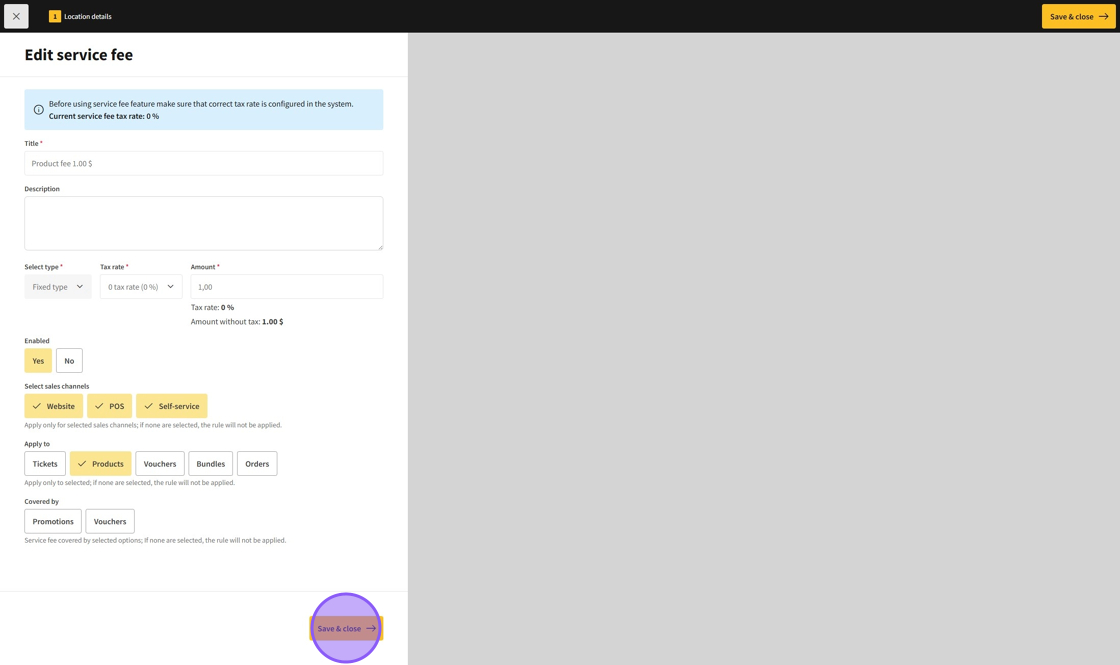
3.On the Service Fee Details page, you’ll find the following settings:
Title: Enter the name of the fee.
Description: Provide a brief description of the fee.
Select type: Choose the type of fee:
Fixed type:
Percentage type:
Tax rate: Select the cinema tax associated with the service fee.
Amount: Depending on the chosen type, specify the percentage or fixed value of the service fee.
Enabled: Toggle to disable or enable the service fee.
Select sales channels: Choose the sales channels where the fee will apply:
Website
POS
Self-service
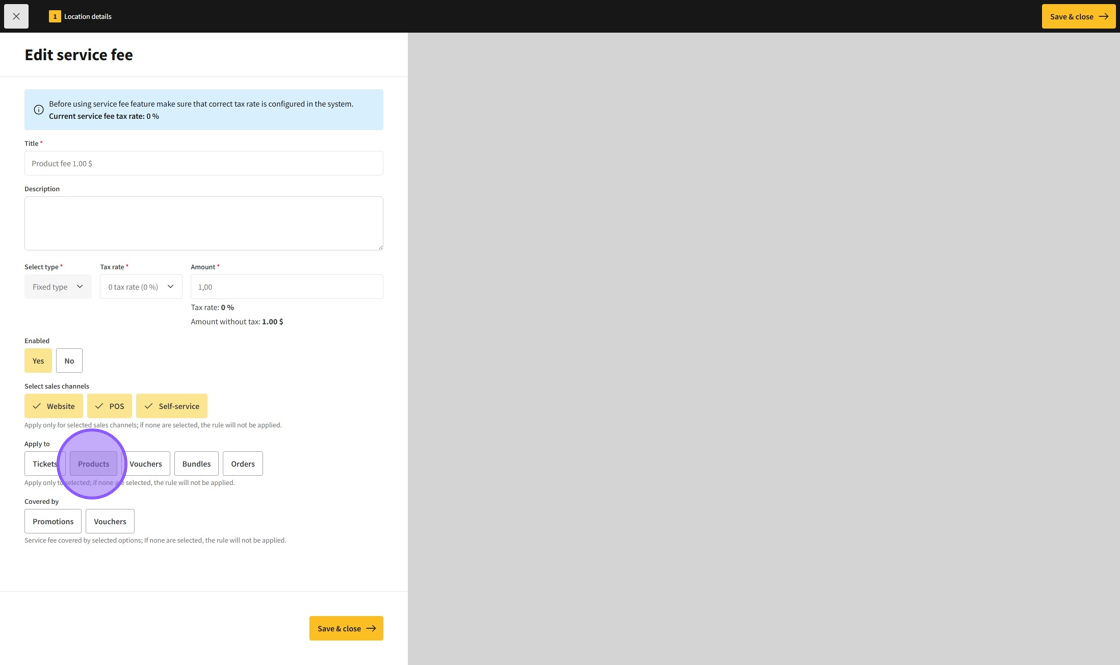
Apply to: Select where the fee applies:
Tickets
Products
Vouchers
Bundles
Orders
Covered by: Allows Promotions and/or Vouchers to cover the service fee.
After filling in all the details of the service fee, click Save & close to create and save it.

Tip! If the fee is applied to both Full Orders and Another Selection, the selection will essentially be charged twice by the same fee.
4.Click here.
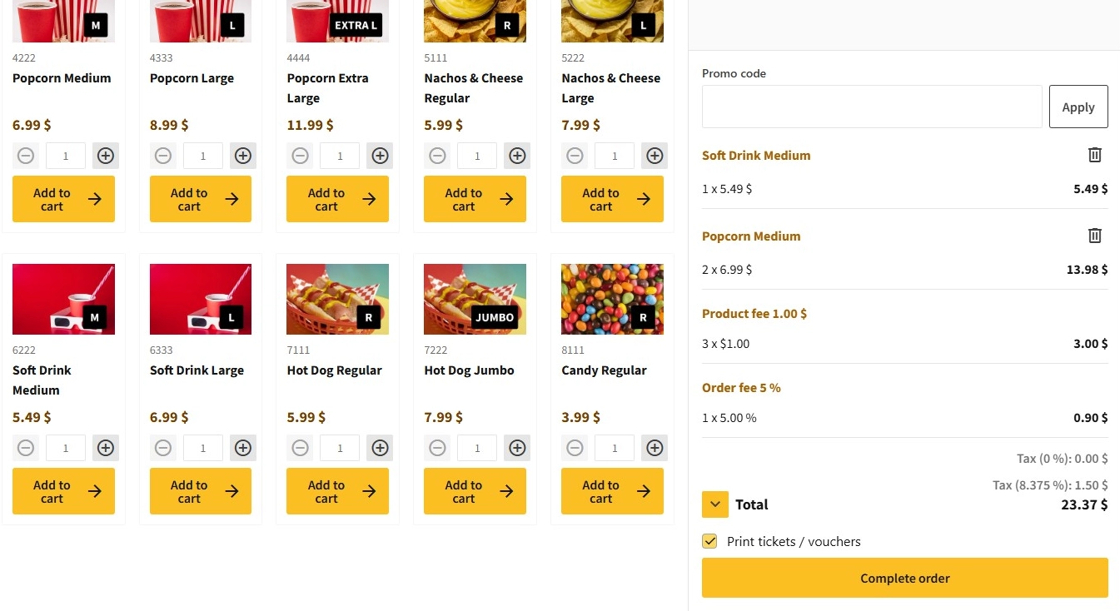
How to Edit a Service Fee?
1.Navigate to the dashboard and select Box Office → Fees to access the Service Fees page.
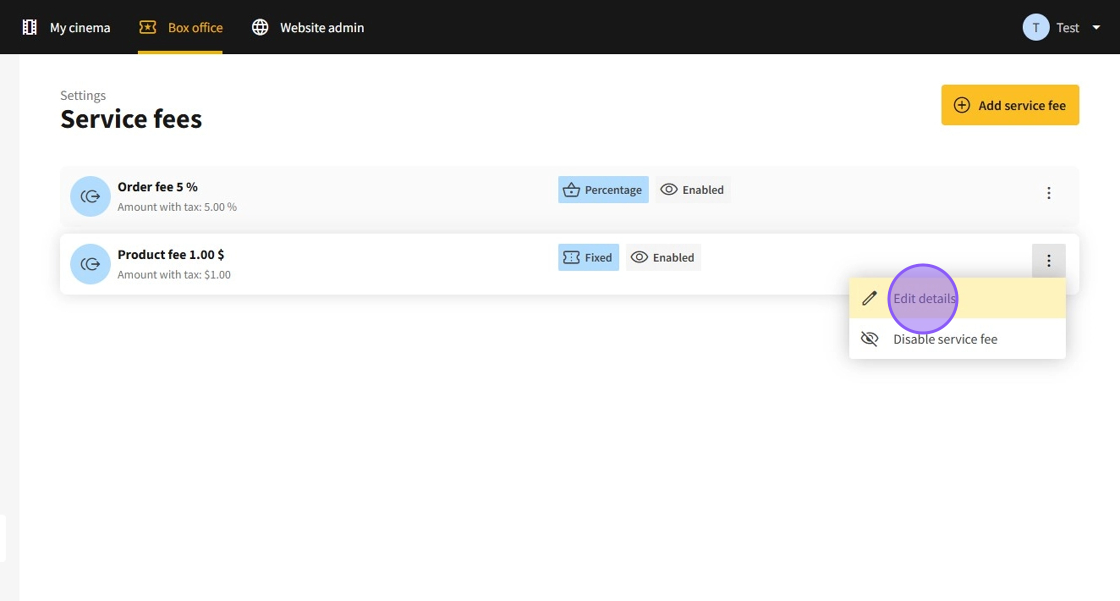
2.Click the ⋮ button and choose the option to edit the service fee:
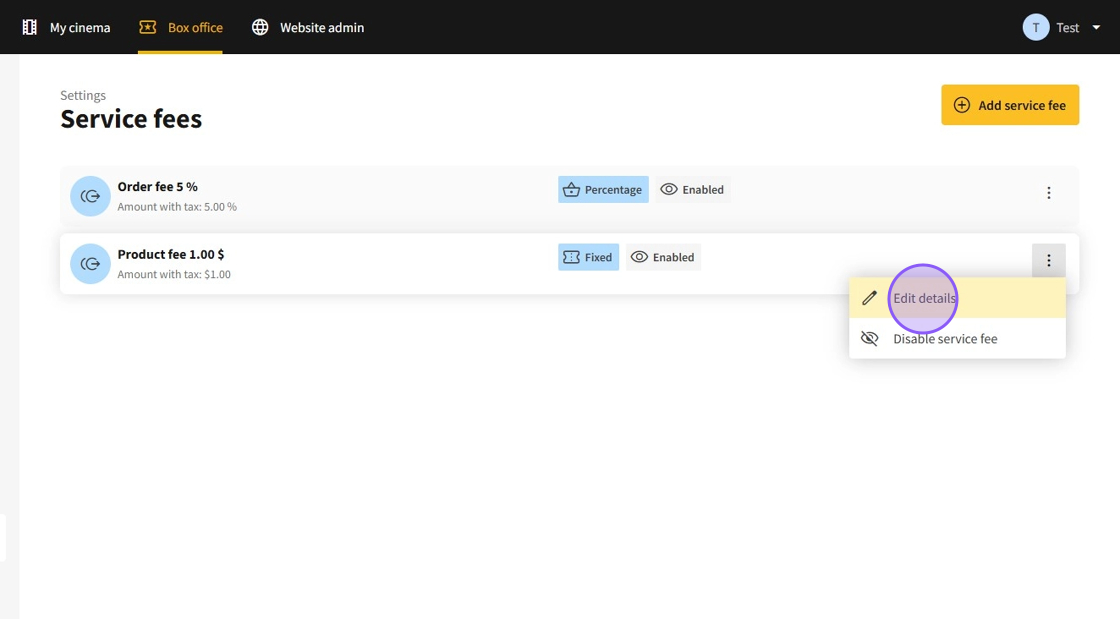
- Edit details: Opens the details page for the selected service fee.
- Disable/Enable service fee: Toggles the availability of the service fee.

3.On the service fee details page, you can modify the information as needed.
After making your changes, click Save & close to save the updates.
How to Disable a Service Fee?
1.There are multiple ways to disable a service fee

2.Navigate to the dashboard and select Box Office → Fees to access the Service Fees page.
3.Method 1: Toggle: Toggling the fee by clicking the ⋮ button and selecting the Disable service fee.

4.Method 2: Set it to apply to nothing: Click the ⋮ button and select the Edit details option to open the service fee's detail page.
5.Disable all the selections in Apply to and afterwards click on Save & close to disable the fee.
6.Method 3: Deletion: Click the ⋮ button and select the Edit details option to open the service fee's detail page.
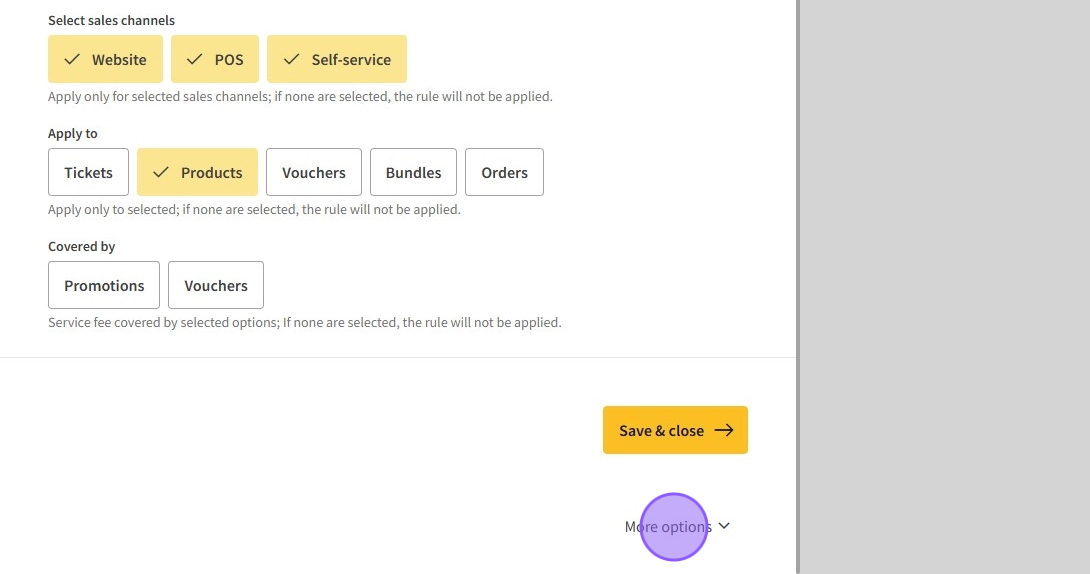
7.Scroll to the bottom of the detail page and select More options.
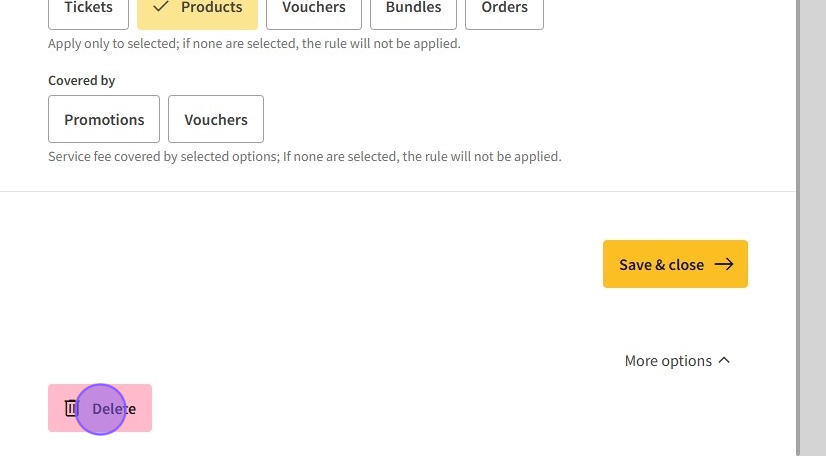
8.Click the Delete button to initiate the deletion process.
9.Click Delete again to confirm the deletion.