How to enable dynamic pricing on an existent product?
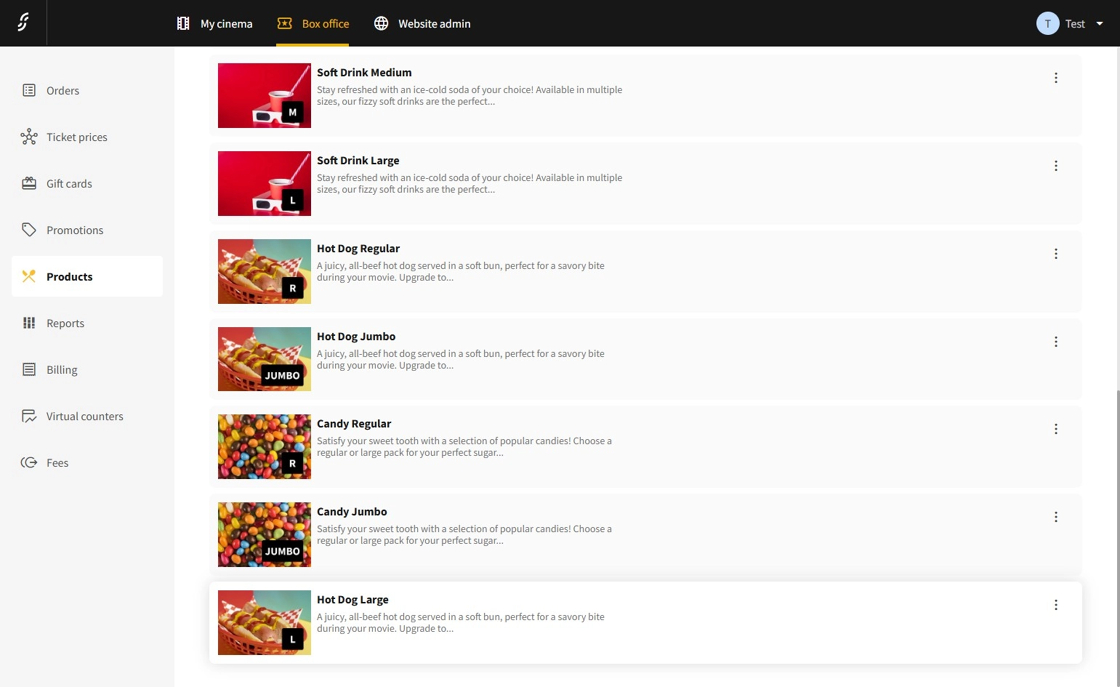

1.Navigate to the dashboard and select Box Office → Products to access the Products page.
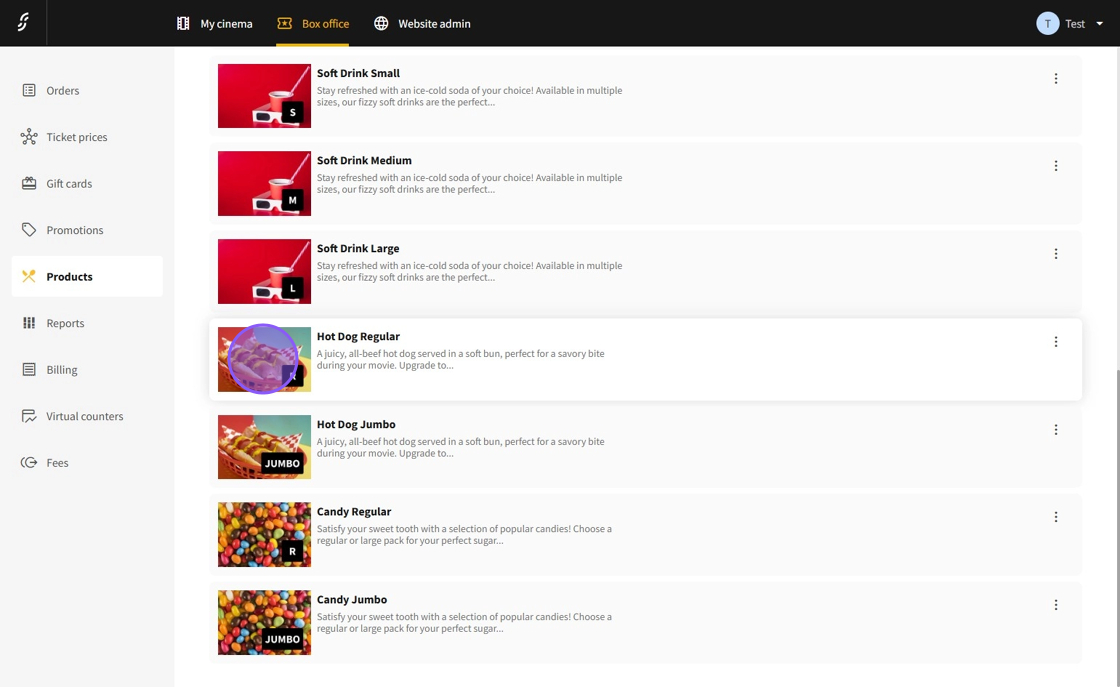
2.Click on the product to which you want to add the dynamic price property.
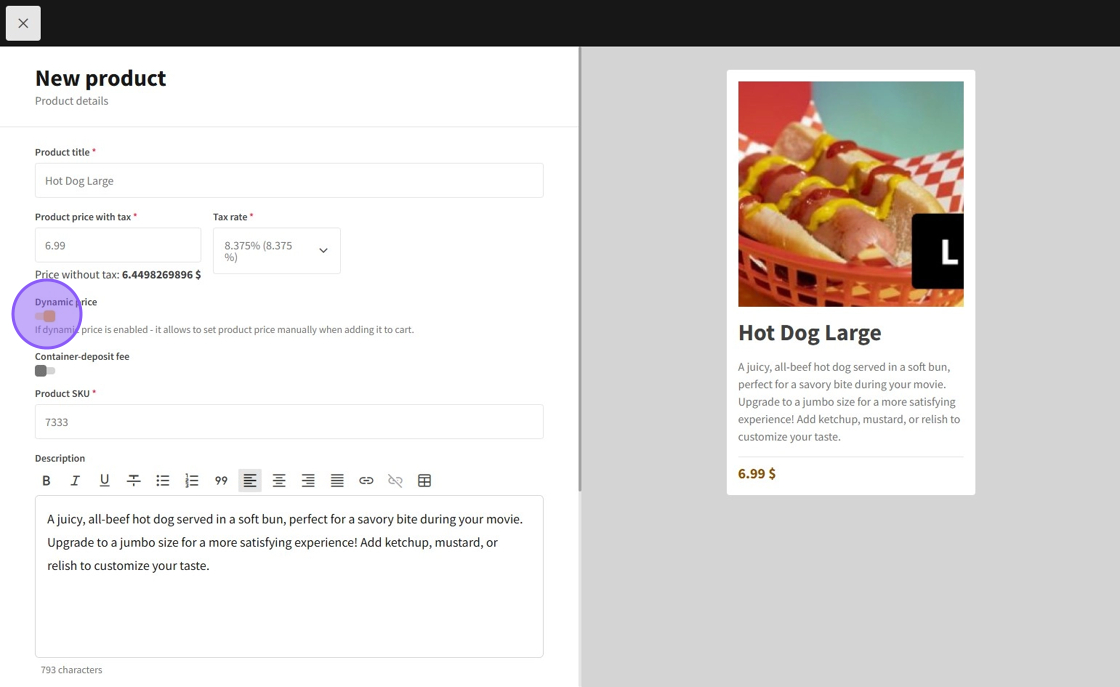
3.On the product's page, click on the Dynamic price toggle to enable the dynamic price.
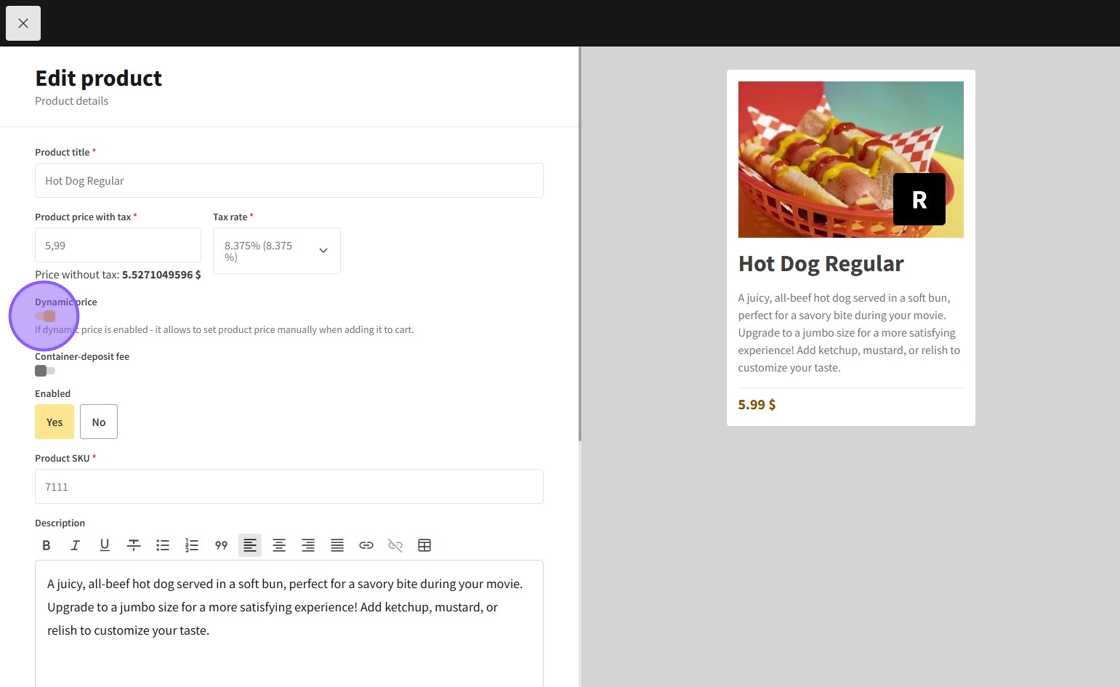
Tip! If dynamic price is enabled - it allows to set product price manually when adding to cart.
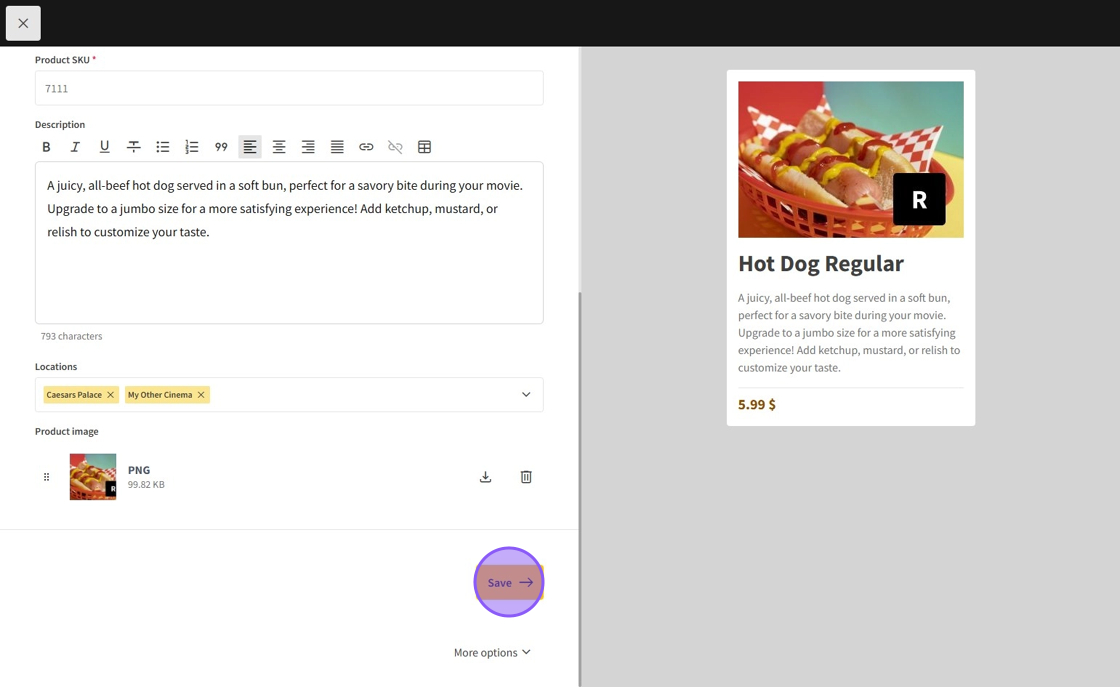
4.After enabling the dynamic price, click on the Save button to save the update.
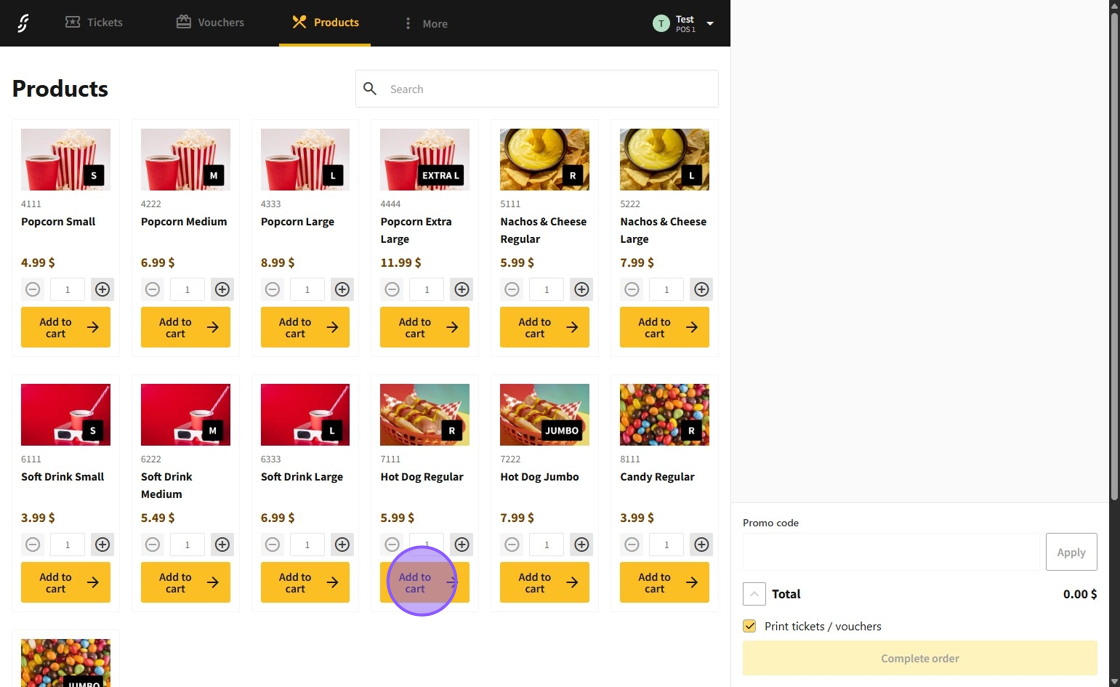
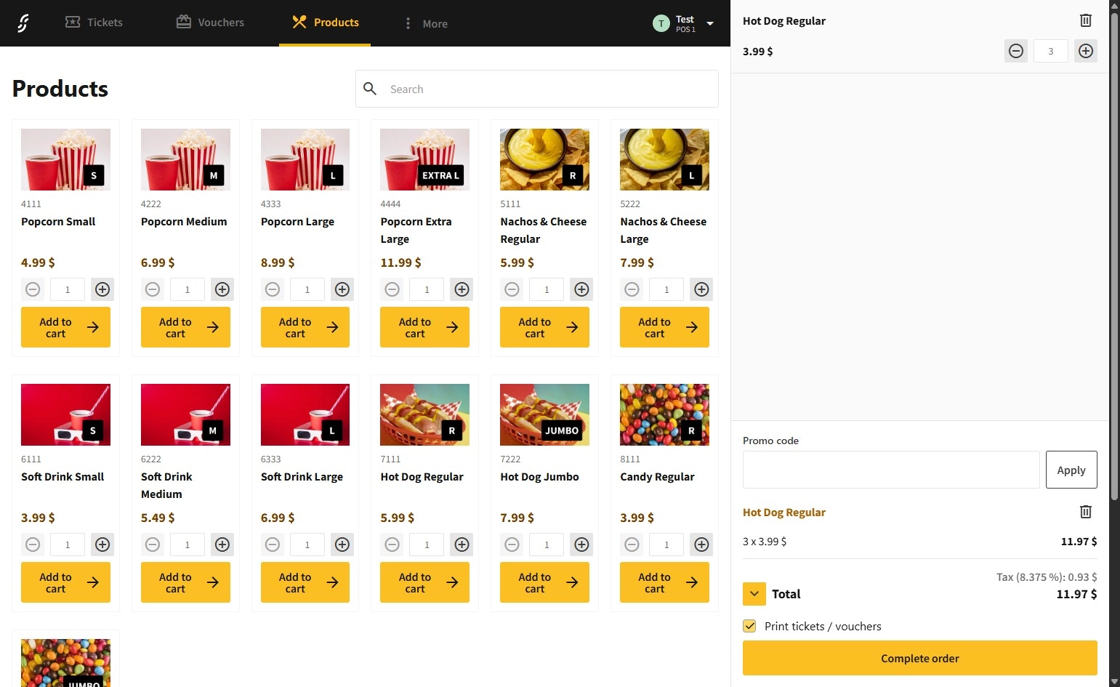
5.Now, in the POS, when selecting the modified product, a menu will open.
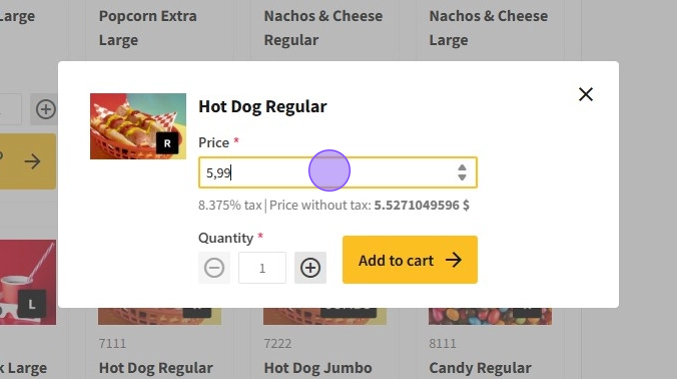
6.In the dynamic price product menu, you will see the dynamic price and the quantity options.
7.After setting the price and quantity of the product, click on the Add to cart button to add the products to the cart.
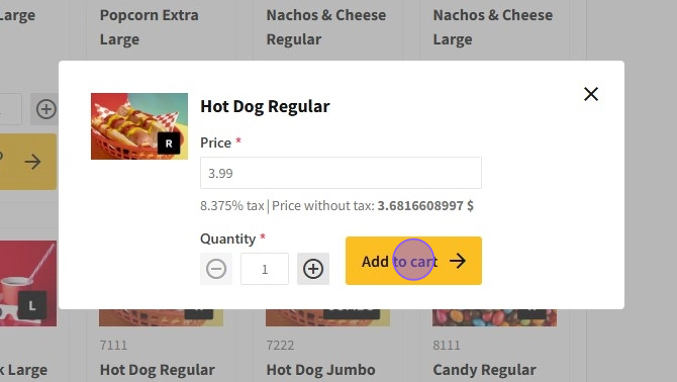
8.The product with the dynamic price will now be added.
How to create a product with dynamic pricing?

1.Navigate to the dashboard and select Box Office → Products to access the Products page.
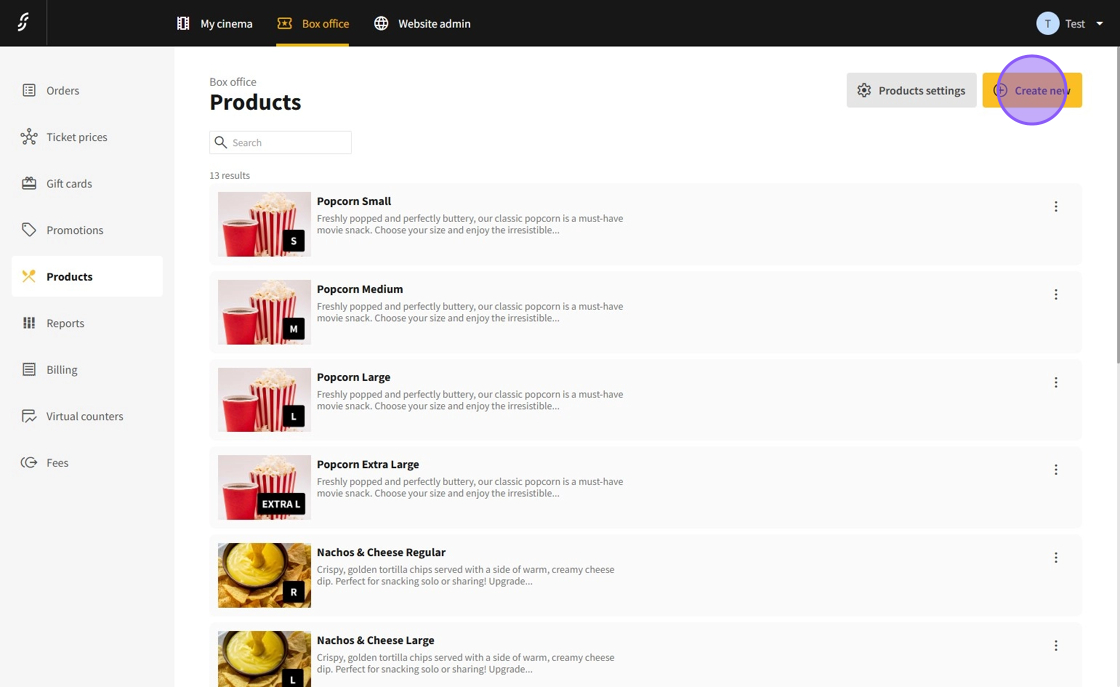
2.Click the Create new button to begin adding a new product.
3.On the product creation page, fill in the product information as you normally would.

4.Click on the Dynamic price toggle to enable the dynamic price.
5.After enabling the dynamic price, click on the Save button to save the update.
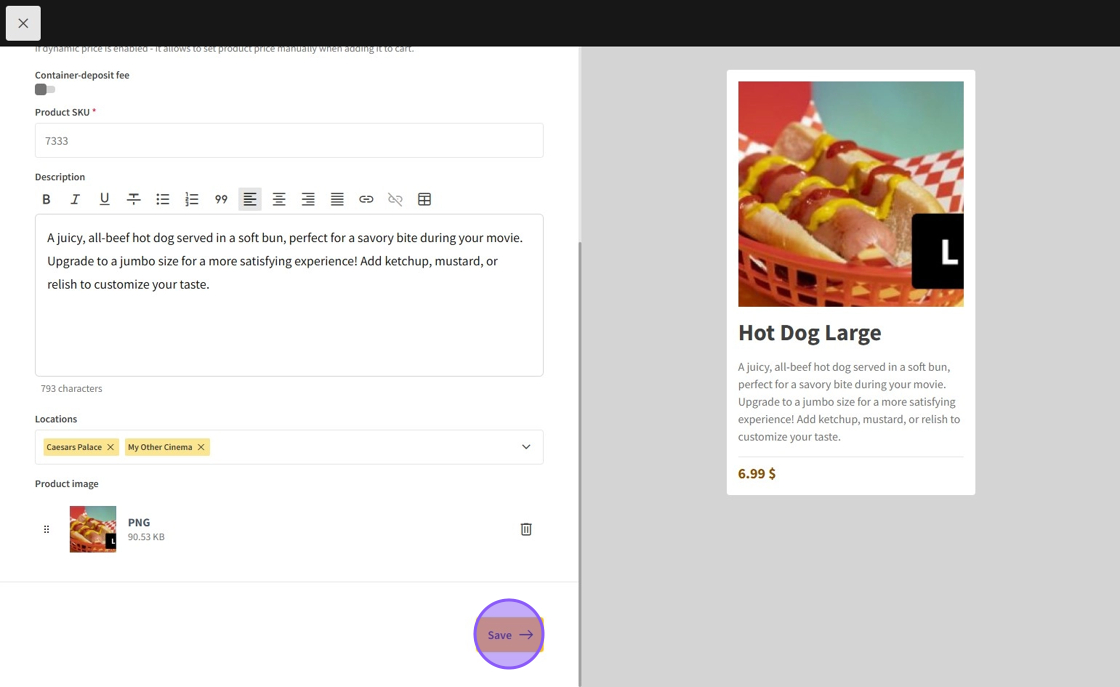
6.Your product with dynamic pricing will now be added.