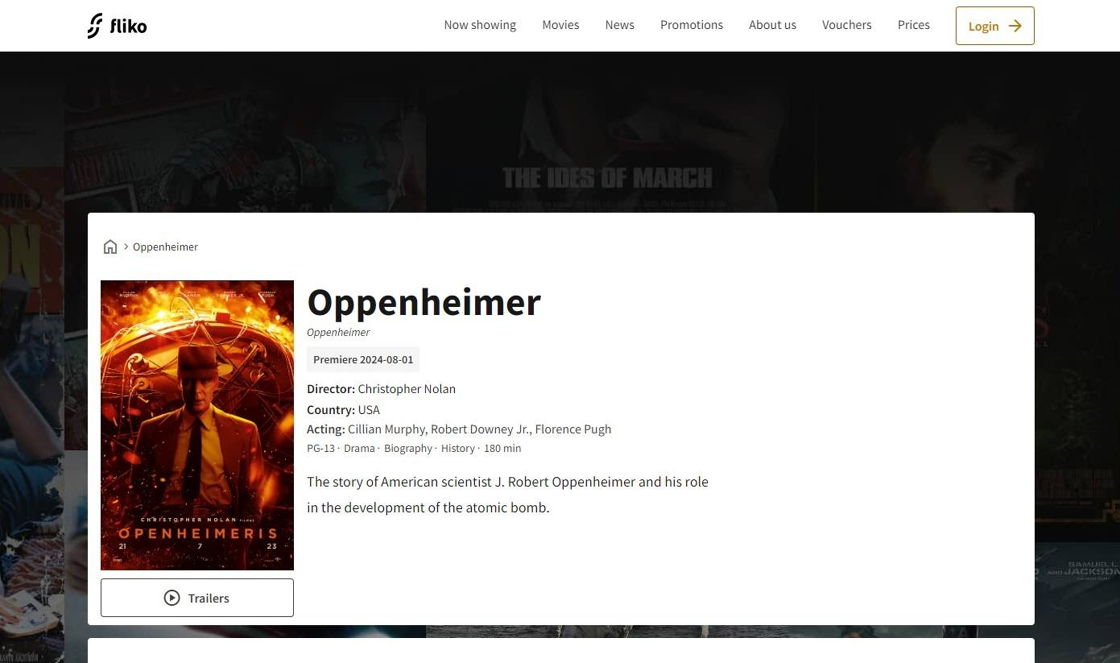
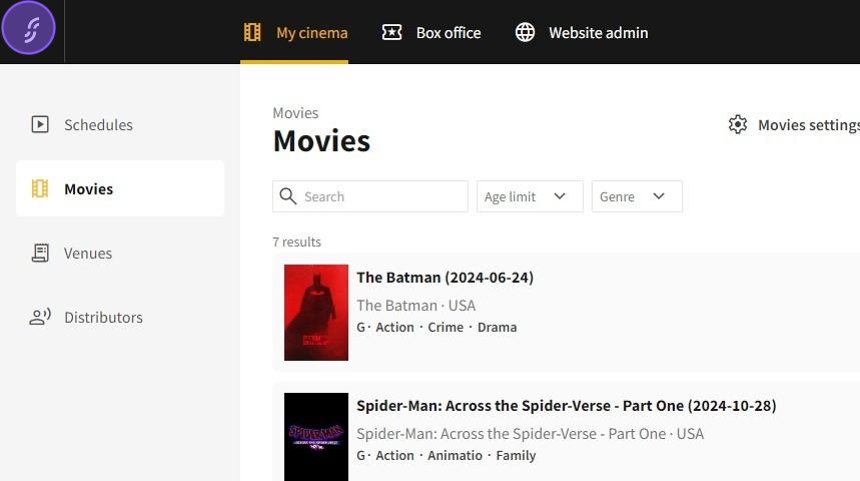
1.To navigate to the Movies page, click on "My cinema" and then select "Movie".
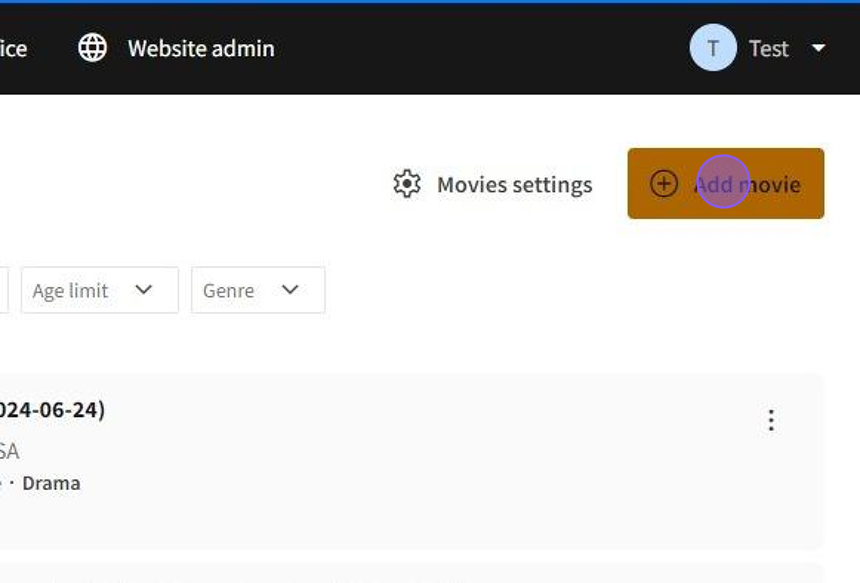
2.Start creating a new movie by clicking on "Add movie".
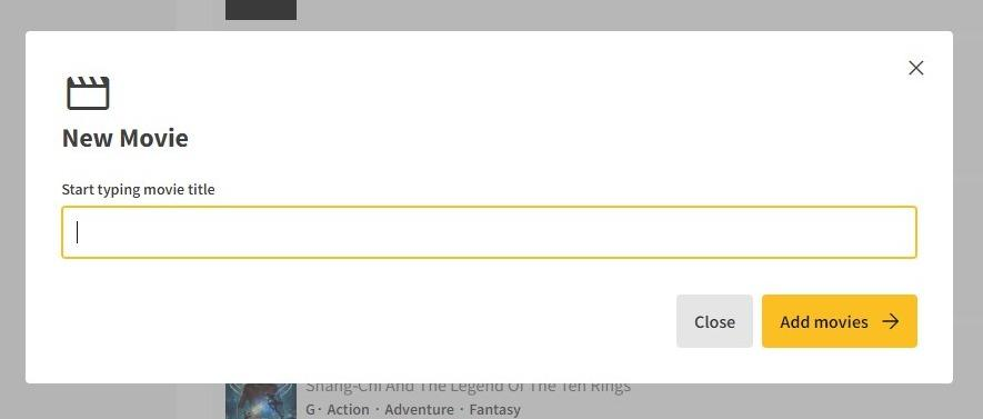
3.Enter the title of the movie in the "Start typing movie title" field. Then click on "Add movie" to continue.
4.Inside the movie/edit page, you can add details about the movie on the left side and media related to the movie on the right side.
5.
The movie's original title is listed in the "Original title" field.
The movie's premiere date is listed in the "Local premiere date" field.
The movie's duration in minutes is listed in the "Movie duration" field.
(Optional) The movie's directors are listed in the "Directors" field.
The countries in which the movie was produced are listed in the "Countries" field.

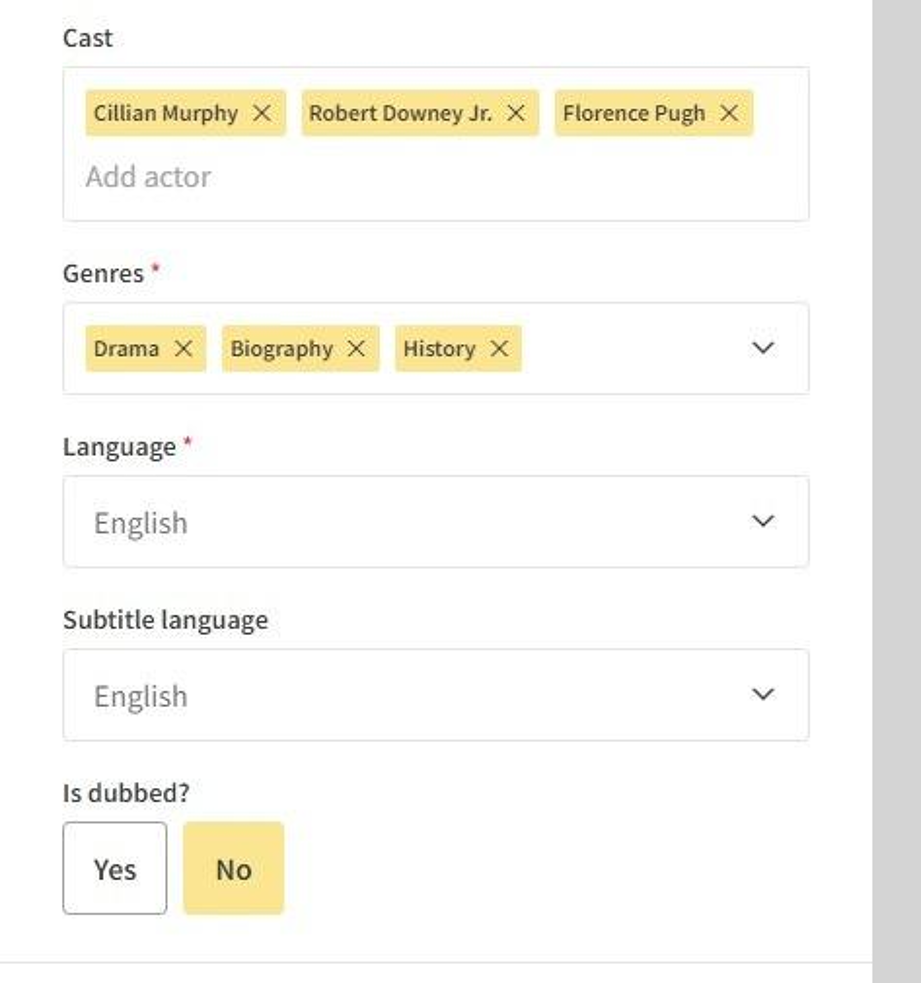
6.- List the main actors of the movie in the "Cast" field.
Select the genres that best describe the movie in the "Genres" field.
Choose the primary language of the movie in the "Language" field.
Choose the language of the subtitles, if applicable, in the "Subtitle Language" field.
Indicate whether the movie has been dubbed into another language in the "Is Dubbed?" field.
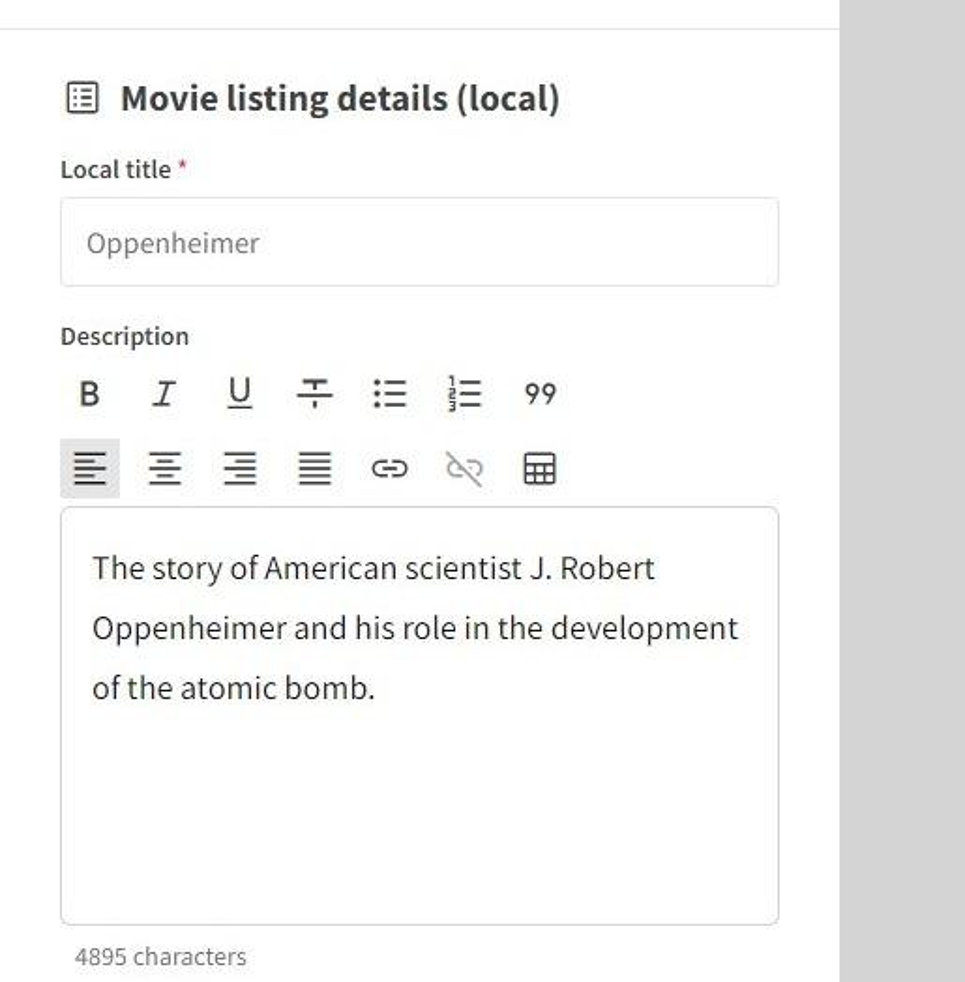
7.Local movie details:
- In the Local title field the local version of the movie's title is written
- In the Description field the movie's description is written (5000 character limit)
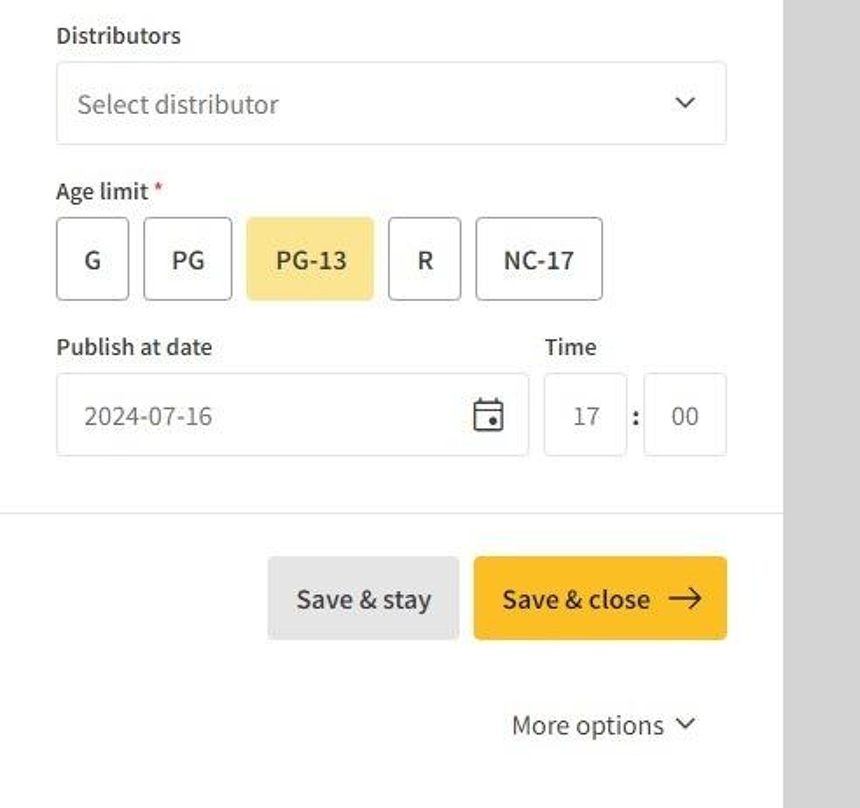
8.- In the "Distributors field the distributors for the movie can be selected
- In the "Age limit selection, the movie's age rating can be selected
- In the "Publish at date field the date is set when the movie's page on the stage site will become public
- (While editing) To delete the movie's entry, go to "More options" and select "Delete". Note that if the movie is scheduled, you need to remove all scheduled dates before deleting the entry.
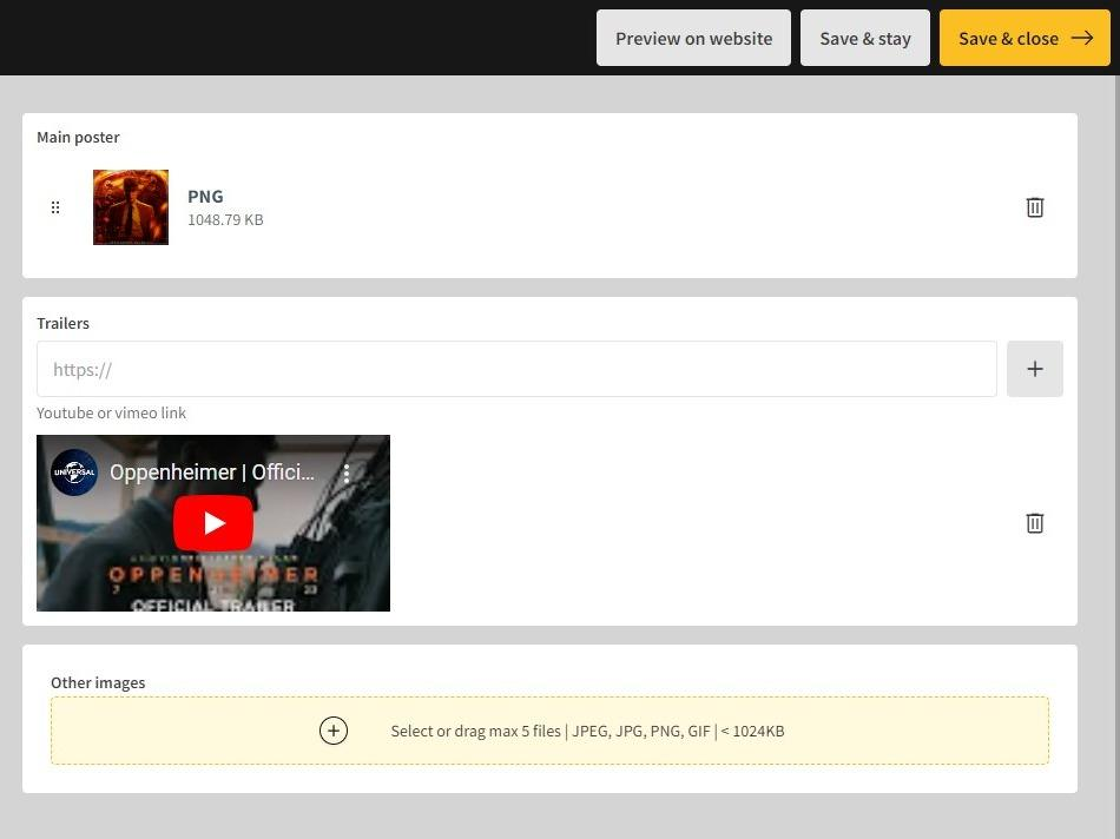
9.Media:
- In Main poster, the movie's main poster is selected (Max 1 file | JPEG, JPG, PNG, GIF file formats | less than 2.00MB in file size)
- In Trailer insert Youtube and Vimeo links of the movie into a field and then press on the " + " confirm the link selections (Max 3 links)
- In Other images some additional images for the movie can be added (Max 5 files | JPEG, JPG, PNG, GIF file formats | less than 1024KB in file size)
10.After making all the changes or completing the entry for the movie, click on "Save & close" to finish editing/creating the entry.

11.Once saved, the movie will be listed in the movie list.
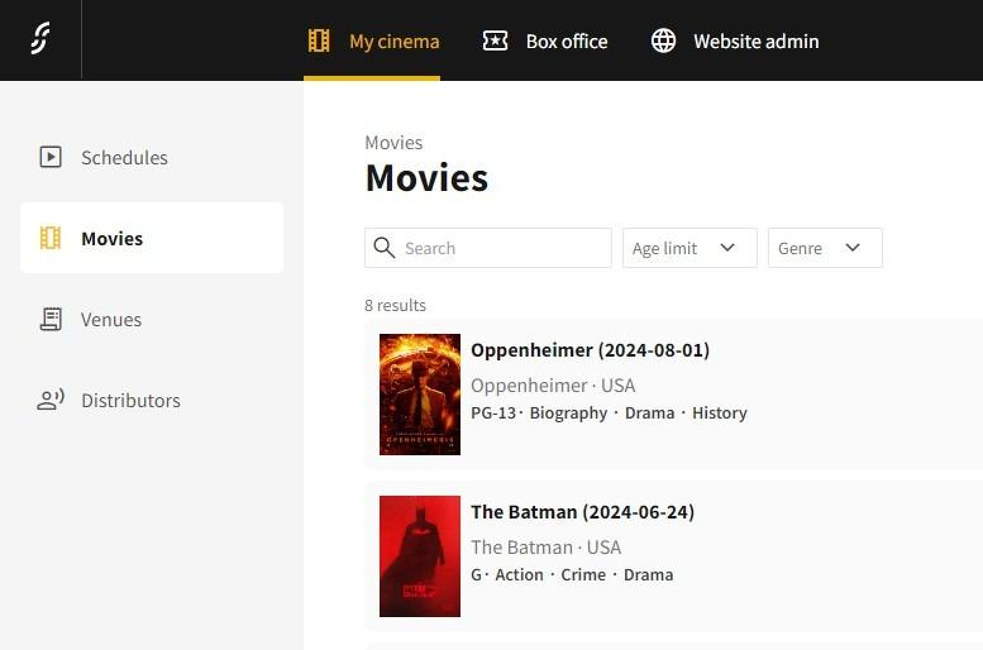
Tip! Right after uploading a movie with a new poster, the poster may not load initially until the page is restarted.
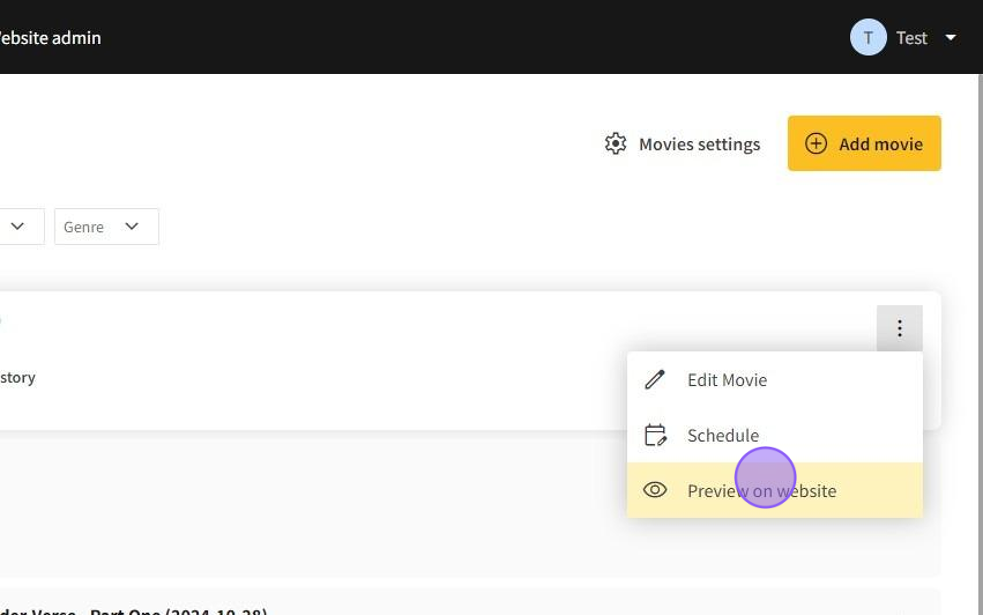
12.Click on the "⋮" button located on the right side of the movie to open a menu with the following options:
- Edit Movie: Opens the movie entry editor.
- Schedule: Allows you to schedule screening times for the movie.
- Preview on Website: Provides a preview of the movie's page on the website.
13.When the movie is published, its entry will be displayed on the website.