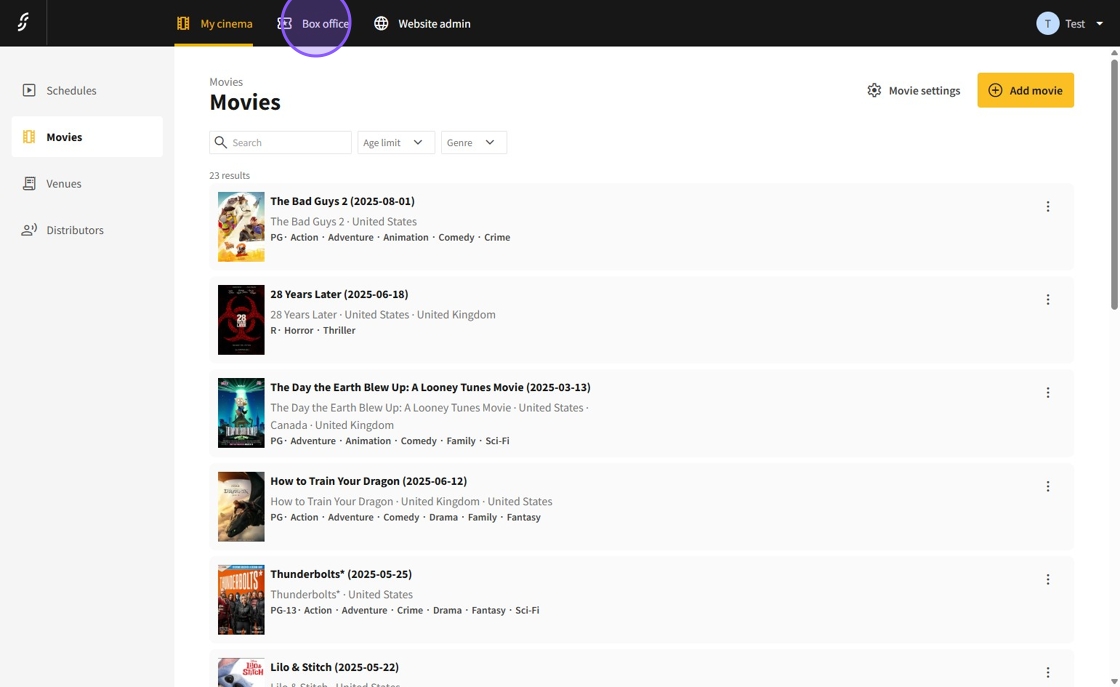
1.Access the Dashboard and select Box Office.
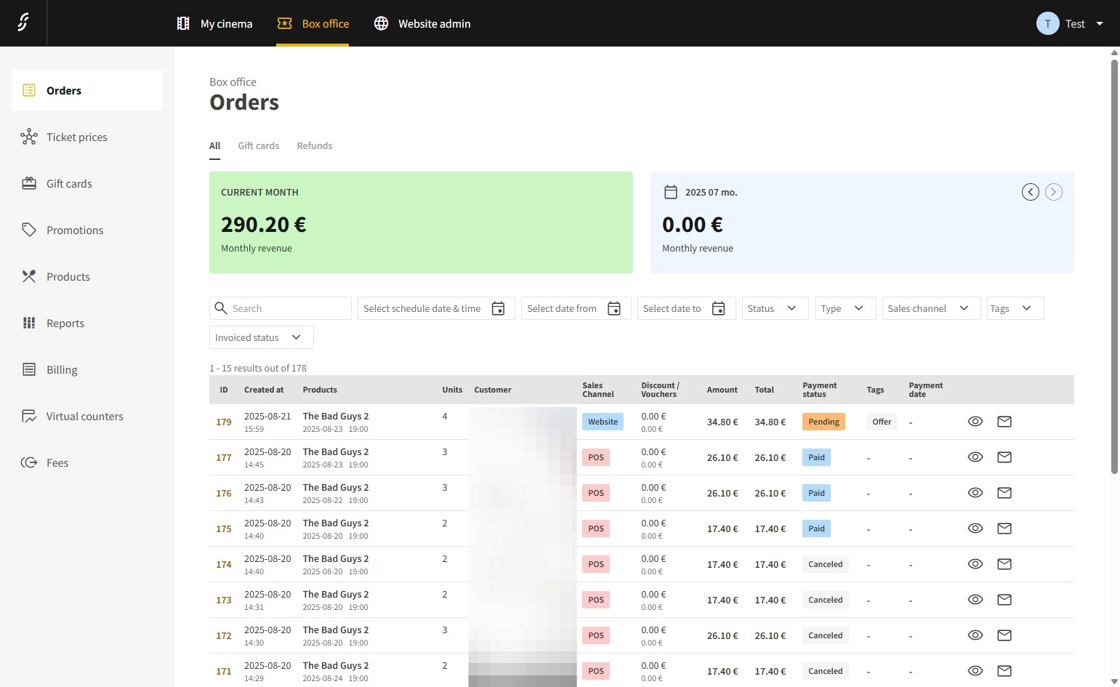
2.On the Orders page, all orders will be displayed.
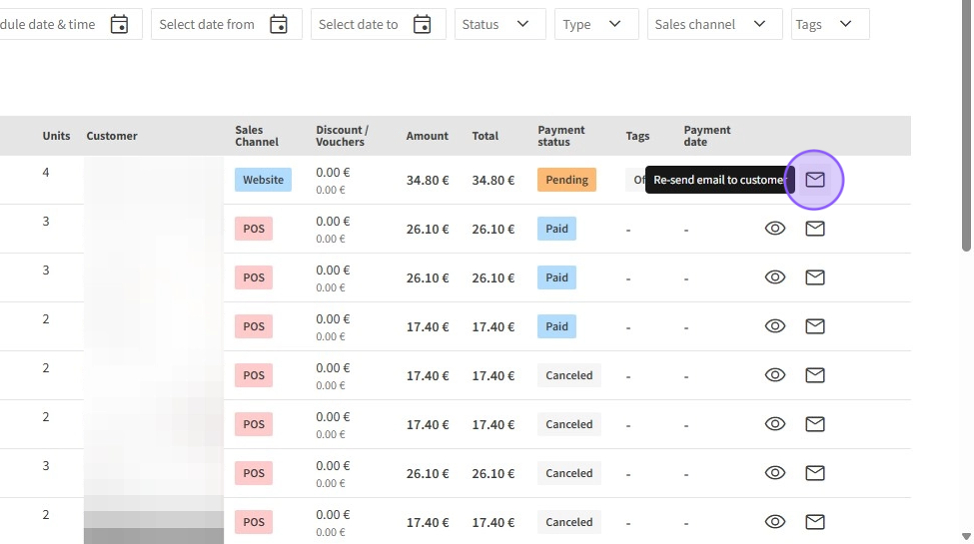
3.To resend order confirmation emails to customers, click the envelope icon located on the right side.
4.Alternatively, select an order by clicking its Order ID or the eye icon on the right.

5.Within the order details page, you can review comprehensive information including order status, payment method, transaction ID, items purchased, price, amount paid, and customer email.
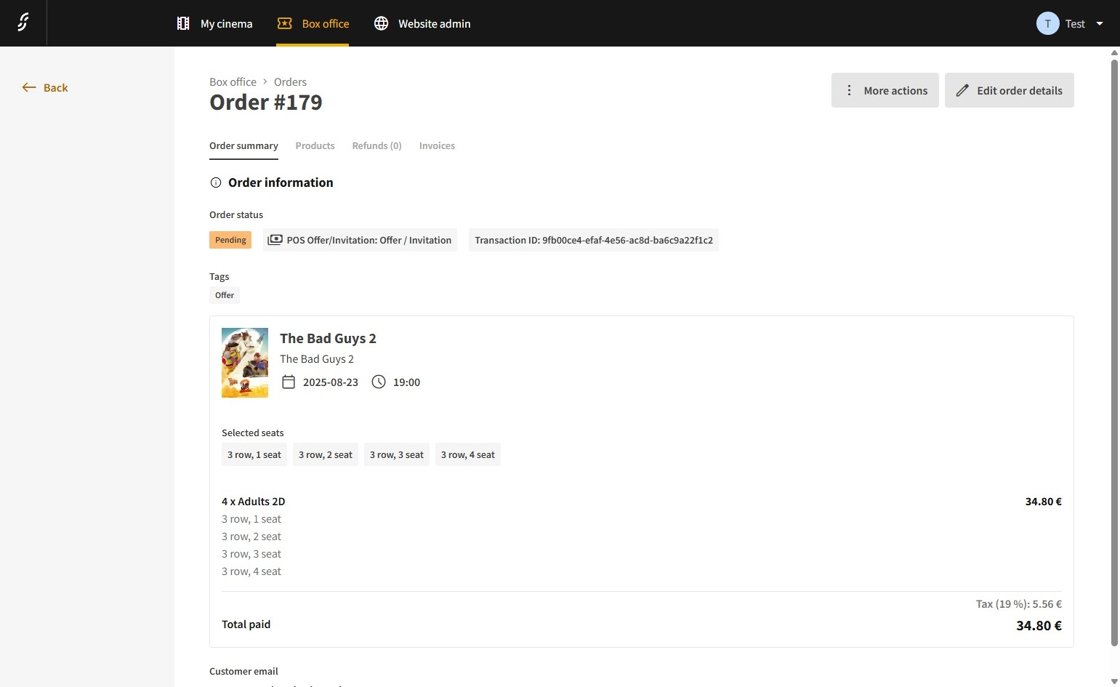
6.Click on More Actions to access additional options for the order.
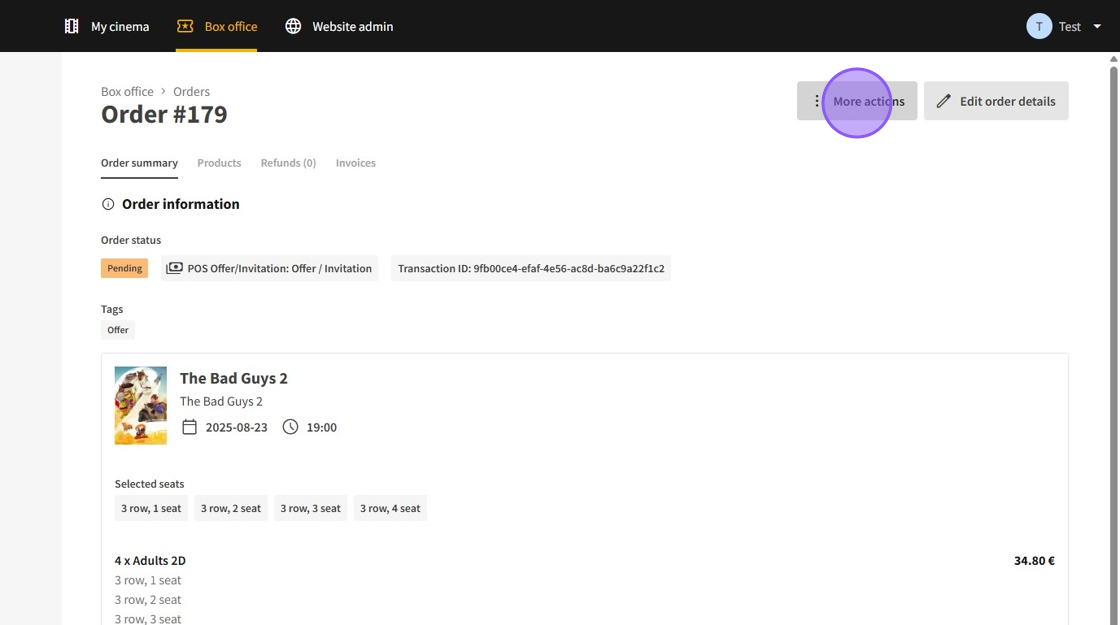
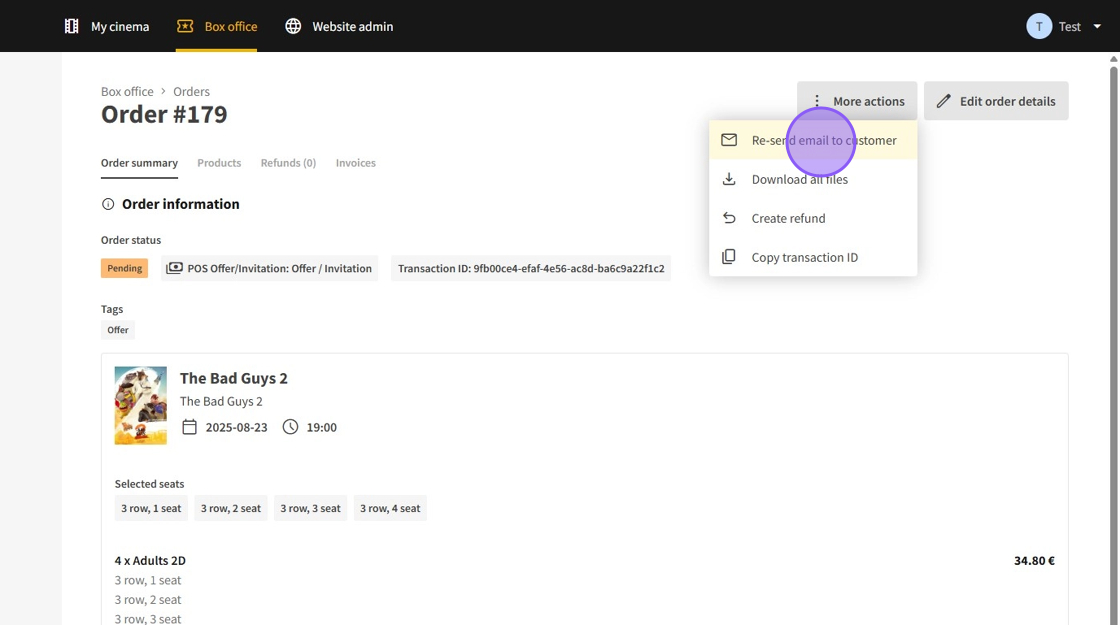
7.From the available actions, you may resend the order email, download all associated files (such as tickets or vouchers), initiate a refund, or copy the transaction ID.
8.To modify order information, click Edit order details.
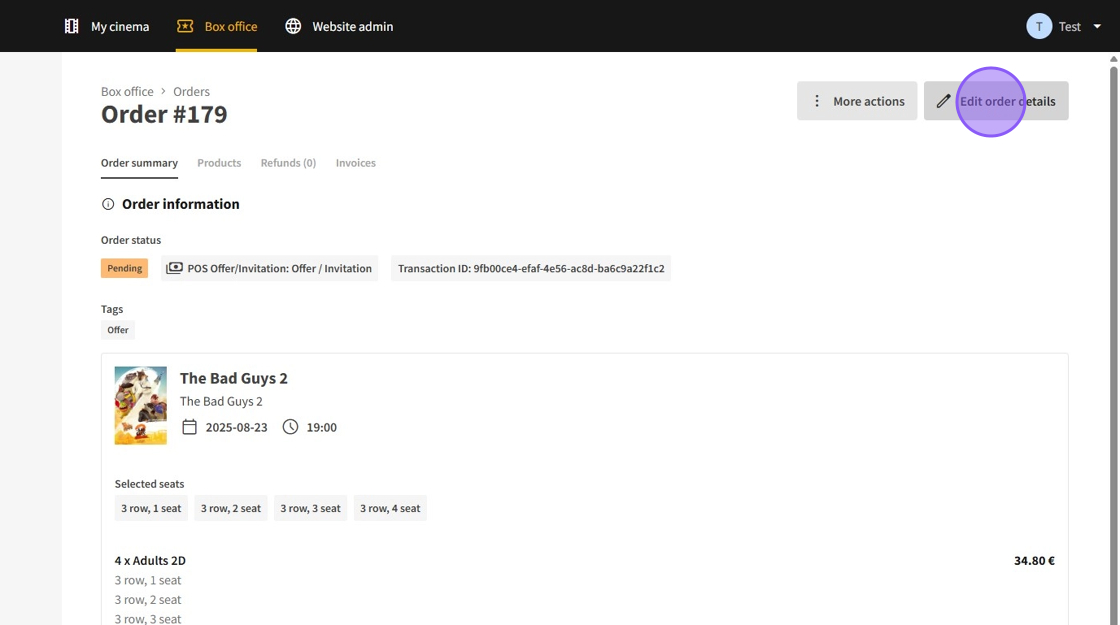
9.Here, you can update customer details such as email, phone number, first name, last name, or adjust the order status using the dropdown menu.
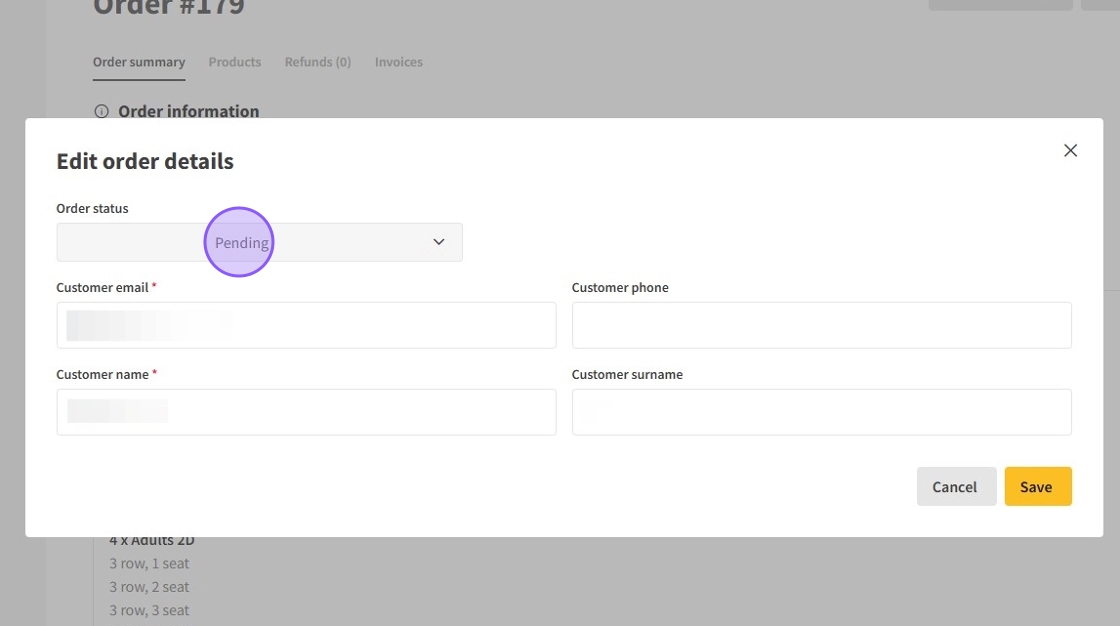
10.The dropdown menu options will vary based on the current order status.

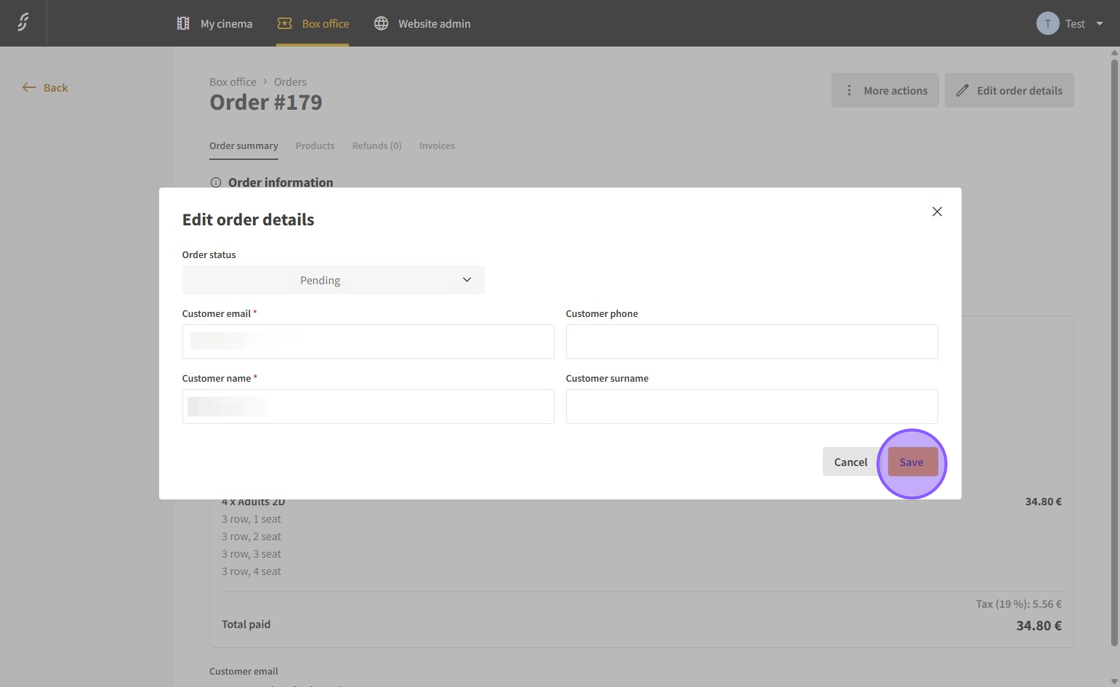
11.After making changes, click Save to apply the updates.
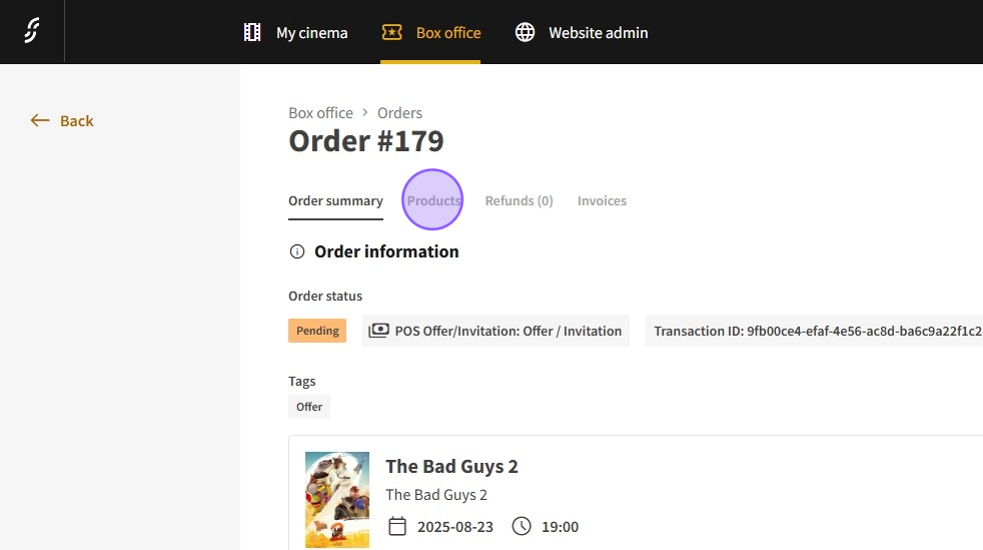
12.Additional order information, including individual products (and their files), refund details, and invoices, can be viewed in the respective tabs.
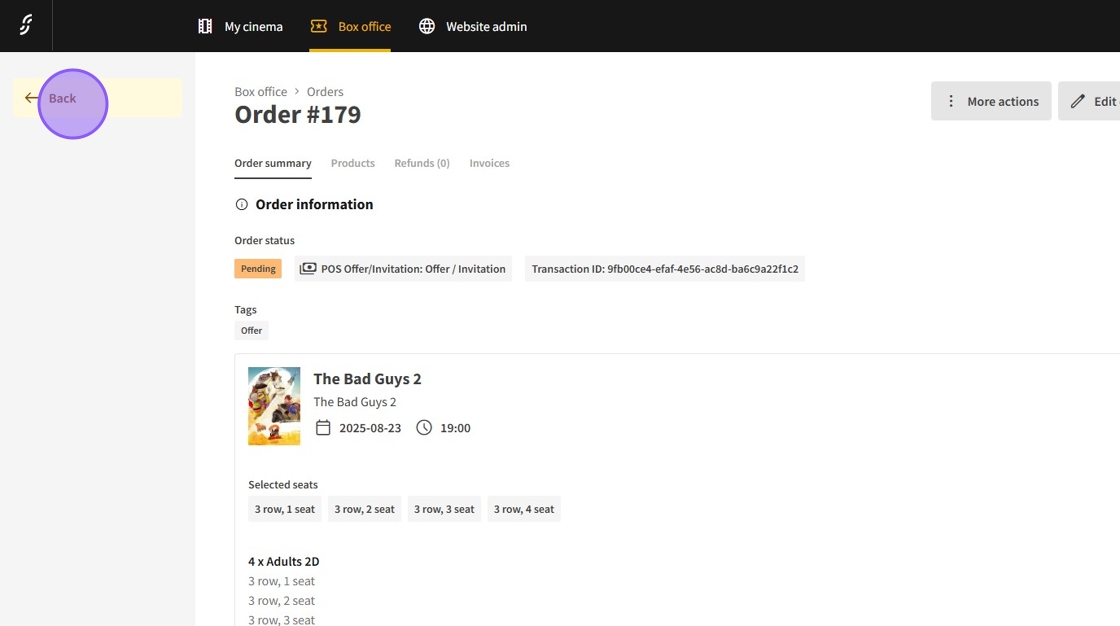
13.Return to the Orders page by clicking Back.
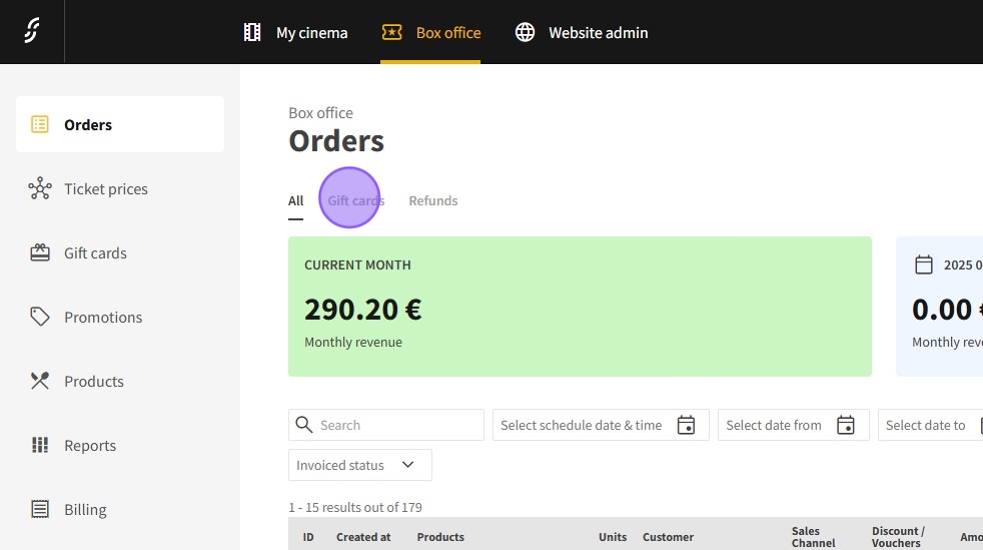
14.Use the filters located below the page title to display only Gift Cards or Refunds as needed.
15.In the Gift Card tab, extend the validity period by clicking the calendar icon next to the respective gift card.
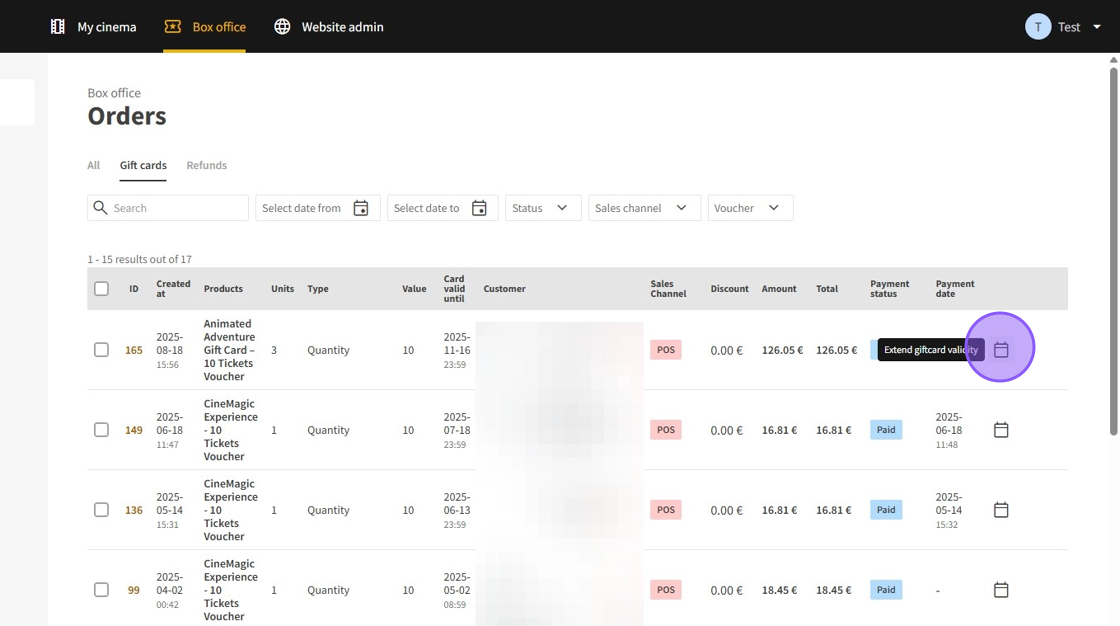
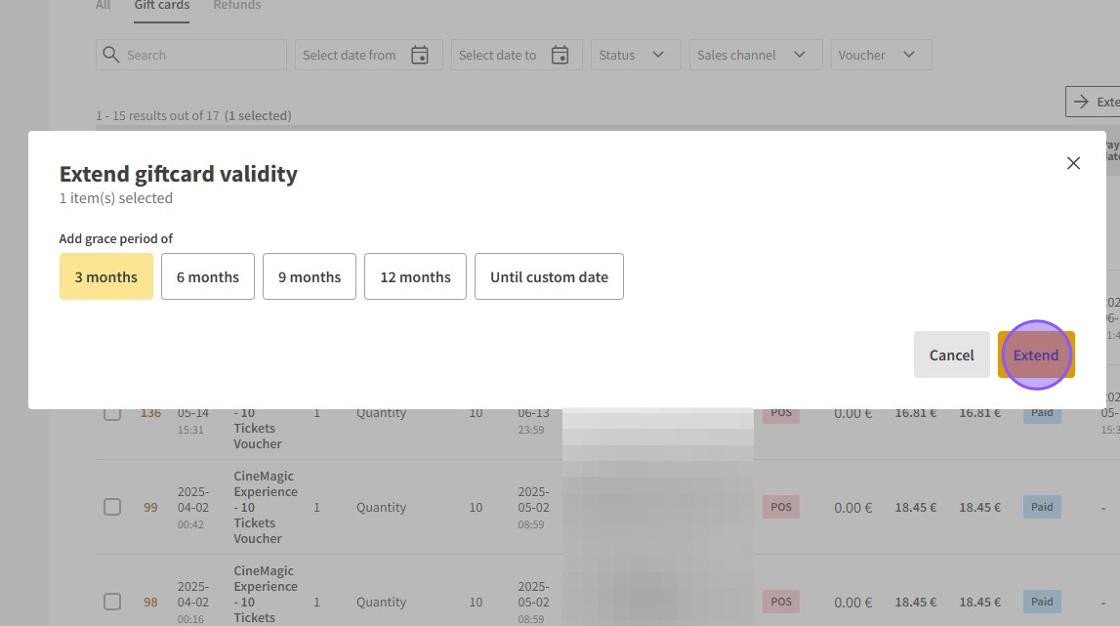
16.Select the desired extension period and confirm by clicking Extend.