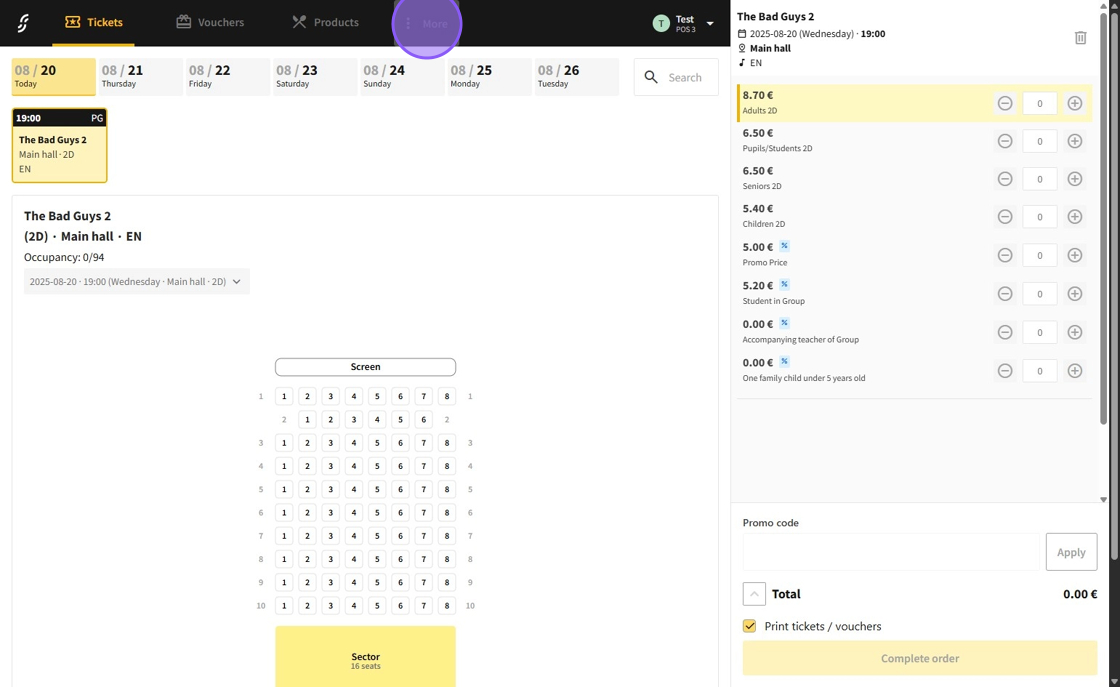
1.Go to the "More" section.
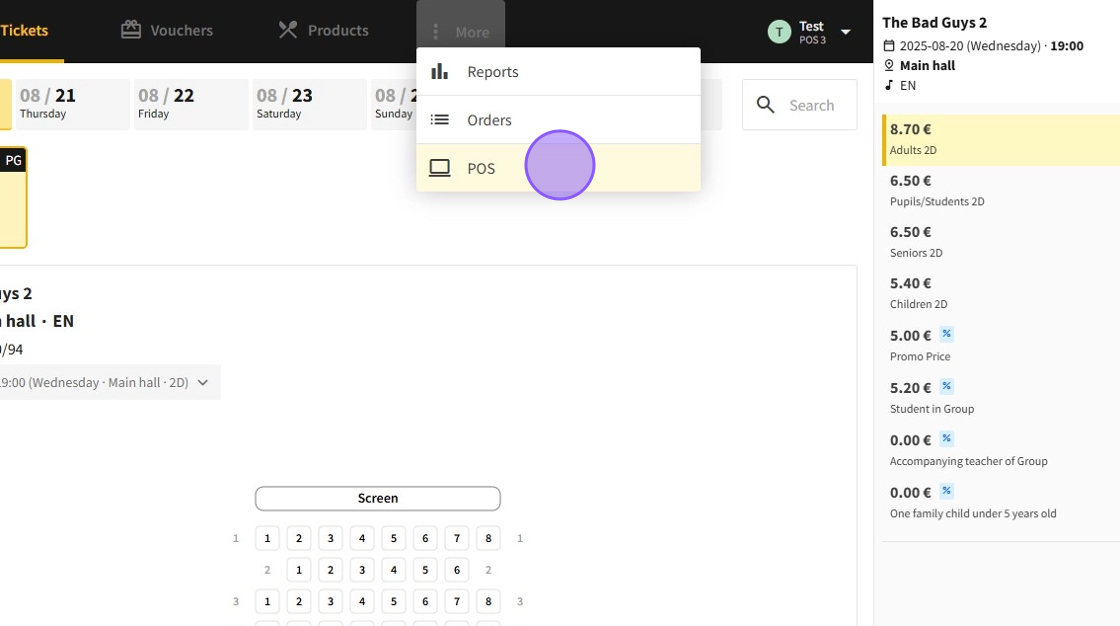
2.Next, select the "POS" page.
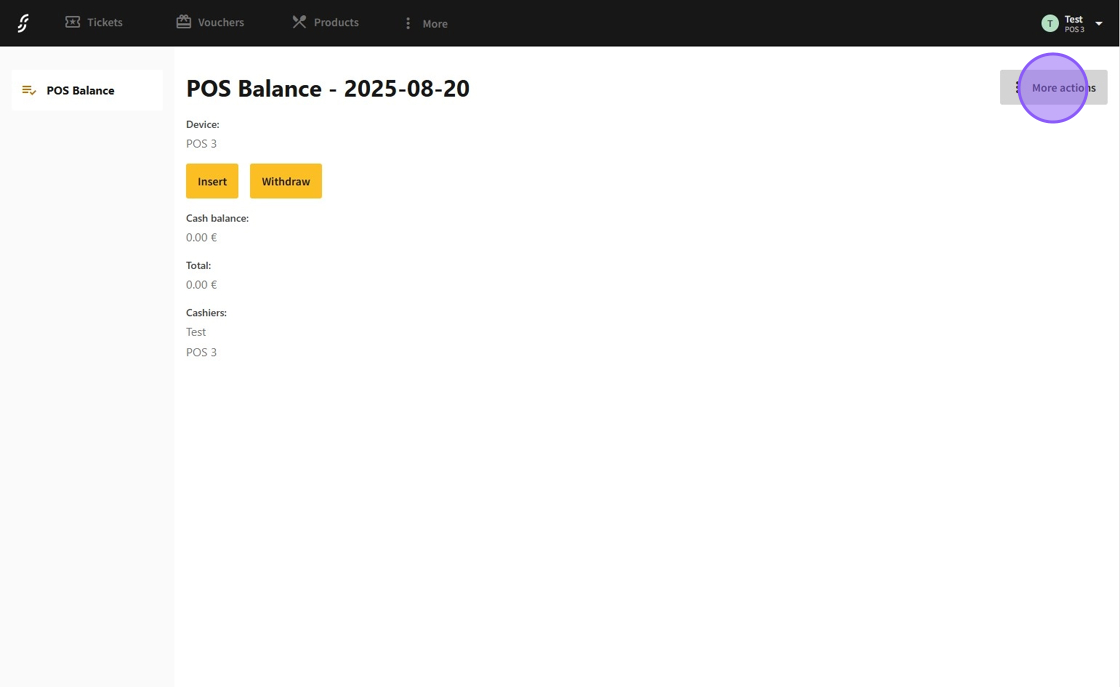
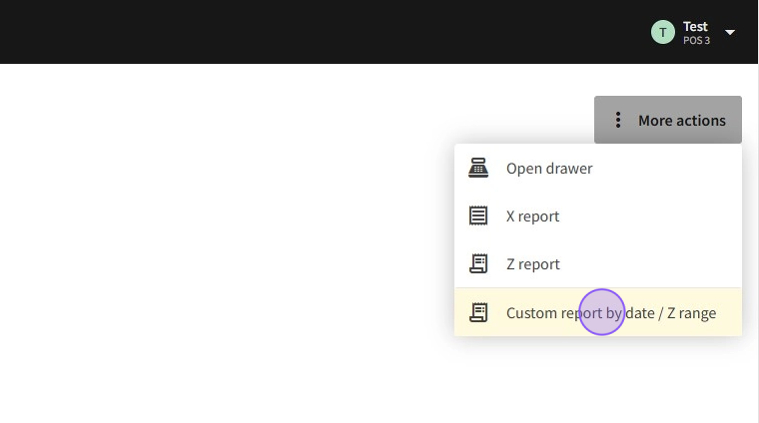
3.Click the "More actions" button to open the report options.
4.Choose "Custom report by date / Z range" to begin generating the report.
5.In the custom report menu:
Select whether the report will be ranged by date or by Z report numbers in the "Report type" section.
Insert the range values accordingly.
Choose if the report information should be "Standard" or "Detailed" in the "Mode" section.
After inputting all the settings, confirm by clicking the "Confirm" button.

Alert: Ensure the device's date format is set to YYYY-mm-dd to avoid any potential issues.
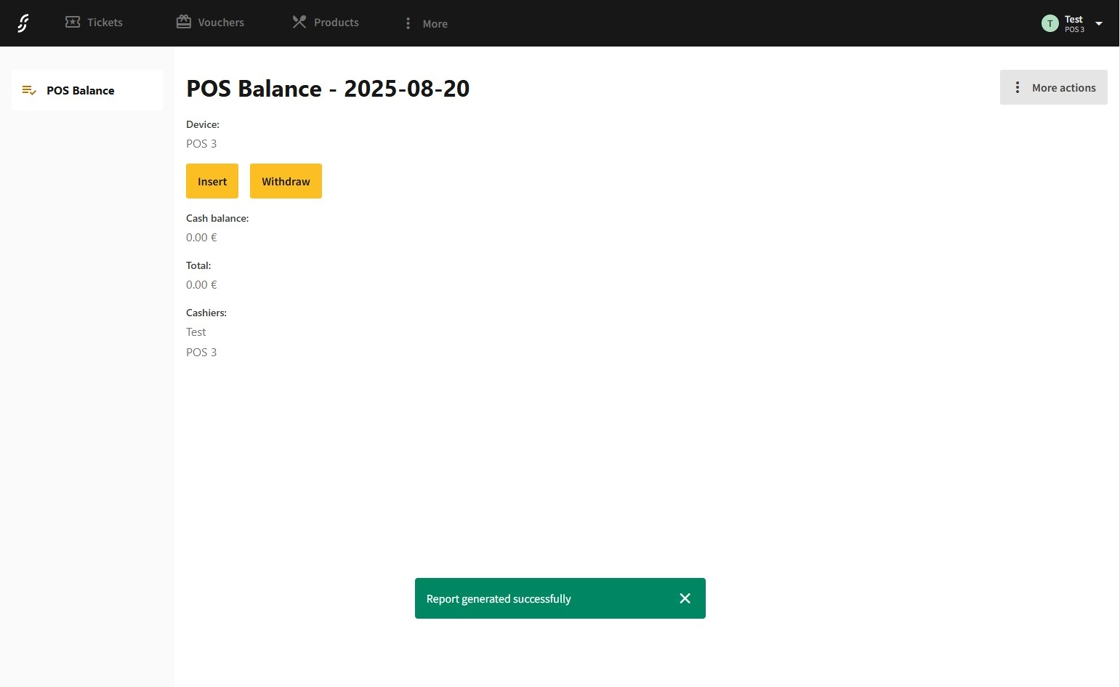
6.Wait a moment while the report is being generated.

7.Once the custom report is successfully generated, a receipt will be printed.