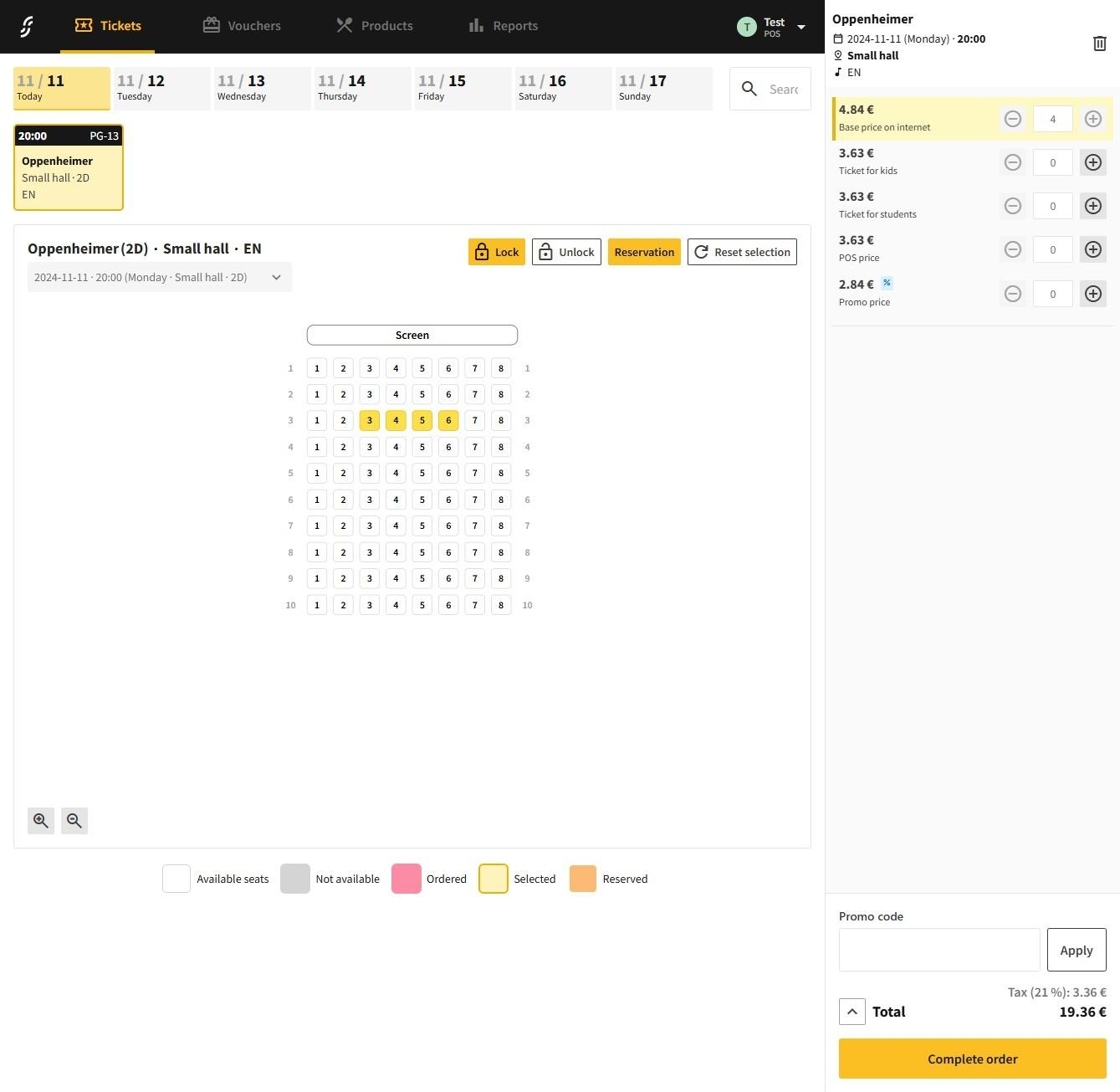
1.Be on the POS page.
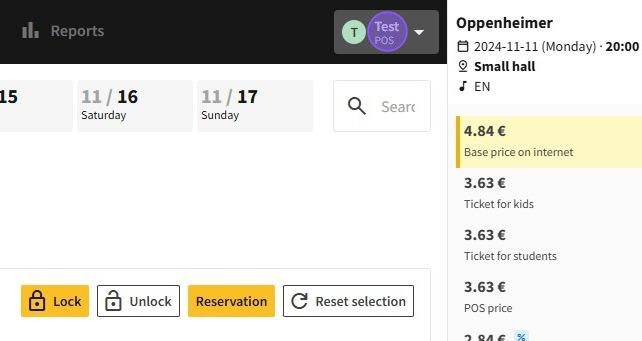
2.Click on the current account icon.
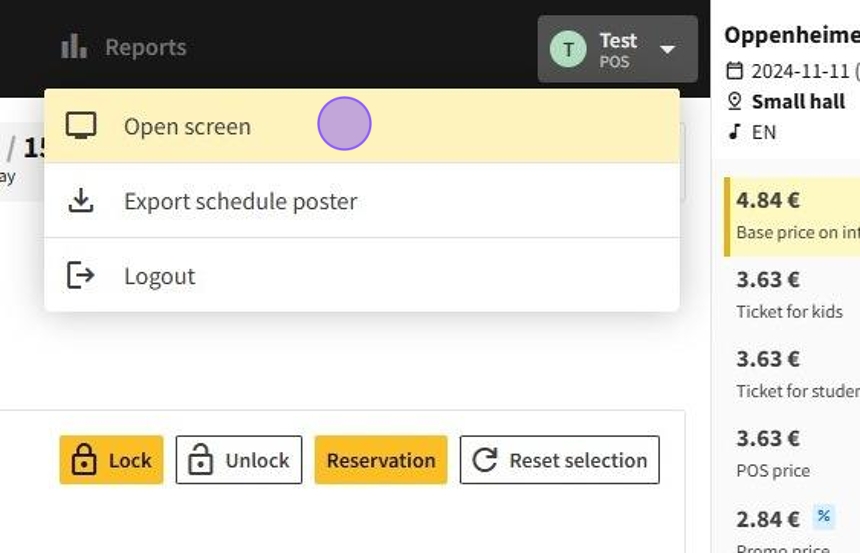
3.On the dropdown menu click on Open screen.
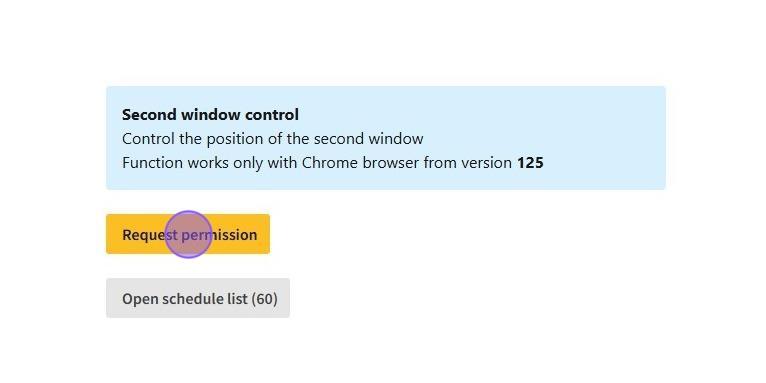
4.Click on Request permission to help manage the second window.
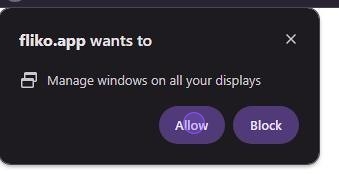
5.Confirm the permissions by clicking on the Allow button.
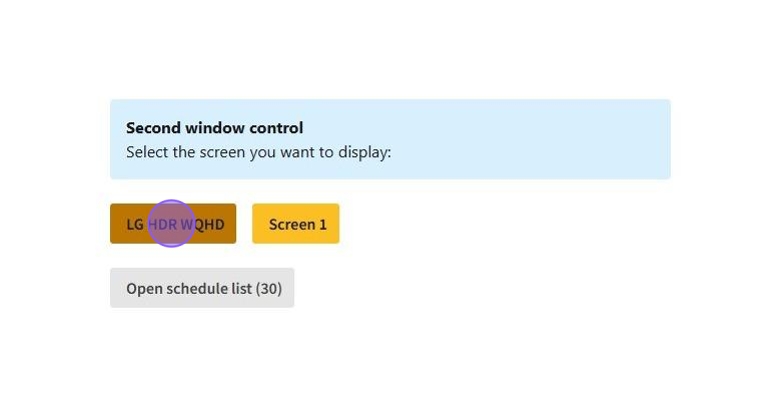
6.Select the screen on which you want to display the additional window.
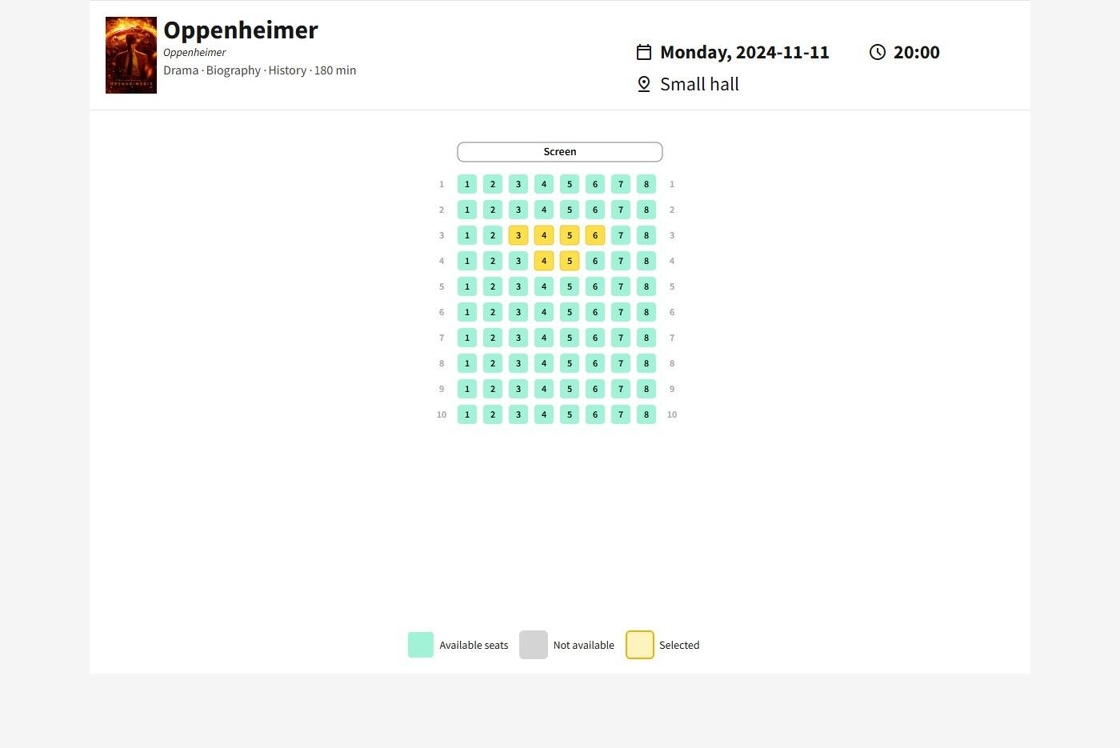
7.Once selected, the hall will now be displayed to customers in the second window.
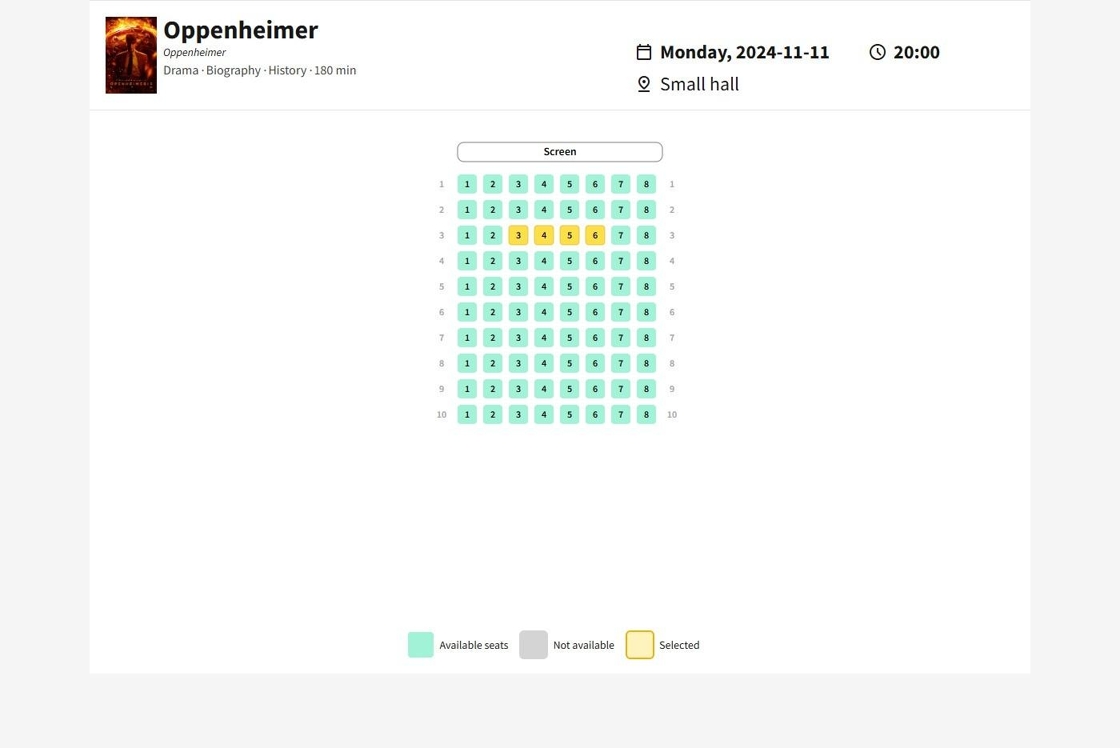
8.After opening the second window, you can go back to the main window and select a few seats in the window.
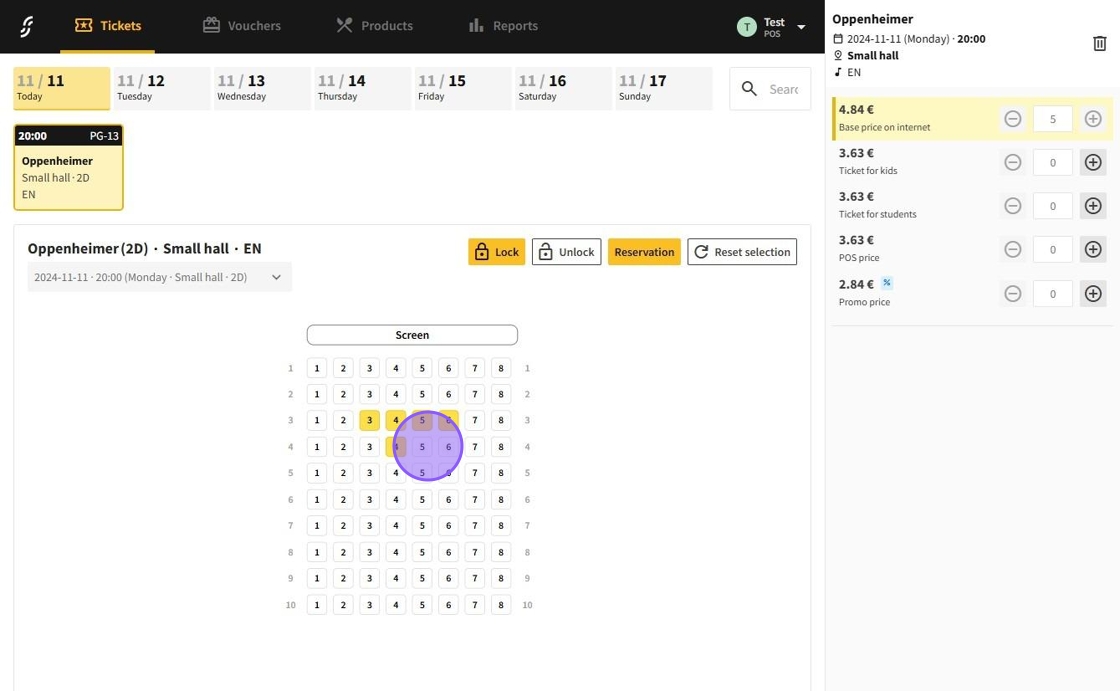
9.The second window will now also have the same seats selected as the main checkout window.