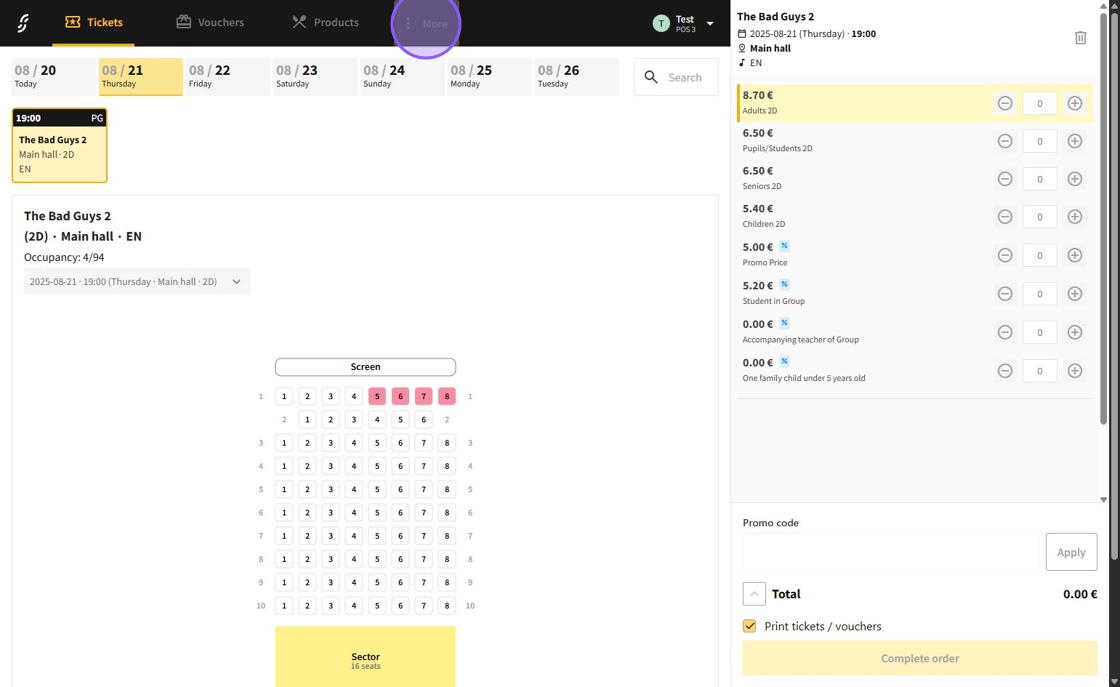
1.Navigate to the More section.
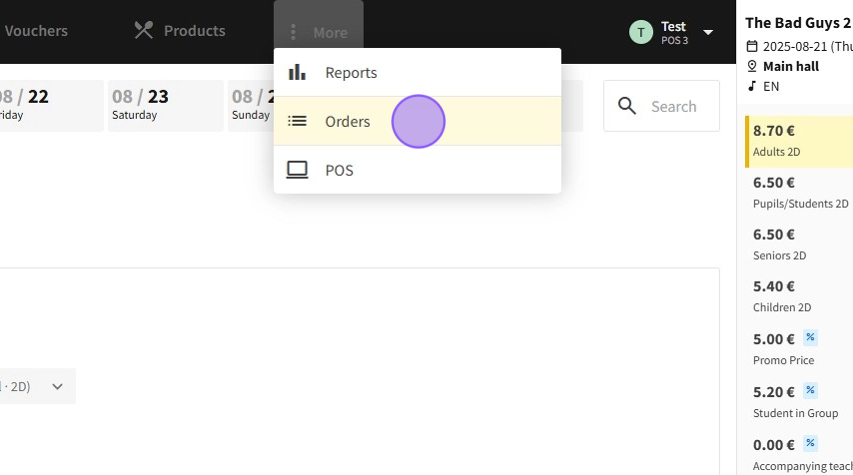
2.Select the Orders page.
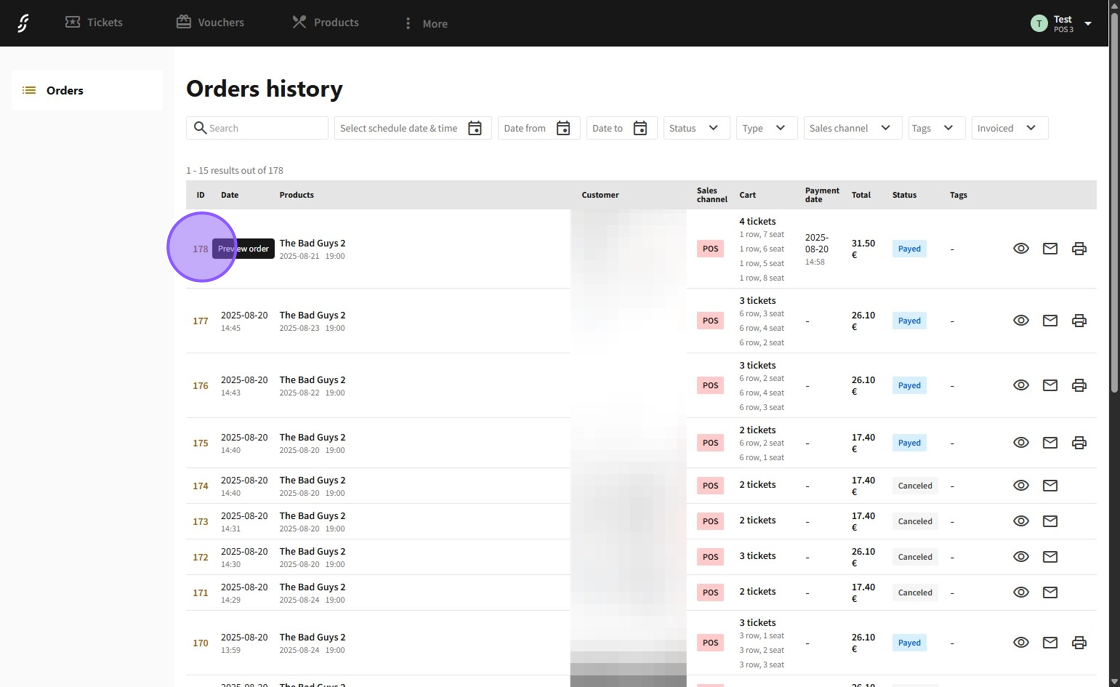
3.Choose an order by clicking on its order ID or the eye icon on the right.
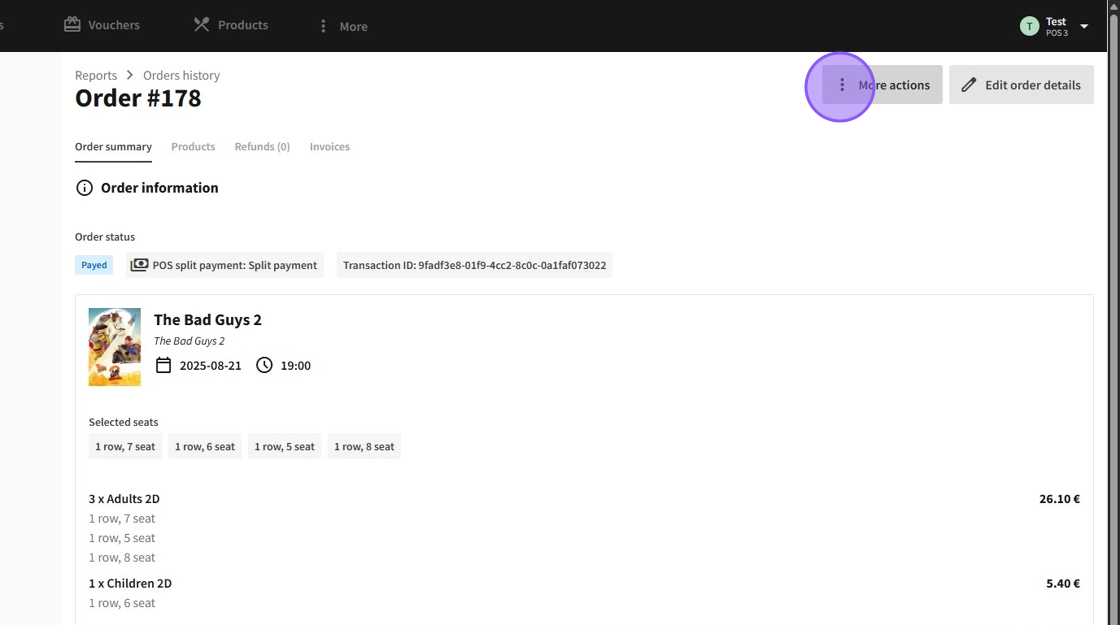
4.Click the More actions button.
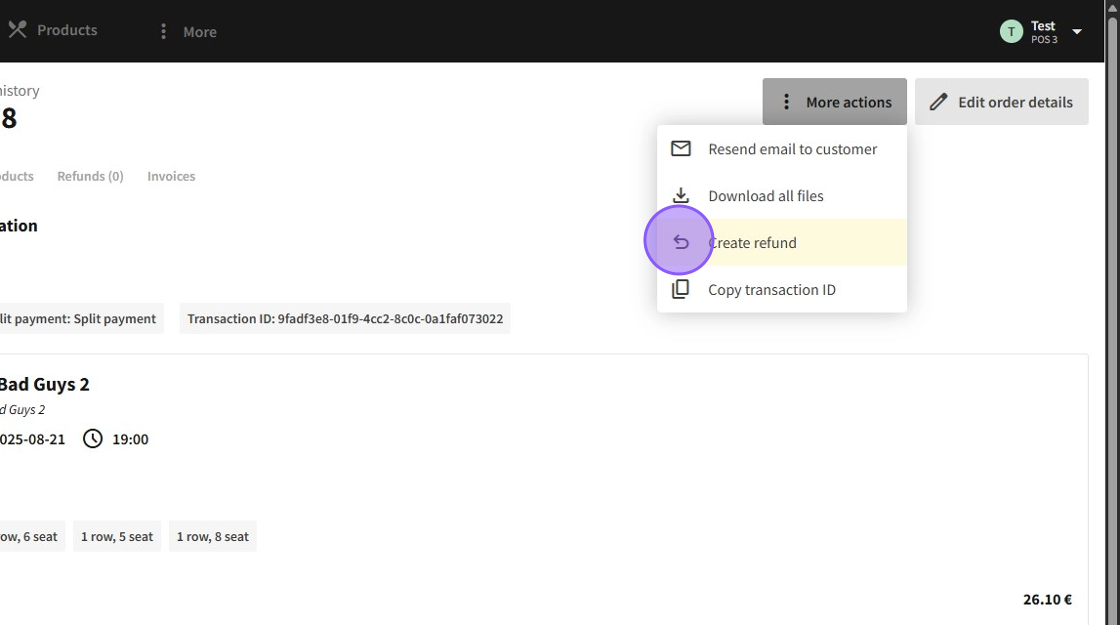
5.Select Create refund to initiate the refund process.
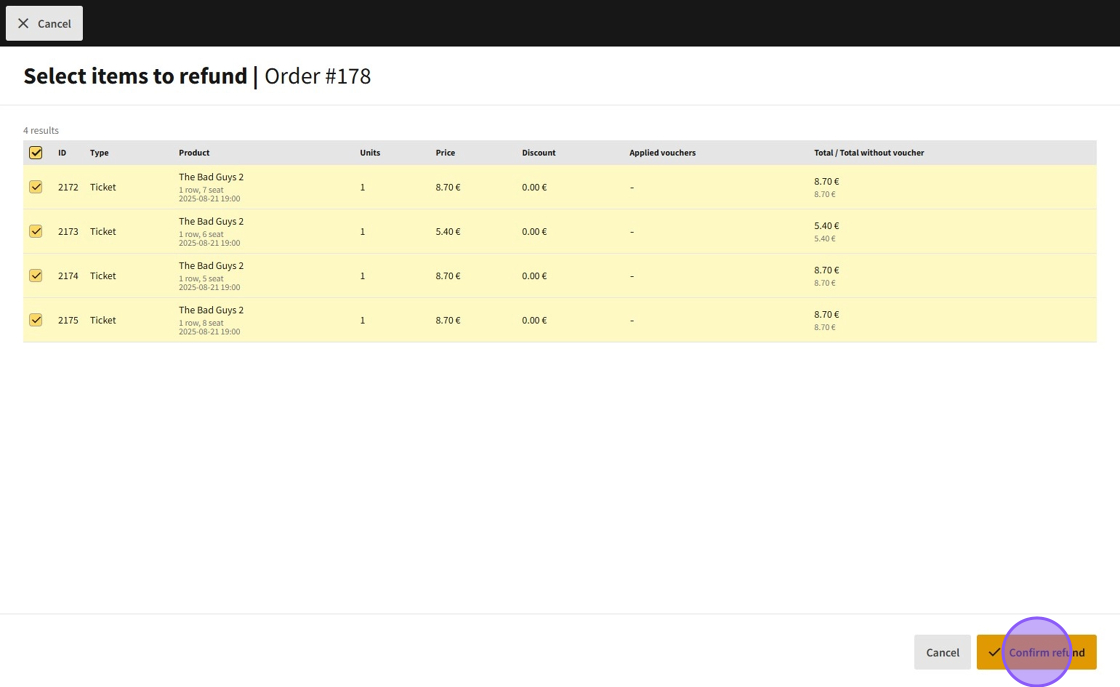
6.Check the items that require a refund.

7.Click Confirm refund to access the refund options menu.
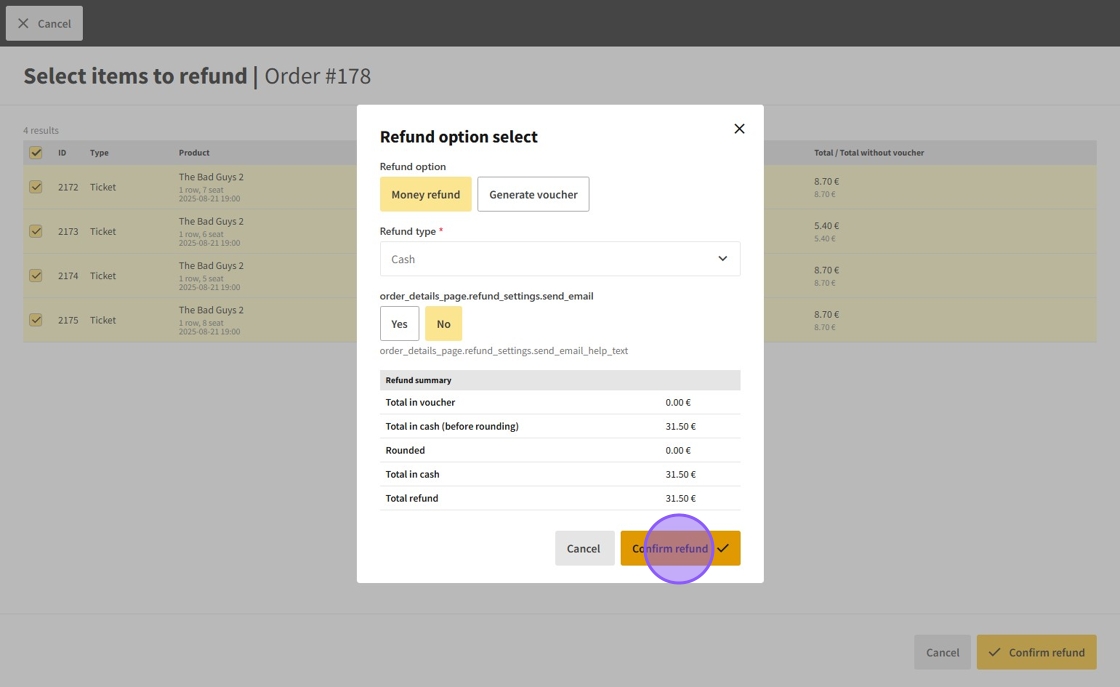
8.In the refund menu:
To refund money, select Money refund in the Refund option selection, then choose either Cash or Bank transfer in the Refund type dropdown.
To generate a voucher instead, select Generate voucher in the Refund option selection.
You can also choose whether the customer gets emailed about the refund.
At the bottom, you will see a summary about the refund amounts.
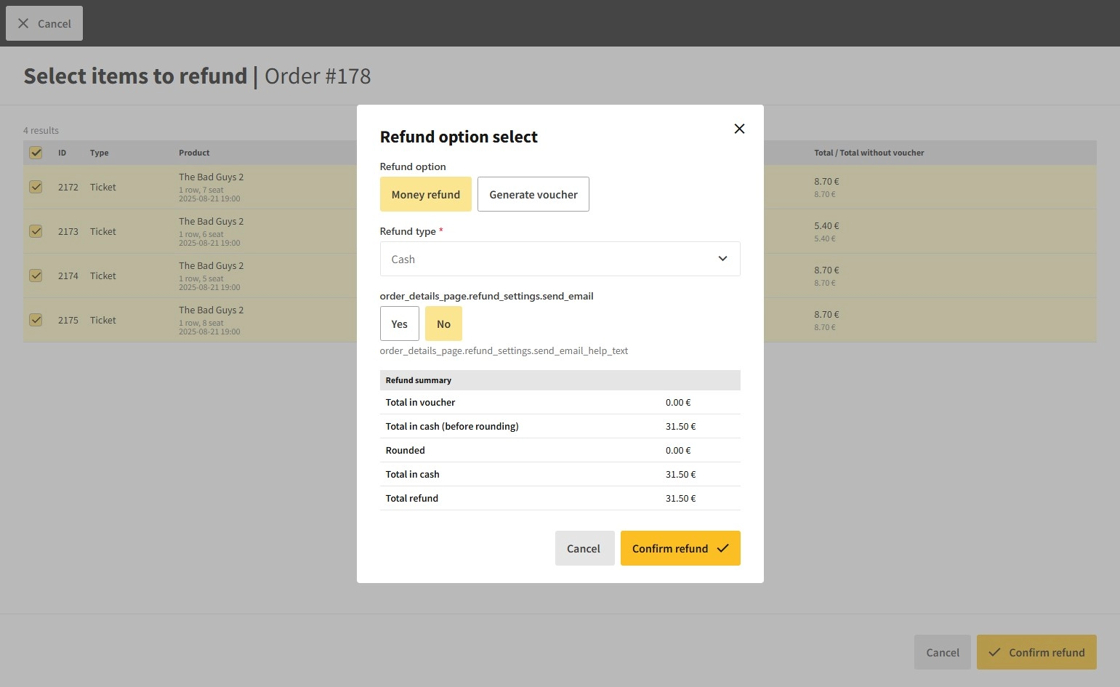
9.When done, click on Confirm refund once again.
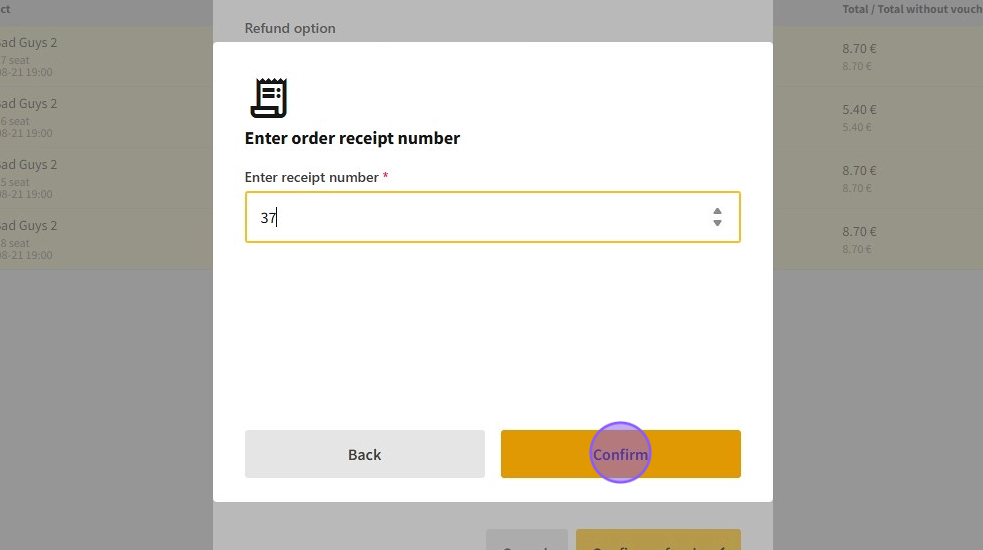
10.Input the order receipt number for the refund and finally click on Confirm to finalize the refund.
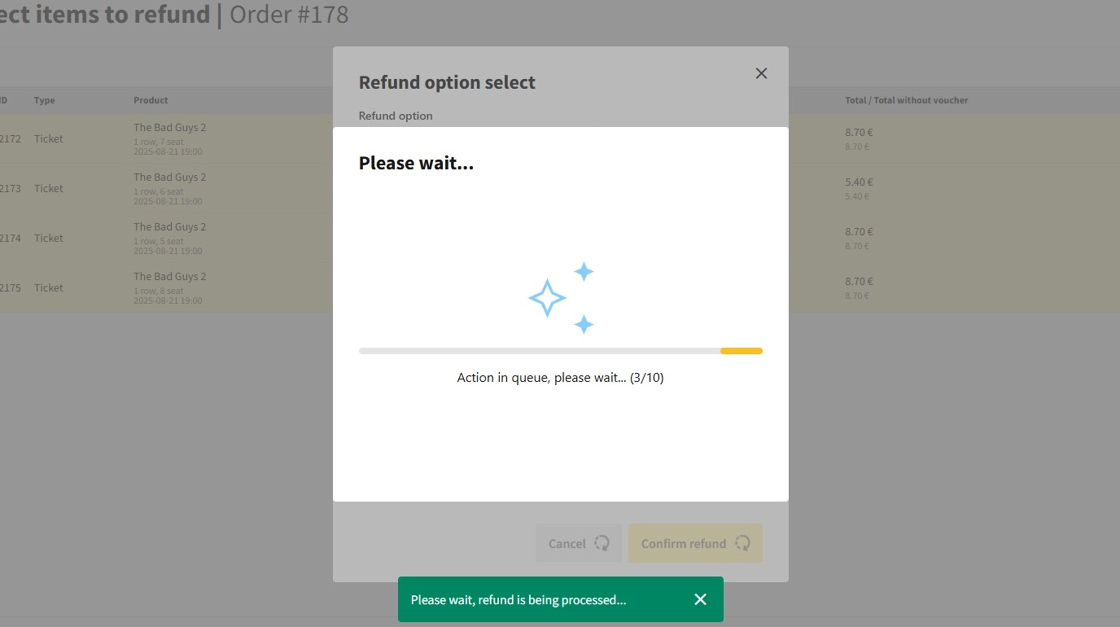
11.Wait for the refund to process.
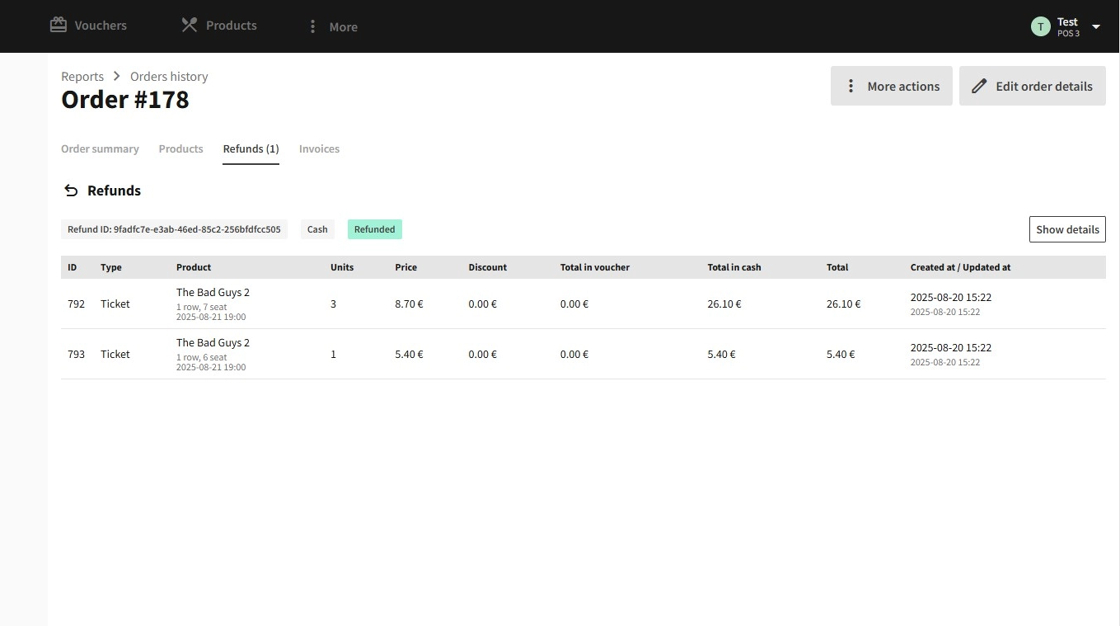
12.Once complete, you can view the refund info by opening the same order and navigating to the Refunds tab.
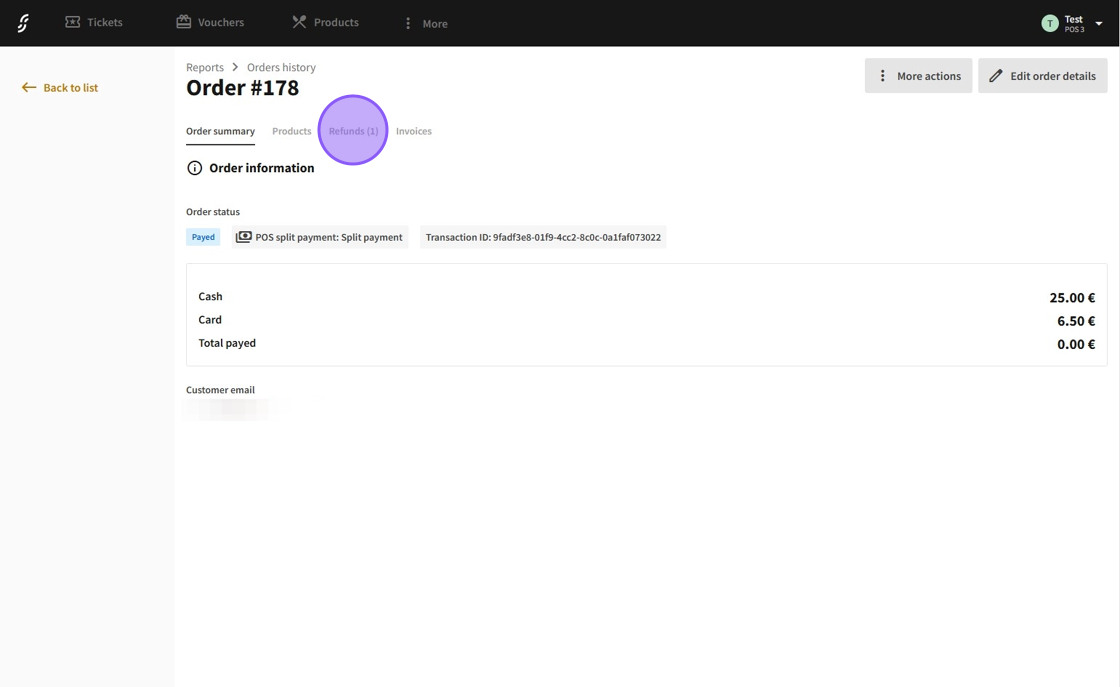
13.On this page, you will see details about the previously processed refunds.