
1. Enabling the Now Showing , Movies and Coming Soon pages is essential for keeping your audience informed about current and upcoming film offerings. Depending on your current website configuration, you might need to enable all or just some of these pages to enhance user experience.

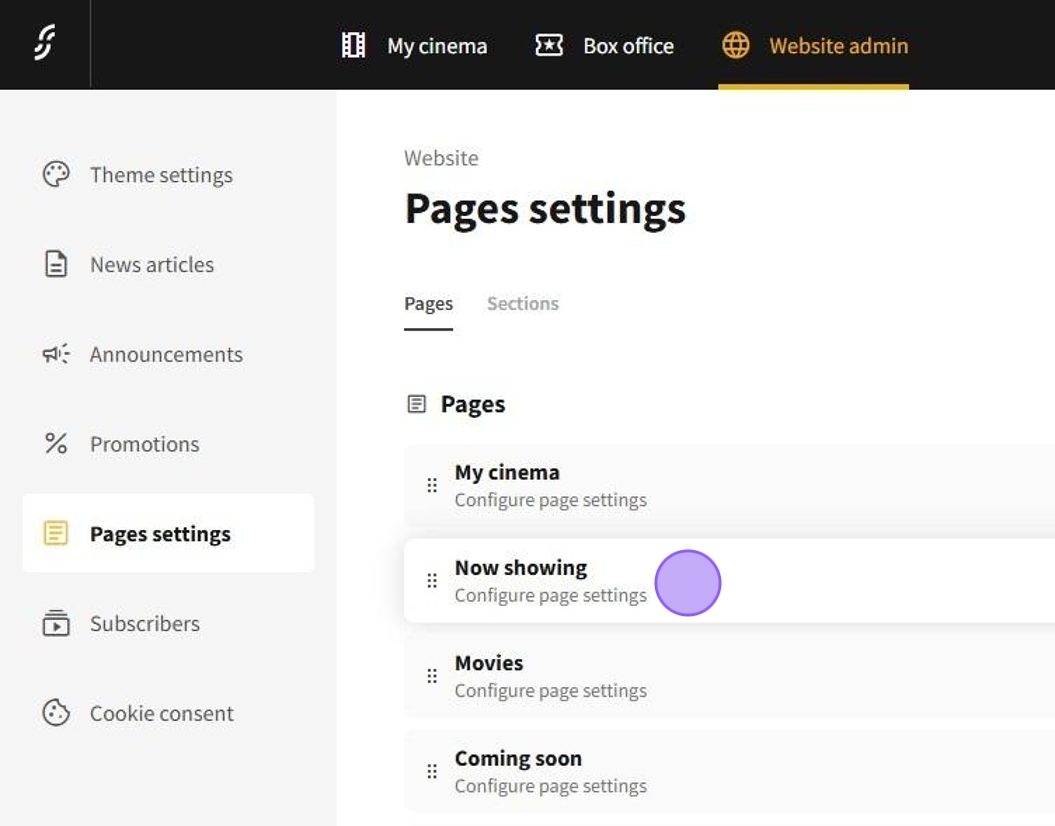
2. Start by navigating to the dashboard and selecting Website admin → Pages settings to access the page settings.
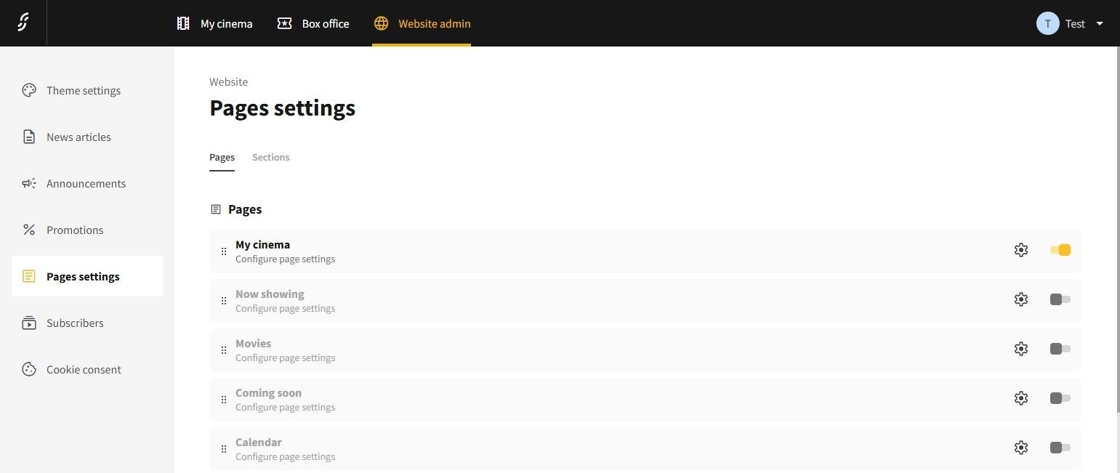
3. In the page settings, you can enable the Now showing , Movies and Coming soon pages by toggling the switches on the right side.
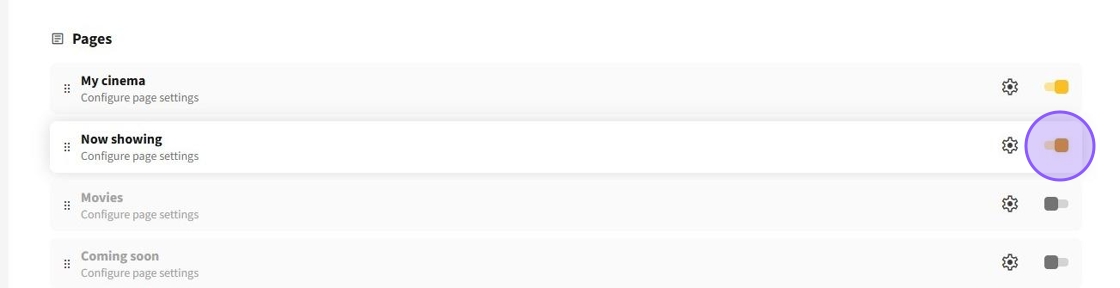
1. To enable the Now showing page, click on the toggle inside the right side of its tab.
2. Movies in the Now showing page are displayed if they meet the following:The movie is published Movies with outstanding screeningsEarly displaying: if there are screenings with preorder dates Are displayed before the premiere date or the last screening
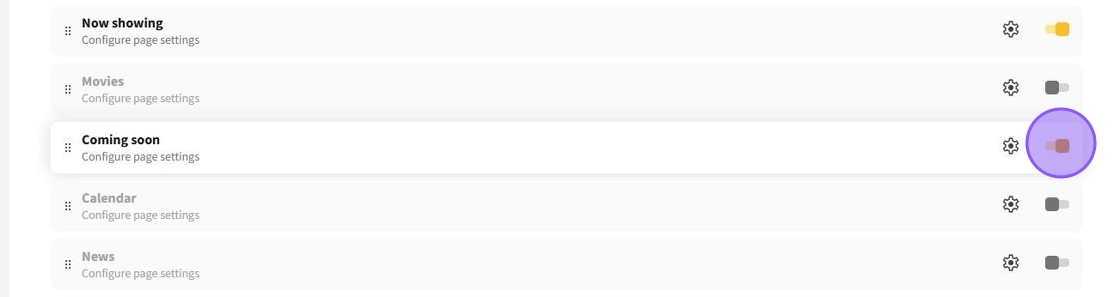
1. To enable the Coming soon page, click on the toggle inside the right side of its tab.
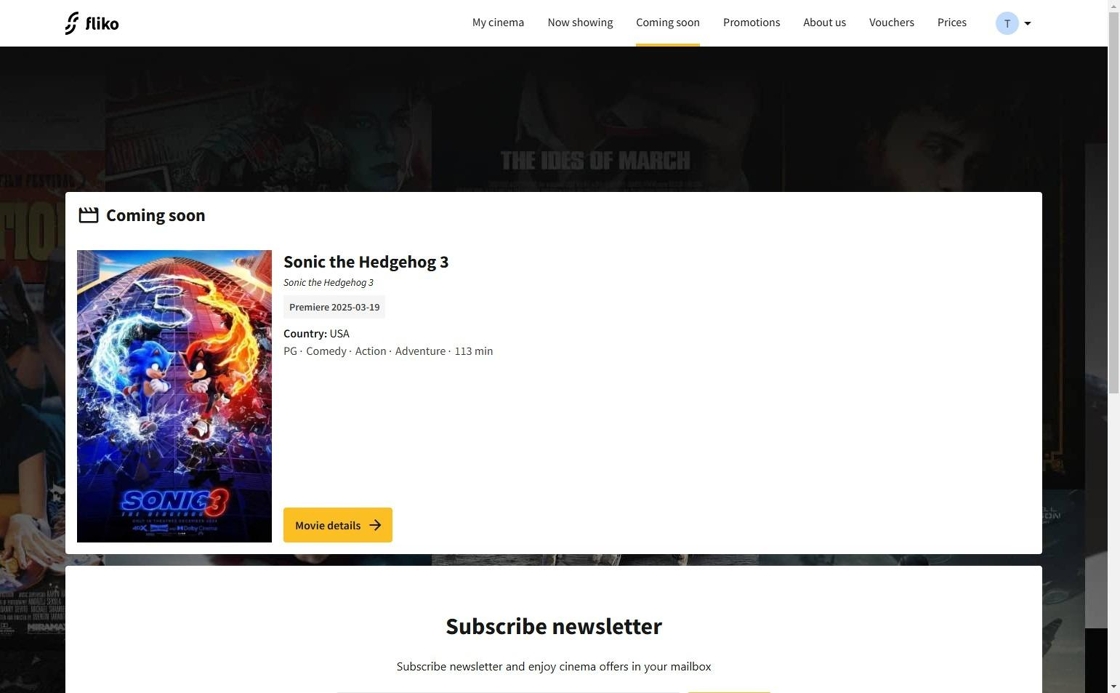
2. Movies in the Coming soon page are displayed if they meet the following:The movie is published Movies that have never had screenings Are displayed up to the premiere date or until the first screening is made
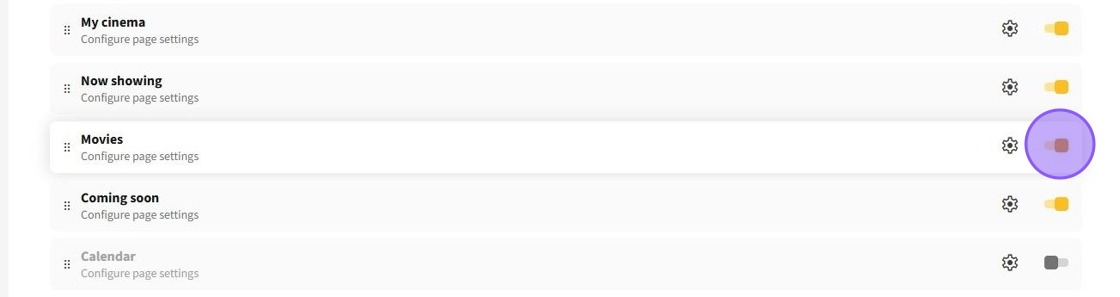
1. To enable the Movies page, click on the toggle inside the right side of its tab.
2. Movies in the Movies page are displayed if they meet the following:The movie is published (if publish_at is filled in) If the movie has screenings:Sessions must be in the published repertoire (e.g.: 7 days) Screenings have a pre-sale date The movie is displayed until: the premiere date or the last screening
1. If you enable these pages but they still don't appear in the header, they may be set to not display there.
2. Return to the page settings by going to Website admin → Pages settings and click on the page you want to show in the header.
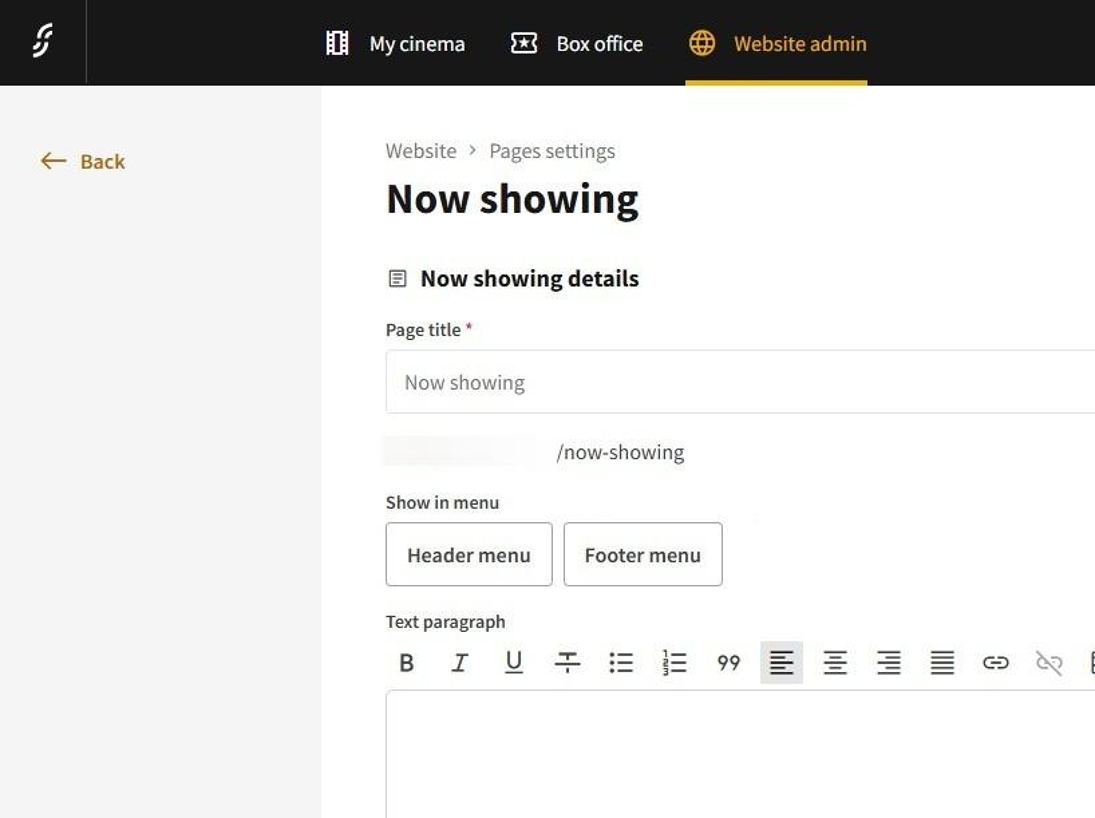
3. In the page settings, look for the Show in menu option. Here, you can choose whether the page's link will appear in the header and/or footer.
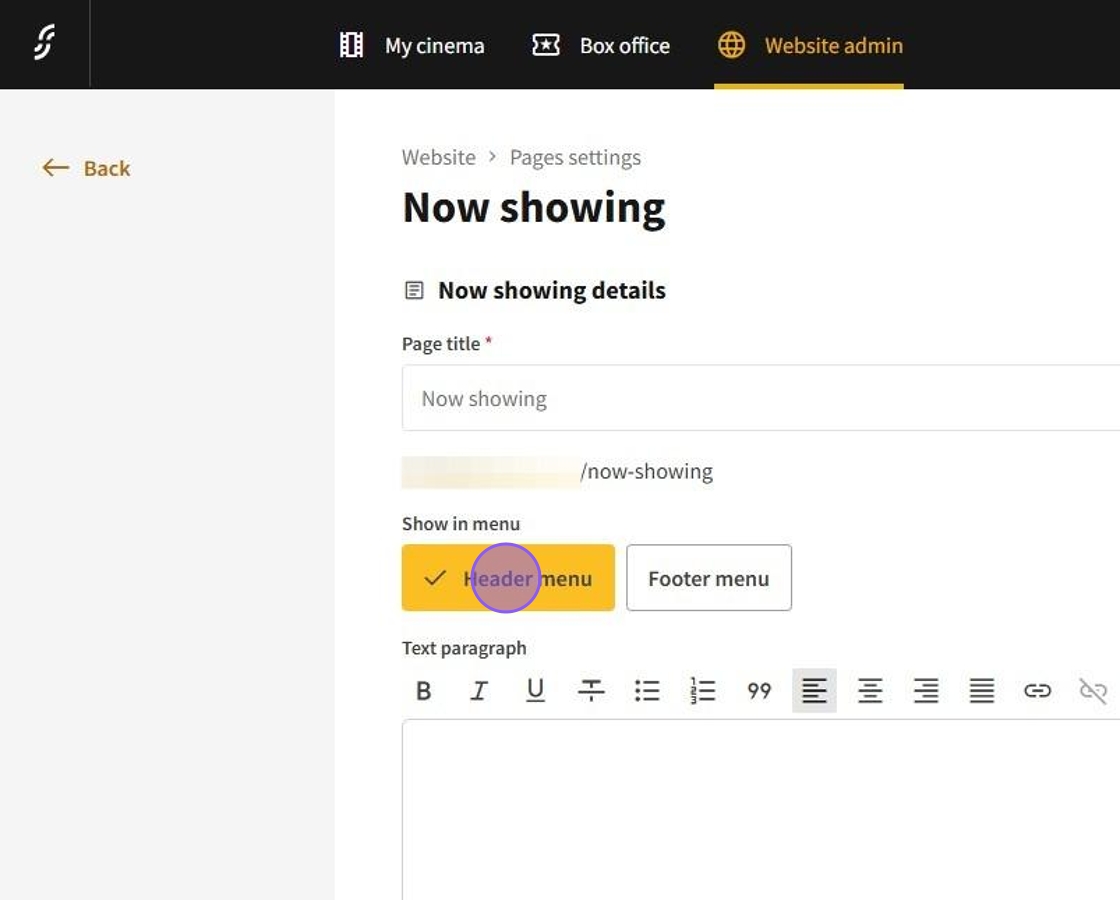
4. For this guide, select the Header menu button to display the page in the header.
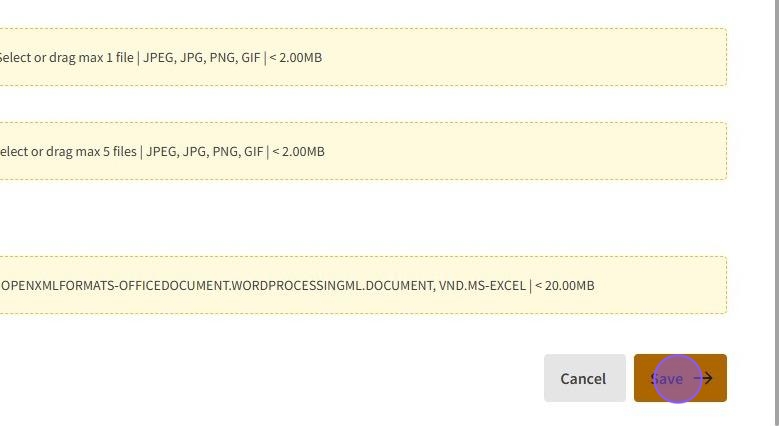
5. Scroll to the bottom of the settings and click Save to apply the changes and ensure the page appears in the header.
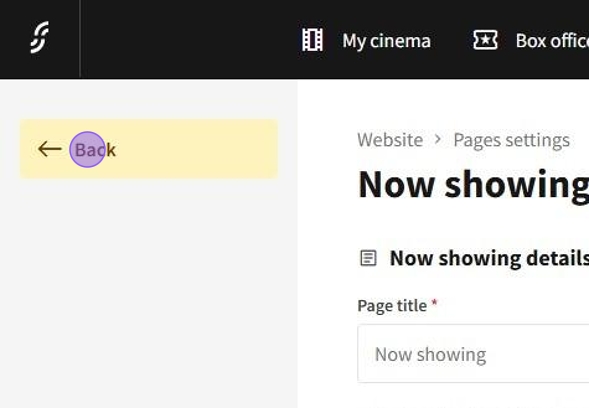
6. To return to the Pages settings page, simply click the back button located at the top left.